54
Creating Irrigation Schedules, continued
54
Manually Activating a Decoder
The MDC2 Controller allows you
to activate programmed decoders manually.
1. From the Main Operating Screen, select
Manual. The Manual label is highlighted and
you are asked to Select Program or Decoder.
The display also shows the number of Active
Decoders.
2. Select Dec.
3. Scroll through the list of programmed decoders.
Choose a decoder and select OK.
4. Use the up and down arrows to program how
long you want the decoder to be active and
select OK.
Note: The display now shows the number of Active
Dec., displaying only one at a time. The sprinkler
icon starts to “sprinkle.”
5. Follow steps (2-4) to manually activate more
decoders.
6. Use the up and down arrows to scroll through
each Active Decoder.
Manually Stopping an Active Decoder
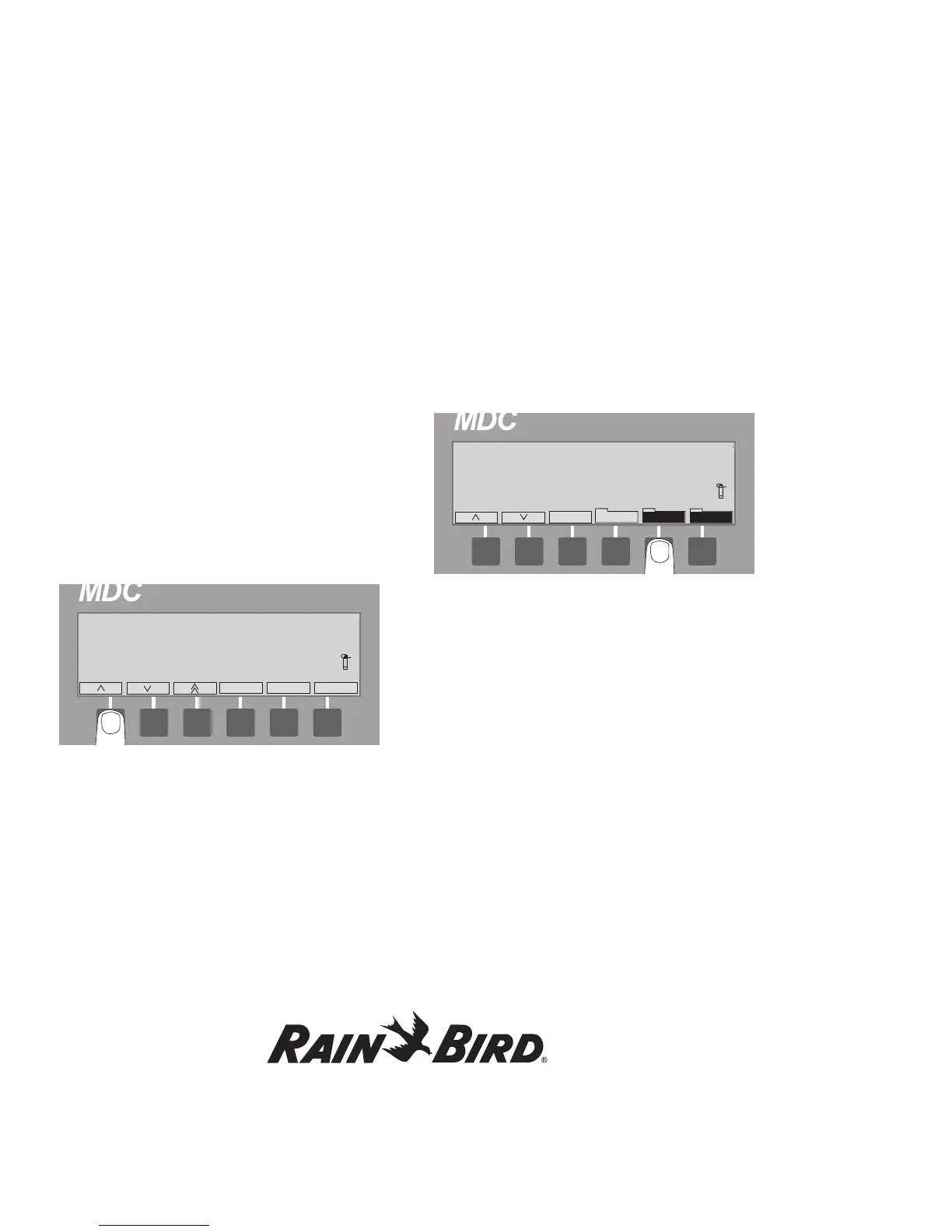
1. From the Active Decoder Screen, select Dec.
2. Scroll through the list of Active Decoders to
reach the one you want to stop and select the
minus(-) label. The Active Decoder Screen now
shows one less decoder.
3. Select Manual to stop all the manually
activated decoders and return to the Main
Operating Screen.
Note: Please note that you do not need to perform
Step 3. if your controller is in Auto mode.




 To Next Page