Creating Irrigation Schedules, continued
44
Deleting Steps
1. From the Main Operating Screen, select Sched.
then Step.
2. Scroll up or down to the Step(s) you want to
delete.
3. Move the marker to the Delete field and select
OK. The previous Step now shows on the
display screen and all the successive Steps move
back one.
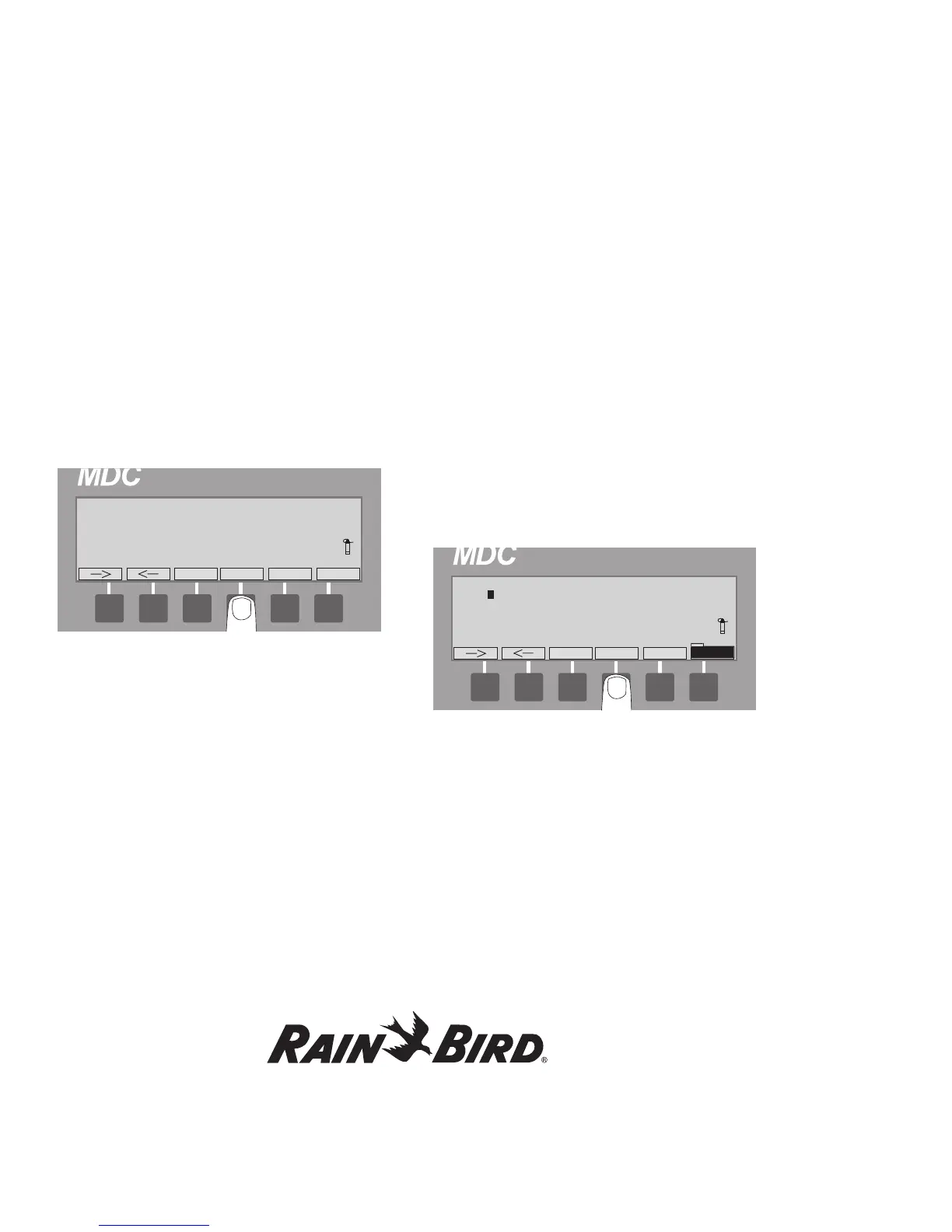
Note: Selecting the minus (-) label while in a
non-active Decoder field (indicated with right and
left arrow labels) or an active Minute’s field
(indicated with up and down arrow labels) deletes
the information you programmed into that field.
4. Select Step to return to the Schedule Set-up
Screen.
Selecting the Days
Each Program runs on a 14-day cycle. You can set
each individual Program (or Schedule) to run on
any day in the cycle. The programming repeats itself
after 14 days.
1. From the Main Operating Screen, scroll to the
Program you want.
2. Select Sched. then Day to activate the 14-day
Schedule. The blinking markers and box show
the field is active. The Day label is highlighted.
3. Move the blinking box to each day you want to
irrigate and select OK to schedule that day.
Example: If you want to irrigate every Monday,
Wednesday, Friday and Sunday, move the box to
those days in the 14-day Schedule and select the
days you want or delete the days you do not want to
include in the Schedule. Select the minus (-) labels
to delete days (not water on those days) or use the
right and left arrow labels to move to each day you
want to water and select OK to program those days.
4. When you are finished, select Day to return to
the Schedule Set-up Screen.











 To Next Page