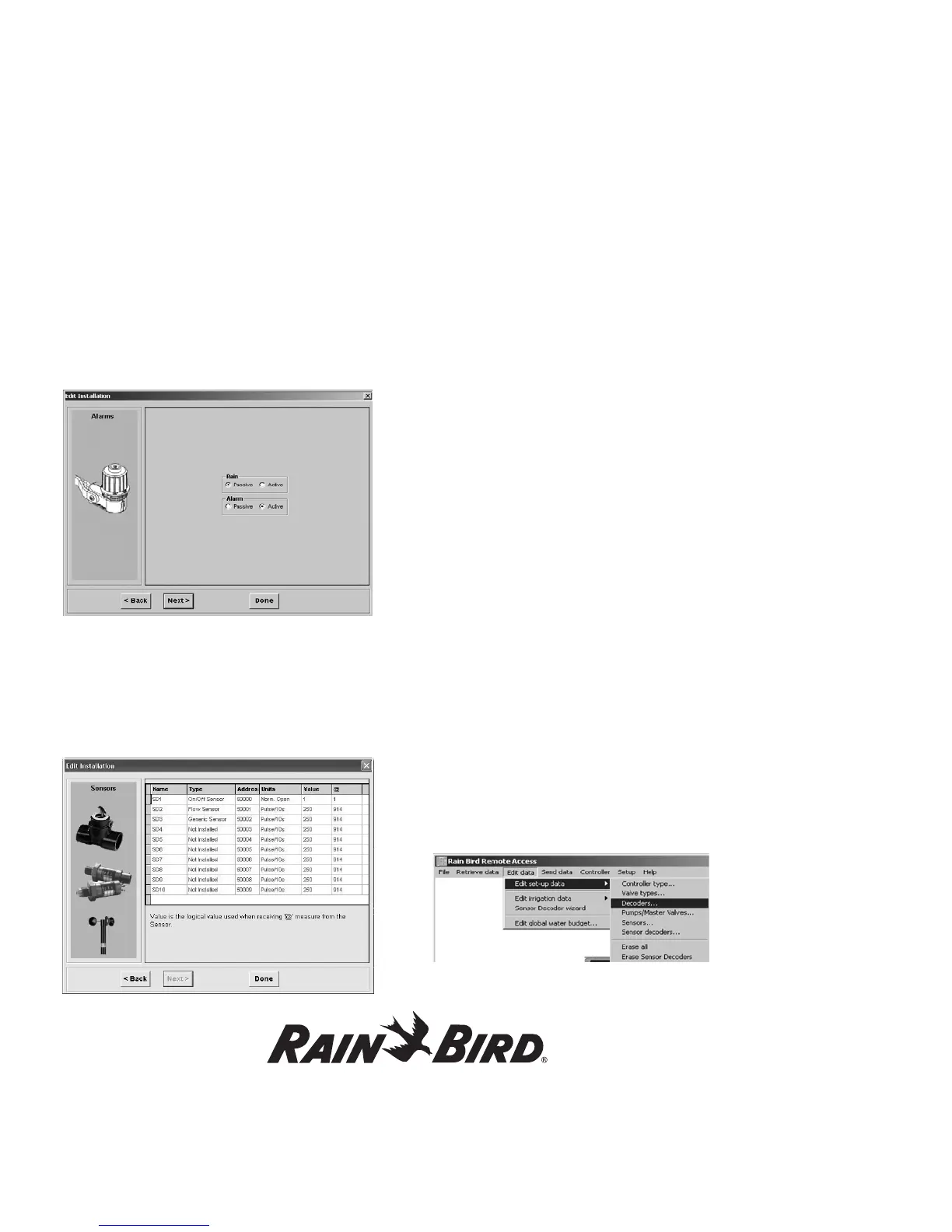
10. Edit information specific to each MDC decoder,
including Name, Address, Valve Type, Flow
Value and Description. Value lets you assign a
Flow Value that is used for SEUF calculation.
11. Hit Next to reach Alarms configuration
information.
12. Choose to make rain or alarm sensors passive or
active as necessary.
Note: The software will allow only one rain or alarm
sensor to be active.
13. Hit Next to reach Sensors configuration
information.
14. Edit information specific to each Sensor
Decoder, including Name, Type, Address,
Units, Value, and @ measure.
Note:
Digital (pulse output) flow sensors are
most common. Please see the manufacturers’
specifications to determine the sensor type,
maximum flow and sensor output.
Choose Pulse/
10s if your digital flow sensor uses a higher pulse
rate (30-200 pulses per second) and counts the
number of pulses in 10-second intervals. Choose
mA if you are using an analog flow sensor.
To establish a conversion ratio the controller uses
to calculate the flow, you only need to program the
(Value) flow output and sensor output. Rain Bird
®
recommends you enter the maximum flow, which
determines the pulse type.
15. Click Done when you complete your installation
set-up process.
Note: Edit Installation Wizard is particularly important
when you are setting up your MDC system for the first
time. It helps you go through the installation data and
guides you through the setup process making sure
all the possibly applicable components of your MDC
system are covered. However, anytime you need to
change setup information for a particular component
of your MDC system, you can directly jump into
the setup screen for that specific component. For
instance, Edit Data>Edit Set-up Data>Decoders,
as shown in the figure below, will take you to the
Decoders Edit Installation Screen.
Using the Controller with a PC, continued
64




 To Next Page