Programming and Operation, continued
31
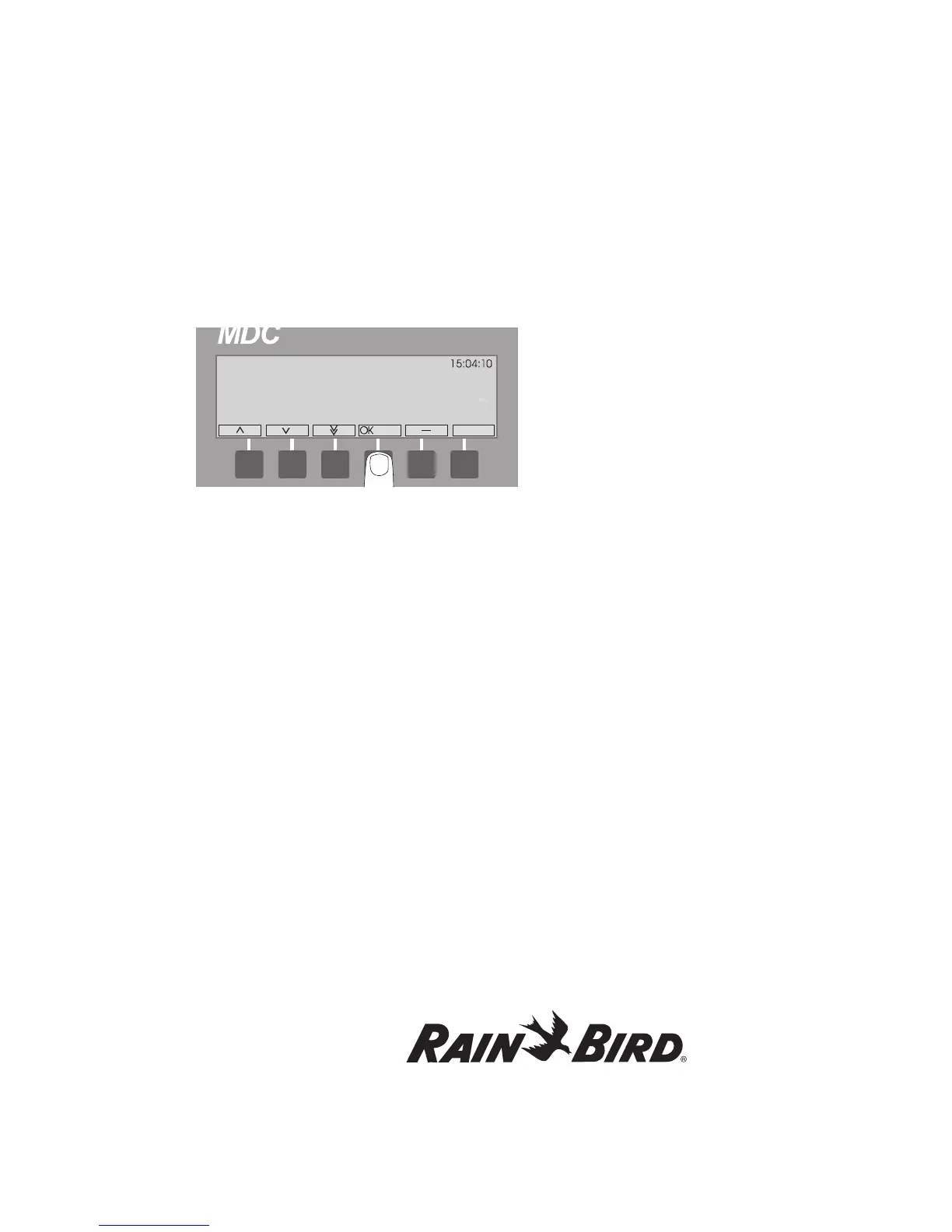
4. Select OK and the blinking markers are
positioned under Name.
5. Select OK to activate the Name field. Use the up
and down arrows to change the default decoder
name. Select OK to store the name.
You will notice that the up and down arrows
switch to the left and right arrows to facilitate
the navigation through the configuration
parameters.
6. Move the markers to the Type field and activate.
Use the up and down arrows to set the decoder
type and select OK to save it.
Note: For Flow Sensor Decoders, Flow Definition
allows you to program a Rain Bird
®
SD-210TURF
Sensor Decoder to the type of flow sensor your
system uses - either digital (pulse output) or analog
(4-20 milliamps). To establish a conversion ratio, the
controller uses to calculate the flow, you only need
to program the flow output and sensor output.
Rain Bird
®
recommends you enter the maximum
flow, which determines the pulse type.
Note: Digital (pulse output) flow sensors are
most common. Please see the manufacturers’
specifications to determine the sensor type,
maximum flow and sensor output.
7. Move the markers to the Address field and
activate. Use the up and down arrows to set the
decoder address and select OK to save it.
8. Move the markers to the @ field and activate.
Use the up and down arrows to set the @ value
and select OK to save it.
9. Move the markers to the Value field and
activate. Use the up and down arrows to set the
value and select OK to save it.
10. Move the markers to the Units field and activate.
Use the up and down arrows to choose the
units and select OK to save it.
Note: Choose Pulse/10s if your digital flow sensor
uses a higher pulse rate (30-200 pulses per second)
and counts the number of pulses in 10-second
intervals. Choose mA if you are using an analog flow
sensor.
11. Move the markers to the Sum field and activate.
Use the up and down arrows to choose either
Yes or No and select OK to save it.
Now, it is time to define the alarm conditions.
This feature allows you to set specific alarm
limits when the controller is in the Auto mode.
Once input from the sensor decoder goes
beyond the set limit (which can occur if a valve
opens to a broken pipe), the controller turns off
all active decoders, displays and logs an alarm.
Note: For Flow Control set as below condition
and alarms management the following should be
considered:
1. When the flow has a transition from a value above
the limit to below an alarm will trigger.
2. If no decoders are running for a period of time the
MDC will be in non-irrigation mode and thus look
for leak flow if set up to do so.




 To Next Page