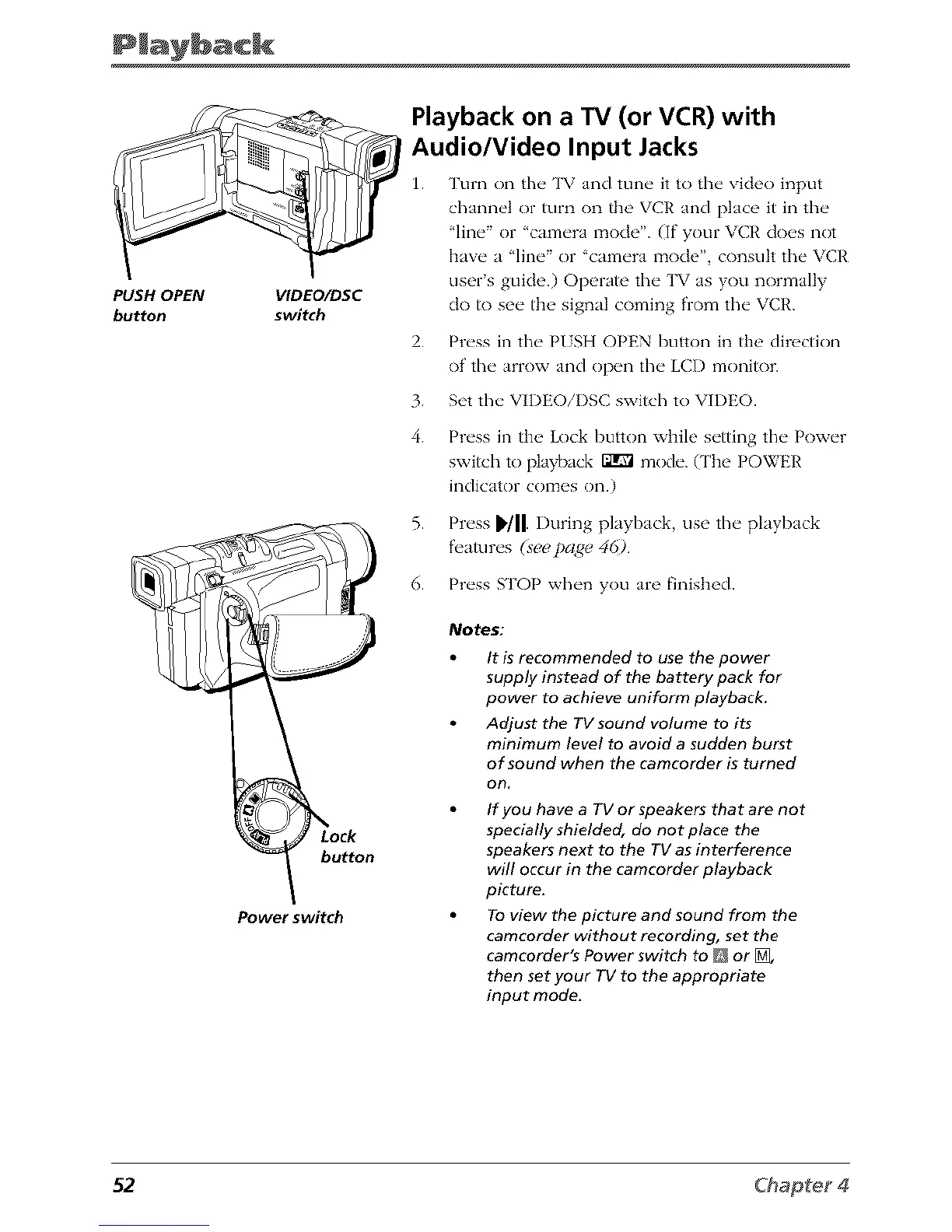
PUSH OPEN
button
VIDEO/DSC
switch
button
Power switch
Playback on a TV (or VCR) with
Audio/Video Input Jacks
I. Turn (m tI_" TV and mn_, it to the, video h_put
chann_'l or turn on th(' VCR and place it in the"
']in_" or 'cam_'ra mode". (If your VCR c|o_'s not
have" a ']in_" or 'cam_'ra mode" consuh fl_" VCR
users guide.) OpcraW fl_" TV as you normally
do to se_, fl_ signal coming from fl/_" VCR.
2.
3.
4.
5.
6.
Press in the P/SH OPEN button in the directkm
of' fl_e arrow and open file LCD monitor.
Set the VIDEOiI)SC switch to VIDEO.
Press in the Lock button while setting the Power
swish '_o playback _ mode. (The POWER
indica'_or comes on.)
Press D,/II.During playback, use the playback
fl'amres (see pa_e 46)
Press STOP when you are finished.
Notes:
It is recommended to use the power
supply instead of the battery pack for
power to achieve uniform playback.
Adjust the TV sound volume to its
minimum level to avoid a sudden burst
of sound when the camcorder is turned
on
If you have a TV or speakers that are not
specially shielded, do not place the
speakers next to the TV as interference
will Occur in the camcorder playback
picture.
To view the picture and sound from the
camcorder without recording, set the
camcorder's Power switch to _ or _,
then set your TV to the appropriate
input mode.
52



 To Next Page