Vie in@ anl @@ nl@alin@
Connecting to a Computer Using an Optional DV Cable
'Ik> transfbr your videos and still images that are on the tape to your PC or Macintosh, you
will need an optional I)V cable, a suitably equipped comput_,r with IEEEI394 connection
(also known as Firewire), a I)V card, and editing software equipped witt_ your computer
or commercially available software. Some newer computers are already equipped with
this connection.
Minimum Requirements
IEEE1394 Firewire compatible PC in_r_ce, DV car& and editing so,ware
IEEE1394 Fir_'wir_" cabh'
Note: YOucan order an IEEE!394 Firewire cable from the accessoriessection (see
page 129),
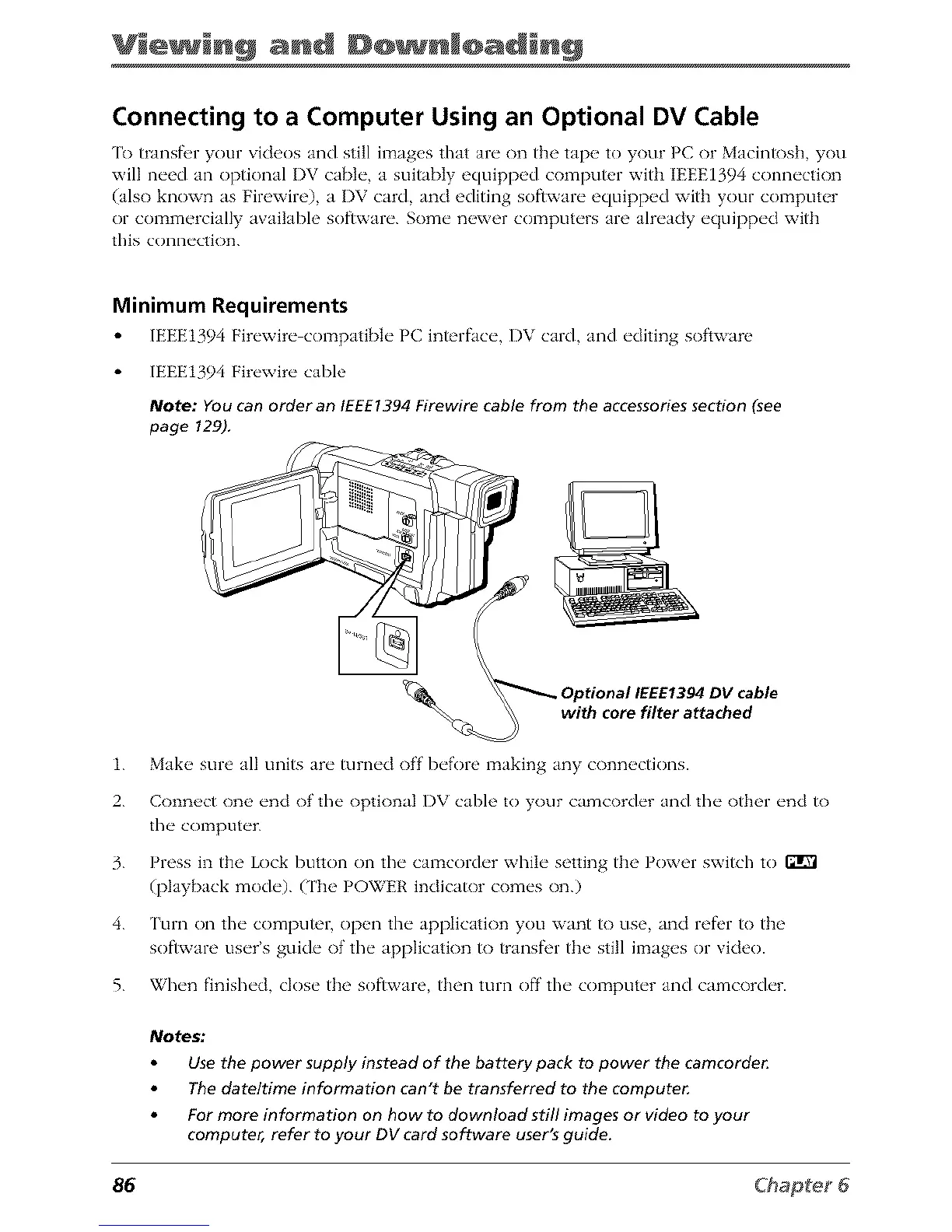
,nal IEEE1394 DV cable
with core filter attached
1. Make sure all units are turned off before making any connections.
2. Connect one end of tile optional DV cable to your camcorder and tile other end to
the computer.
3. Press in the Lock button on the camcorder while setting the Power switch to FJlrVl
(playback mode). (The POWER indicator comes on.)
4. Turn on the computeE open the application you want to use, and refbr to the
software user's guide of the application to transfbr the still images or video.
5. When finished, close the software, then turn off the computer and camcorder.
Notes:
Use the power supply instead of the battery pack to power the camcorde_
The date/time information can't be transferred to the compute_
For more information on how to download still images or video to your
computer, refer to your DV card software user's guide.
86



 To Next Page