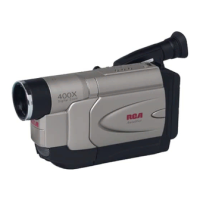
Di@i ai Still Camera
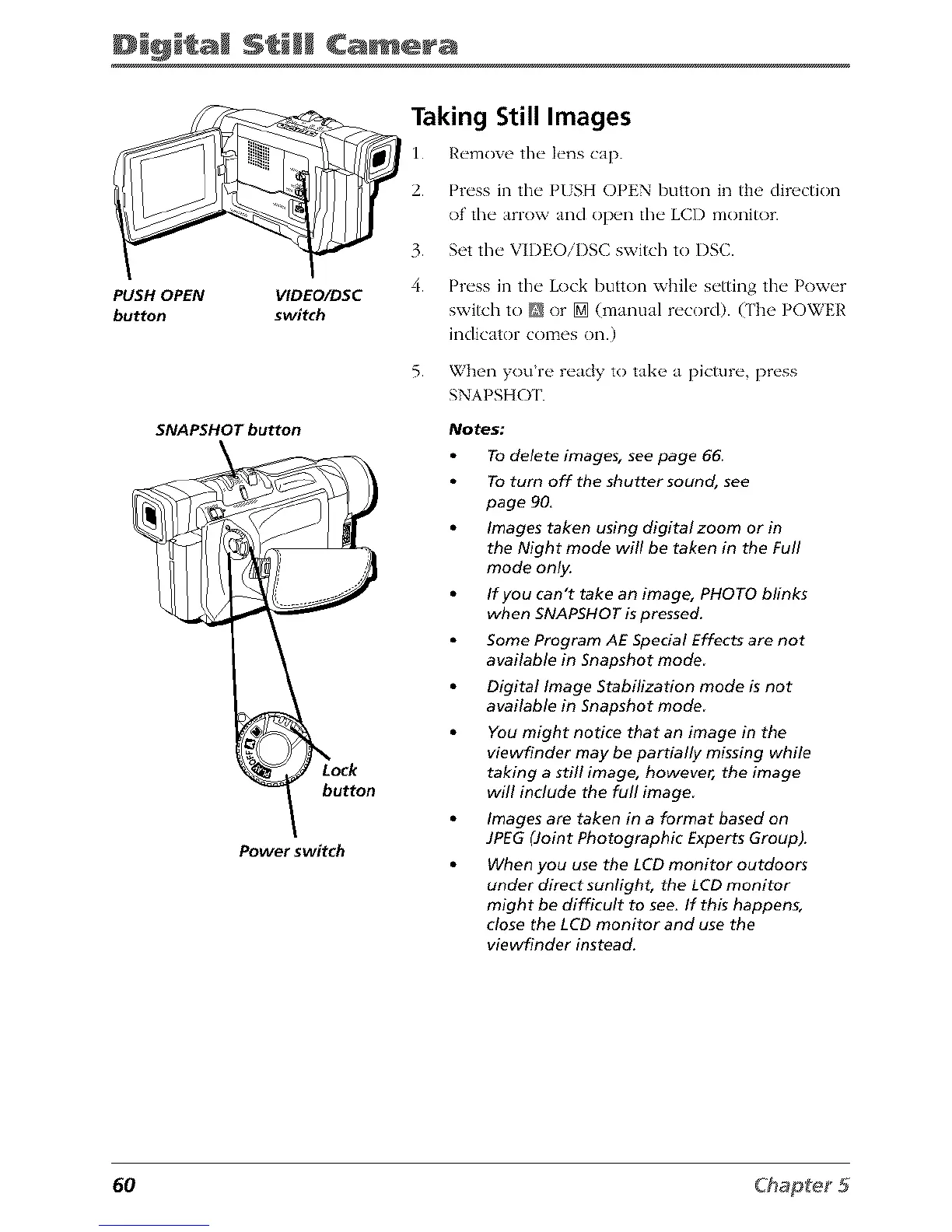
PUSH OPEN VIDEO/DSC
button switch
SNAPSHOT button
button
Power switch
Taking Still Images
1. R_,movc fl/_" l_'ns cap.
2. Press in tl_e P/SH OPEN button in the direction
of' tl_e arrow and open tile LCD monitor.
3. Set the VIDEOiI)SC switch to I)SC.
4. Press in tile Lock button while setting tile Power
switch to _ or [] (manual record). (The POWER
indicator comes on.)
5. When you're ready to take a picture, press
SNAPSHOT.
Notes:
To delete images, see page 66.
To turn off the shutter sound, see
page 90,
Images taken using digital zoom or in
the Night mode will be taken in the Full
mode only.
If you can't take an image, PHOTO blinks
when SNAPSHOT is pressed.
Some Program AE Special Effects are not
available in Snapshot mode
Digital Image Stabilization mode is not
available in Snapshot mode
You might notice that an image in the
viewfinder may be partially missing while
taking a still image, however, the image
will include the full image
Images are taken in a format based on
JPEG (Joint Photographic Experts Group).
When you use the L CD monitor outdoors
under direct sunlight, the LCD monitor
might be difficult to see. If this happens,
close the LCD monitor and use the
viewfinder instead.
60



 To Next Page