16
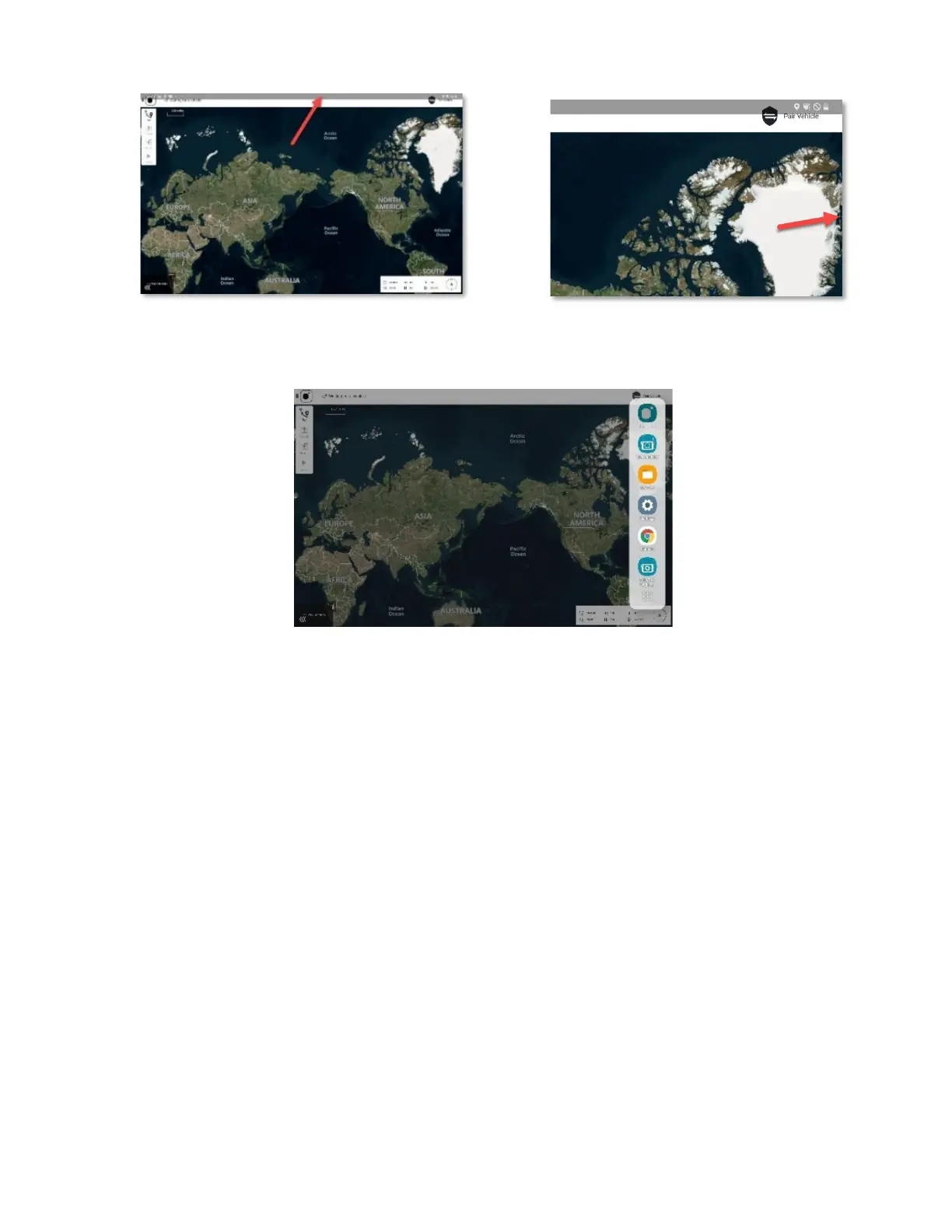
2. Tap and slide this gray side-bar menu tab to the left. A vertical sidebar menu opens
and shows the most recently used applications.
3. Tap the grid icon at the bottom right of the sidebar menu to see all available apps.
4. Tap the application to launch.
2.7 CONNECT TO WiFi FOR CORRECT TIME SYNC
Correct time is critical for accurate AV information.
To receive the correct time and date, connect the GCS to WiFi. Connect the GCS to WiFi
each time the GCS powers on for flight.
To connect to WiFi:
1. Power on the GCS.
2. When the lock screen appears, swipe up to open the tablet.
3. Tap Teal Settings.
4. Tap Configure Device.
5. Under Network tap Wi-Fi. Active Network now highlights Wi-Fi.
6. Tap the TealQGC app screen to maximize it.
7. Check the time and date are up to date.
8. Open Teal Settings.
9. Tap Configure Device.
10. Under Network tap Drone. Active Network now highlights Drone.



 To Next Page