54
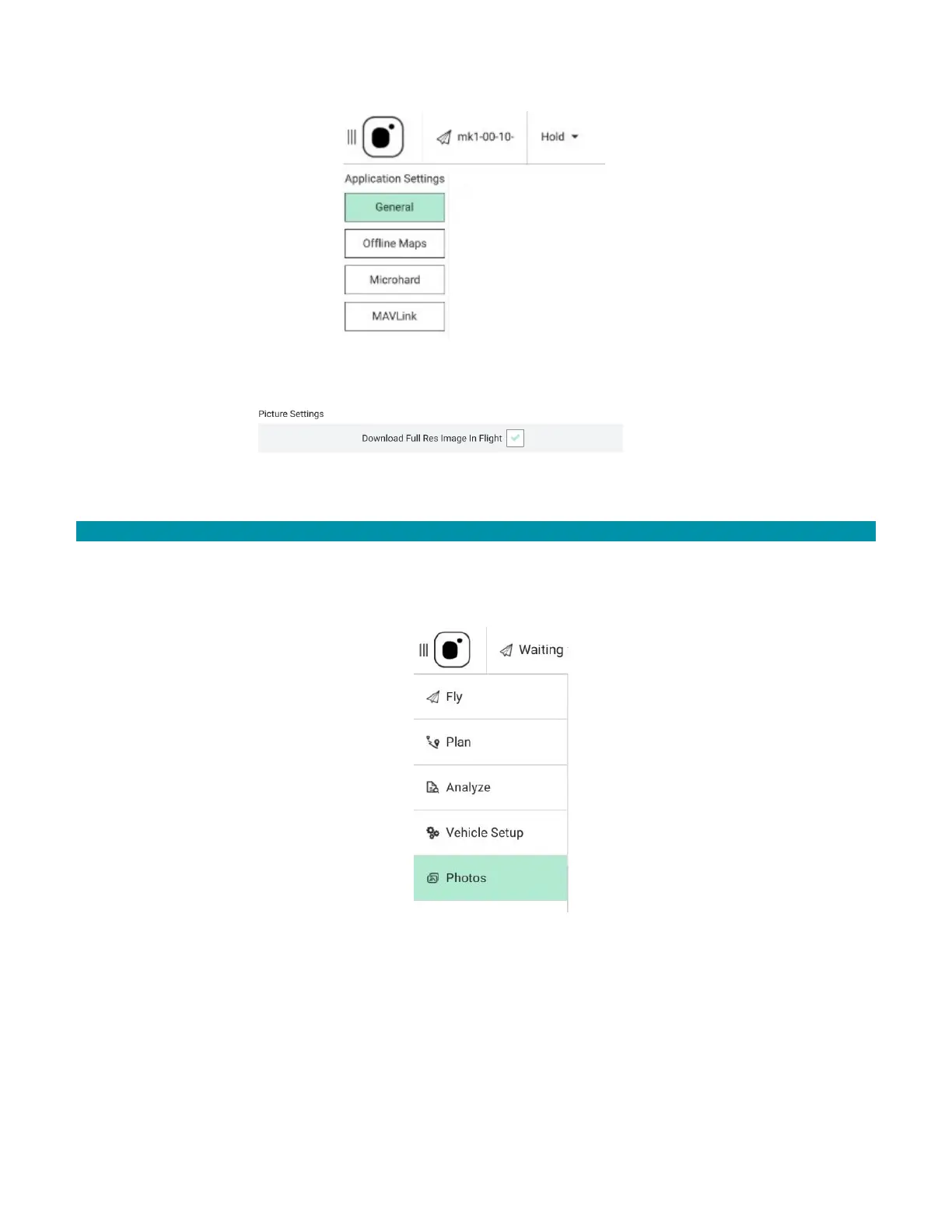
3. Select General.
4. Scroll down to Picture Settings.
5. Check the Download Full Res Image In Flight box.
6.6.2 PHOTO SCREEN SETTINGS
To access the photo settings:
1. Touch the Main menu icon at the top of the GCS screen.
2. Select Photos.
In the Photos Screen customize the following functions:
• Take EO & IR snapshots and download them immediately in-flight to the GCS
• View thumbnails of downloaded EO & IR photos
• View a selected photo at full resolution
• View metadata of a photo
• Delete downloaded photos from the GCS



 To Next Page