22
Closing the pilot message window turns the warning icon back into the gray megaphone
icon.
Old messages can be reviewed by touching the gray icon. All messages remain accessible
until the user permanently deletes them. Touch the trash can symbol in the lower right-
hand corner of the message window to delete the Vehicle messages.
Touching the trash icon permanently
deletes all messages. Messages cannot
be individually deleted.
3.3 FLY TOOLS OVERVIEW
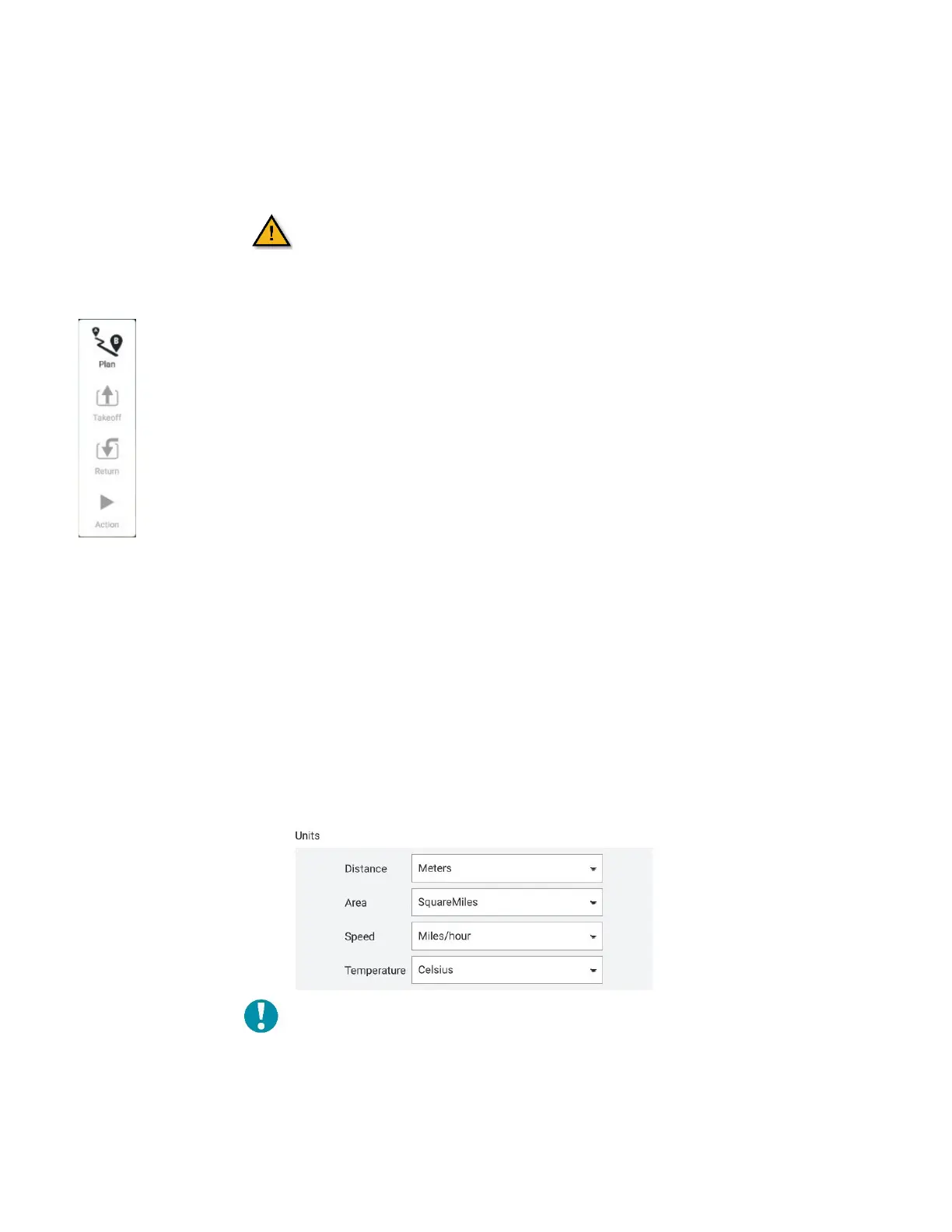
The fly tools box is fixed vertically near the upper left-hand corner of the Fly view.
These functions found in the Fly Tools are the Pre-flight checklist, Takeoff, Land,
and Return/Return to Launch (RTL).
The Pause function causes the AV to hover and can be used in most operations, to
include takeoff, land, orbiting, etc.
The Action button offers additional options, to include changing the altitude, and
starting and resuming a mission.
Find more information in the Pre-flight, In-flight, landing, and CS details section.
3.4 CUSTOMIZING PERSONAL SETTINGS
Use the General Settings screen to customize user preferences. The most commonly used
ones are referenced here. For a more complete list, please see the Teal QGC App section.
1. Touch the Main menu icon in the top left of the screen.
2. Select General.
A list of settings appears.
Units: Allows selection between feet and meters, imperial and metric, and Celsius and
Fahrenheit.
Miscellaneous: Select a language, dark/light mode, map provider and map type, etc.
Note: As of the publication of this manual, a
software bug has made selecting a different
language not an option at this time and is
being investigated.



 To Next Page