18
3 FLY VIEW OVERVIEW
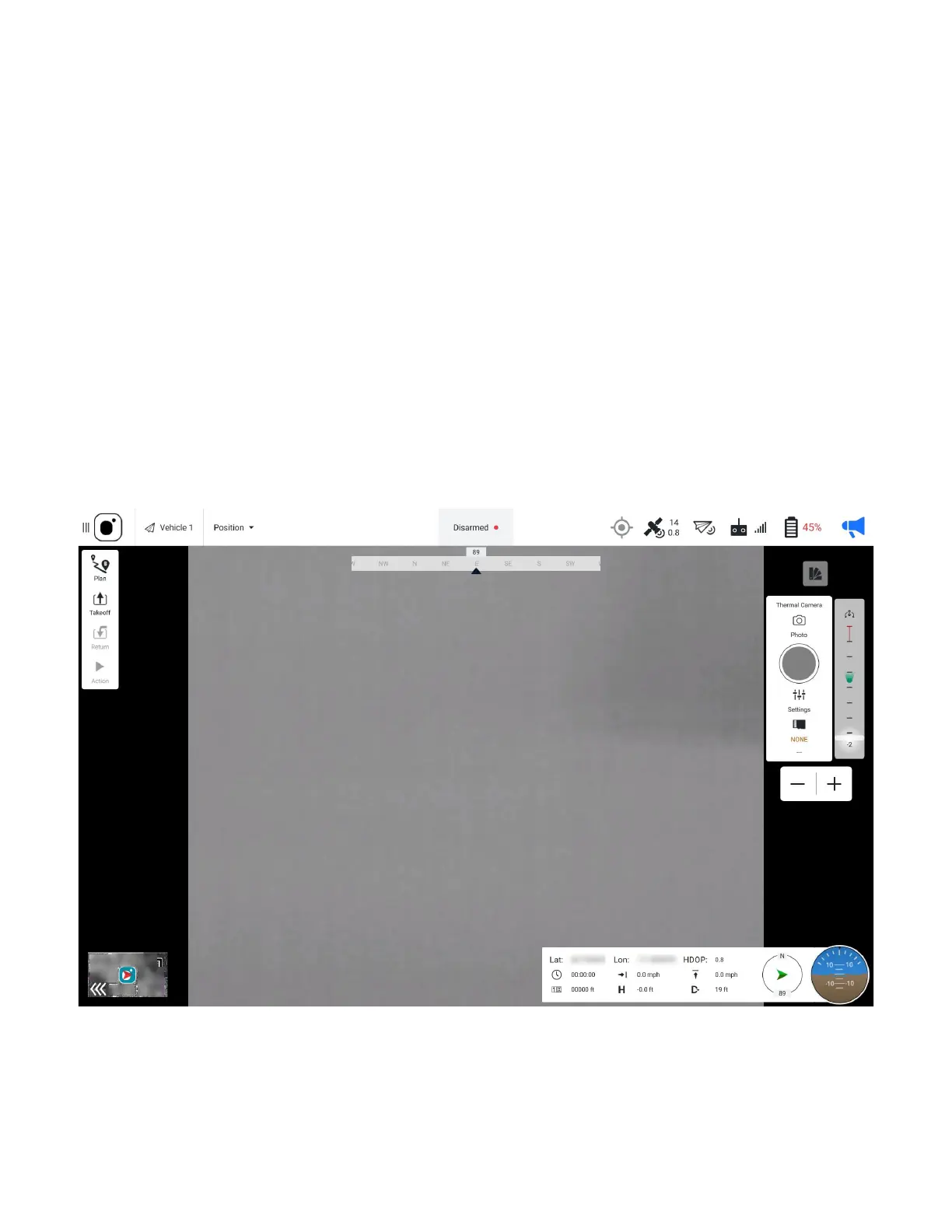
Fly View is the main screen in the Teal QGC app. The Teal QGC fly view automatically
launches when the GCS powers on. Use Fly View to command and monitor the AV during
flight.
Use the fly view to:
• Pair the AV and GCS.
• Run the automated pre-flight checklist, if enabled.
• Control missions.
• Arm or disarm the AV.
• To set the E-stop button.
• Takeoff.
• Land.
• Return to launch (RTL).
• Go to or orbit a specified location.
• Switch between the map view and video view.
• Display mission, telemetry, and other information for the AV.
3.1 FLY VIEW MAP OVERVIEW
The fly view displays a map and video view in a large window and a small window. Tap the
small screen in the left bottom corner to change which view displays on the large window.



 To Next Page