59
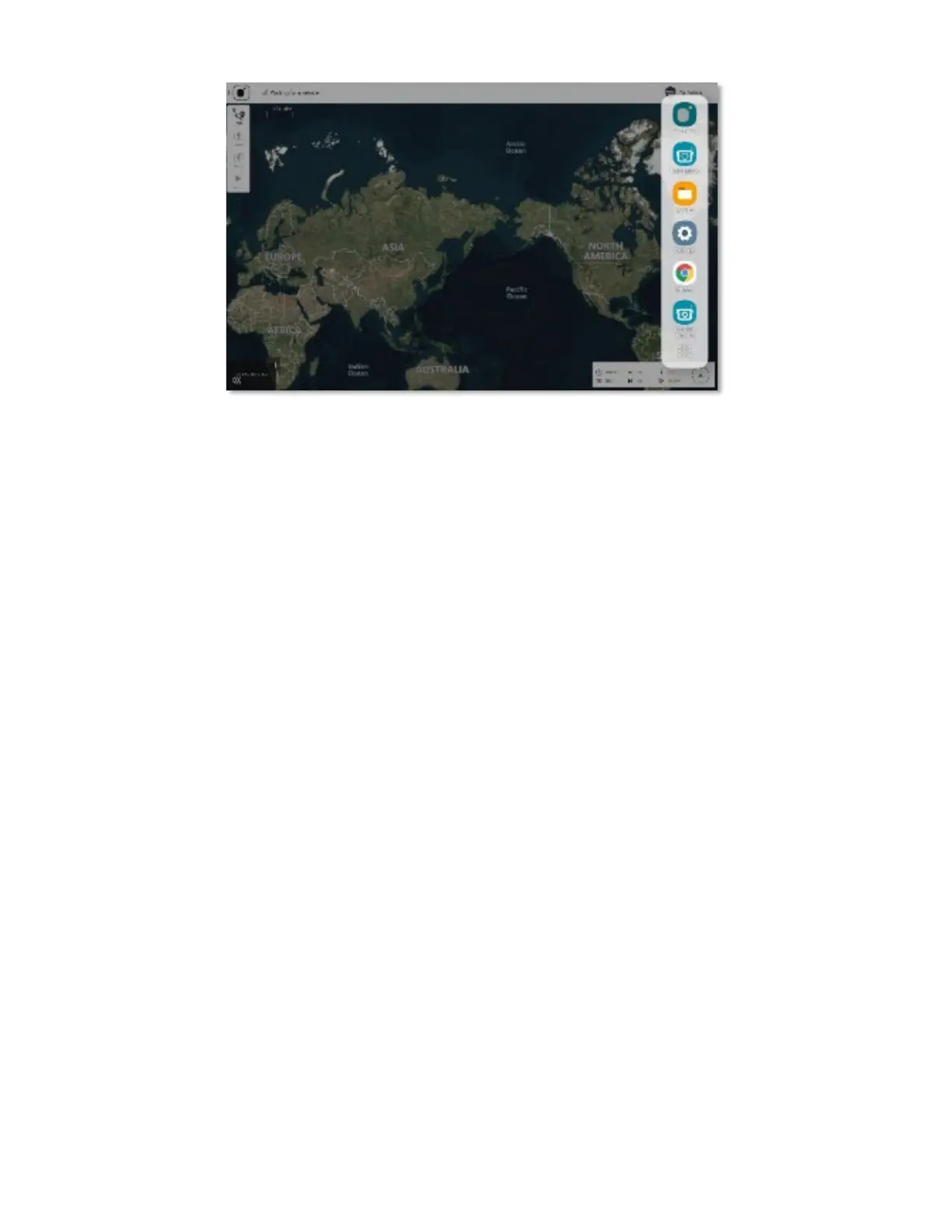
4. Touch the My Files icon. Follow the path to the logs: Internal Storage > Teal QGC >
Logs
5. Press and hold the files you want to transfer until a checkmark next to the files
appears.
6. Select Move, Share, or Copy the files.
7. Select Move.
8. Select USB Storage (this may show name of the storage device).
1. You may need to scroll down or collapse the file path to see this option.
2. Select Move Here at the bottom right corner of the GCS screen.
9. A file with date, time, and orange “N” symbol will appear when the transfer is
completed.
10. Remove the USB-C storage device when finished.
8.4 TRANSFER LOG FILES: GCS TO PC
Before downloading media:
• Ensure the system has power and is paired and communicating prior to proceeding.
• Use a fully charged battery pack in both the AV and the GCS.
• Do not power off the AV or the GCS at any time during the process.
To download flight logs:
1. Make sure the AV and GCS are paired.
2. Download the log files from the AV to Teal QGC.
a. Open Teal QGC.
b. Tap the Main menu icon in the upper left corner.
c. Tap Settings.
d. Tap Analyze.
e. This opens the download tab.
f. Tap the file to download.
g. Tap Download.



 To Next Page