55
6.6.3 TAKING A PHOTO
A camera icon is fixed in the lower right-hand corner of the Photo screen.
Touching this icon snaps a photo on the AV and downloads it immediately to
the GCS.
Pressing the front right momentary switch on the GCS will also either take a photo or start
recording video.
A symbol appears when the camera icon is touched but download is not
enabled. Ensure that the photo functions in the Settings are enabled as
instructed in the previous page.
The background of the Photos screen is largely a blank black screen, until it is populated
with photos taken from the AV. Snapshots appear sequentially left-to-right and top-to-
bottom on the Photos screen.
6.6.4 DELETING A PHOTO
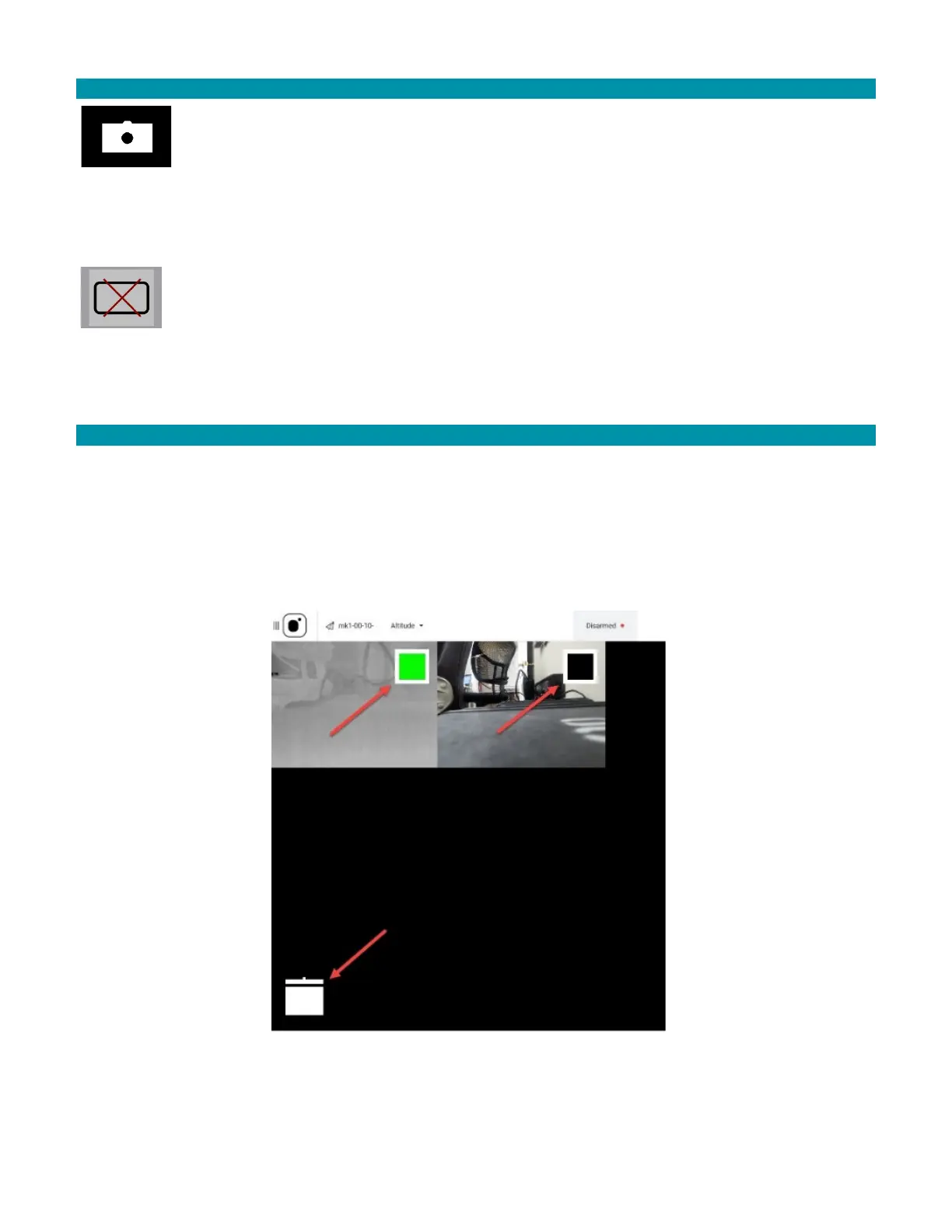
Touch any photo in the photos screen to enable a selection box in the upper-right corner
of each photo and the trash can icon in the lower-left corner. The box for that photo
immediately turns green and indicates that it is selected for deletion. All others are black
until selected. Immediately touching that first photo again causes all the selection boxes
to disappear. All selected photos can be deselected one at a time. As soon as the last
selected photo is touched to deselect it, all the selection boxes disappear.
Once photos are selected for deletion, touch the trash can icon.



 To Next Page