56
Note: Deleting photos from the GCS does
not delete the original photo stored on the
AV.
6.6.5 VIEWING A PHOTO & METADATA
Select an individual photo for viewing by touching that photo. The selected photo will fill
the entire Photo screen.
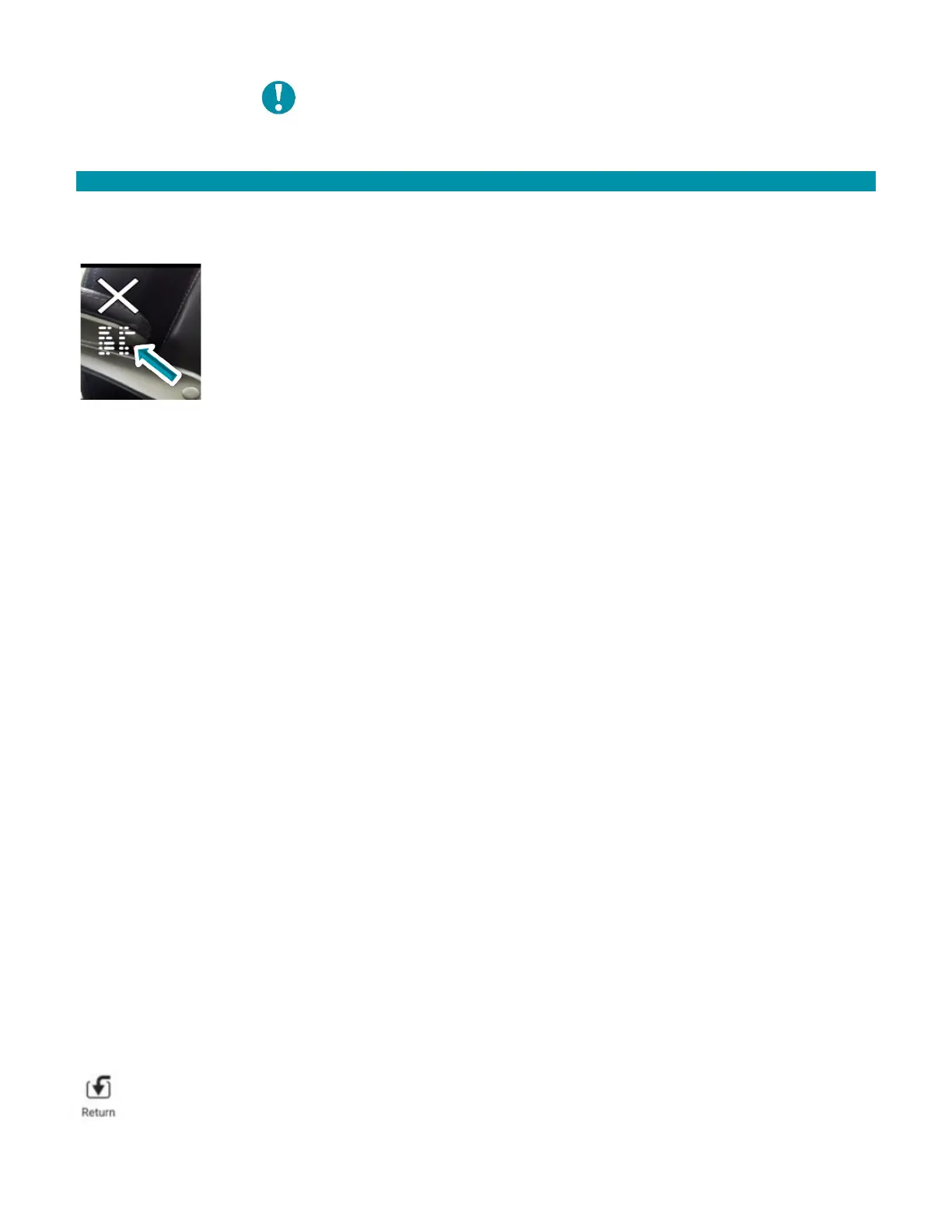
In the upper left of the individual photo view is a metadata icon. Touch this
icon to display the timestamp of when the photo was taken. Touch the icon
again to cause the metadata to disappear.
Above the metadata icon is the exit (X) icon. Touch this icon to exit the
individual photo view and return to the main Photo screen that shows all
the downloaded photos.
In the lower left of the individual photo view is a trash icon. Touch and hold this icon for
about 1 second to delete the photo from the GCS photo screen.
7 LANDING & DISARMING
Please review the following functions to appropriately land and disarm the AV in both
normal and emergency situations.
7.1 LAND
The land function is used under normal circumstances and brings the AV straight down
from its immediate position in a controlled descent. The AV automatically disarms when
on the ground for 3-4 seconds.
To land at the current position at any time:
1. Touch the Land button in the Fly Tools box.
2. Confirm landing by moving the confirmation slider to the right.
Alternatively, hold the left joystick that controls throttle in a continuous down position
until the AV automatically disarms when on the ground for 3-4 seconds.
7.2 RETURN TO LAUNCH (RTL)
The RTL function is used under normal circumstances and initiates the pre-programmed
landing sequence to a pre-determined takeoff / landing location.
The RTL settings can also be customized in the Safety Settings screen for abnormal flight
situations. These pre-determined fail-safes will automatically trigger a RTL.
The AV automatically disarms when on the ground for 3-4 seconds.
To initiate the RTL sequence via the GCS soft key:
1. Touch the Return button in the Fly Tools box.



 To Next Page