51
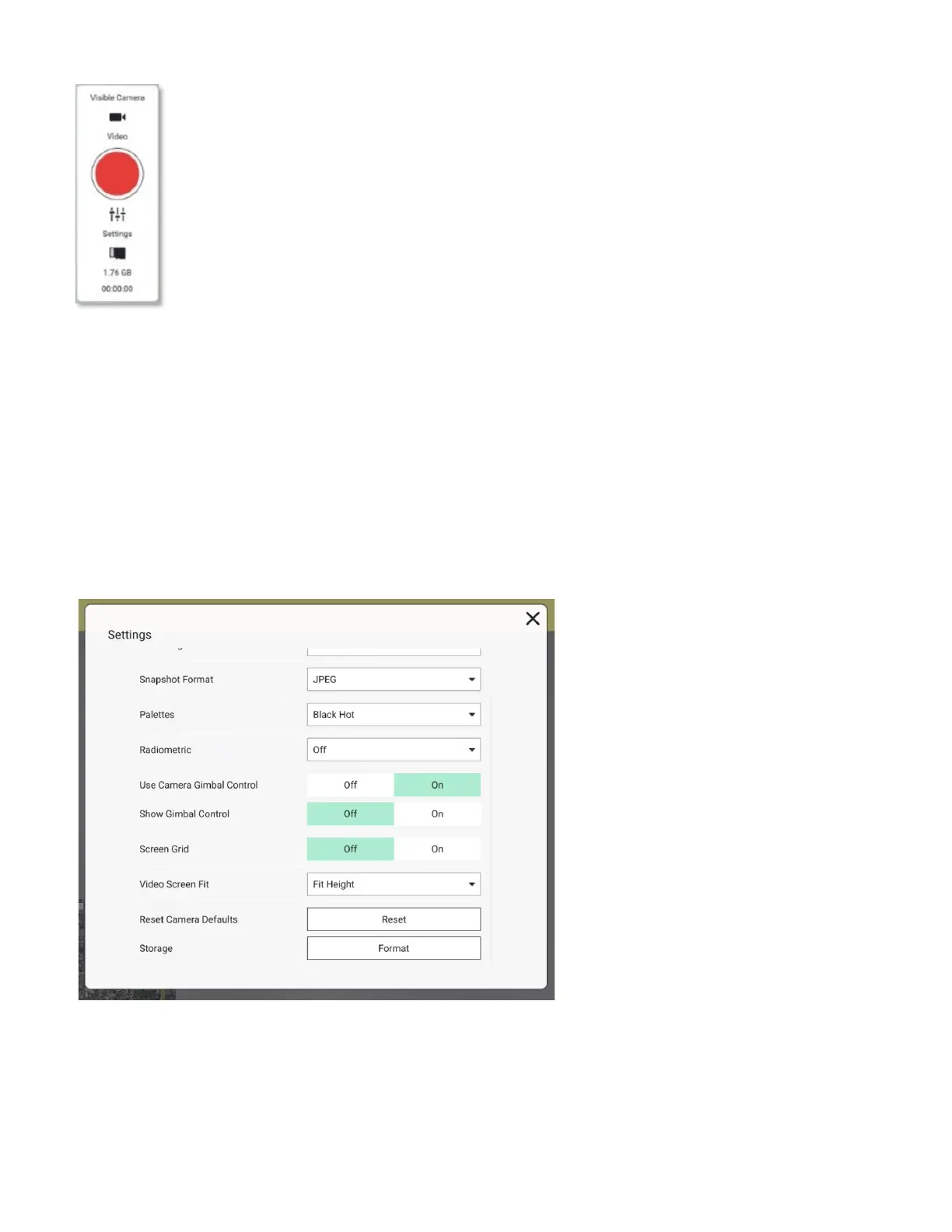
1. Touch the red circular trigger to start video recording. The button will
change to a red square inside the circle, indicating video is being recorded.
2. Touch this red square to stop video recording. The red circle icon will
reappear.
The amount of storage remaining is indicated below the Settings icon, and the
elapsed time of the current video is also seen at the very bottom of the
window. When not recording, the elapsed time counter shows 00:00:00.
Alternatively, press the front lower right button on the GCS to also start and
stop video recording. The icons will behave as described above to indicate
whether video is being recorded.
Alternatively, press the upper left switch button on the rear-panel of the GCS to toggle
the active camera between EO and IR.
To change the video settings:
1. In Video Camera menu, touch Settings.
2. Open the Video Settings window.
3. Select for EO or IR cameras, recording format, snapshot format, camera palette,
radiometric settings, gimbal controls, and screen fit.
Radiometric settings show the max, min, and center temperatures.



 To Next Page