11
Setting the Paper Size Using the Control Panel
Follow the procedure below to set the machine using the control panel when
loading standard size paper onto the bypass tray.
Important
❒ The following procedures are not required if you select [Driver / Command] from
[Bypass Tray Setting Priority] in [System] of [Printer Features]. In that case, set the
paper size using the printer driver. For details, see General Settings Guide.
❒ If you select [Machine Settings] from [Bypass Tray Setting Priority] in [System] of
[Printer Features] (see “Printer Features”, General Settings Guide), the settings
made using the control panel have priority over the printer driver settings.
❒ If the printer driver is not used, select [Machine Settings] from [Bypass Tray Set-
ting Priority] in [System] of [Printer Features] (see “Printer Features”, General Set-
tings Guide). Set paper size using the control panel.
❒ Thick paper and OHP transparencies are delivered face up on the top of the
preceding page; therefore, the prints need to be rearranged into the correct or-
der. To avoid this, select [Reverse order print] in the RPCS printer driver set-
tings to deliver the prints in the correct page order.
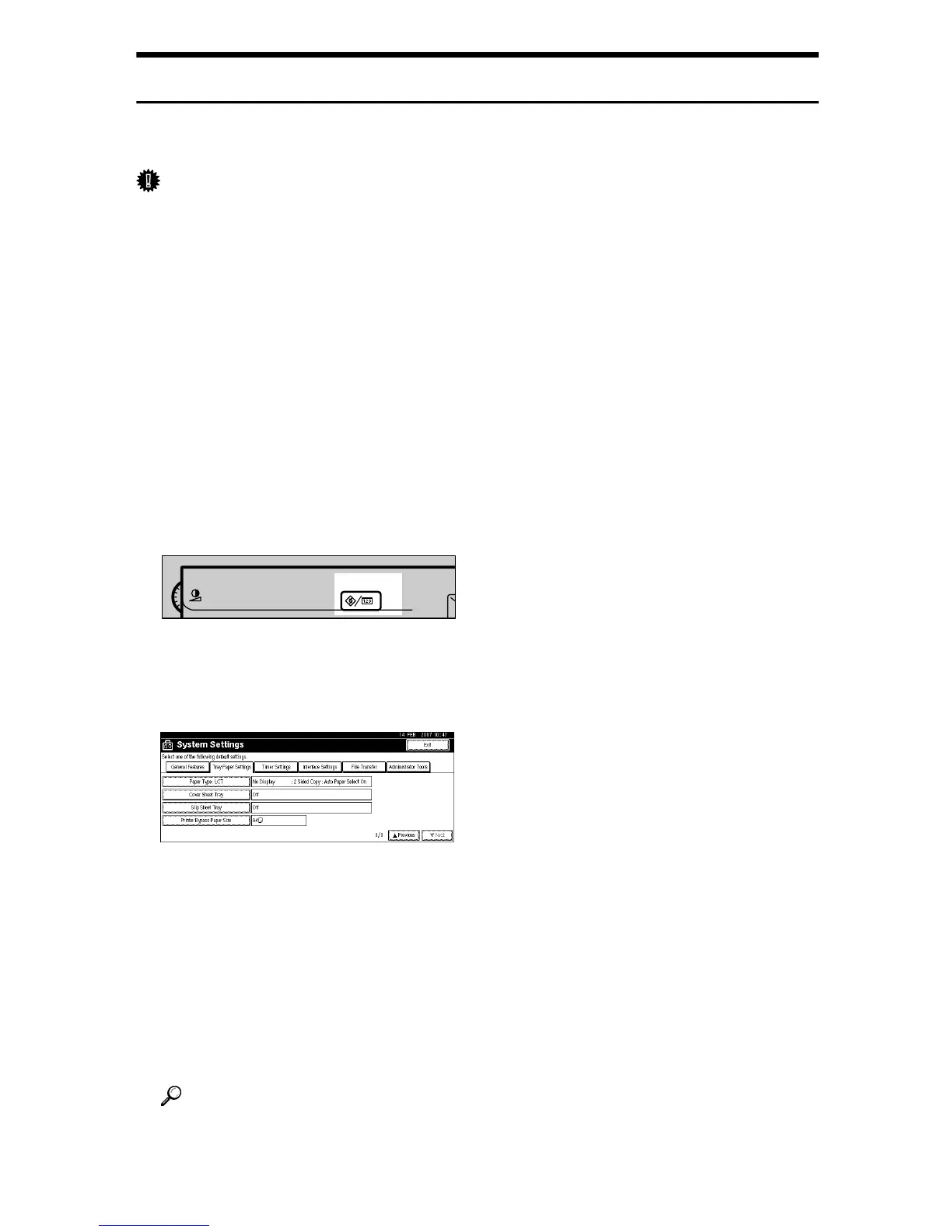
A Press the {User Tools/Counter} key on the control panel.
B Press [System Settings].
C Press the [Tray Paper Settings] tab.
D Press [TNext] to scroll through the list.
E Press [Printer Bypass Paper Size].
F Select the paper size.
Press [UPrevious] or [TNext] to scroll through the list.
G Press [OK].
H Press the {User Tools/Counter} key.
Reference
When loading thick paper or OHP transparencies, select paper size and pa-
per type. For details, see p.13 “Setting Thick Paper or OHP Transparencies
Using the Control Panel”.
AJM002S





 To Next Page