Other Print Operations
100
3
Printing a Hold Print File
The following procedure describes how to print a Hold Print file with the RPCS
and the PCL 6/5e printer driver. For information about how to print a Hold
Print file with the PostScript 3 printer driver, see Postscript 3 Supplement in-
cluded as a PDF file in the supplied CD-ROM.
Important
❒ Depending on which options are installed on the machine, the PCL printer
language is optional. In that case, installing the optional PCL unit is required
to use the PCL 6/5e printer drivers.
❒ Applications with their own drivers, such as PageMaker, do not support this
function.
❒ If you are using Mac OS X, you need Mac OS X v10.2 or higher to use this
function.
A Configure Hold Print in the printer driver’s properties.
For details about configuring the printer drivers, see the relevant Help files.
B Click [Details...], and then enter a User ID in the [User ID:] box.
C Start printing from the application’s [Print] dialog box.
The Hold Print job is sent to the machine and stored.
D On the machine’s control panel, press the {Printer} key to display the print-
er screen.
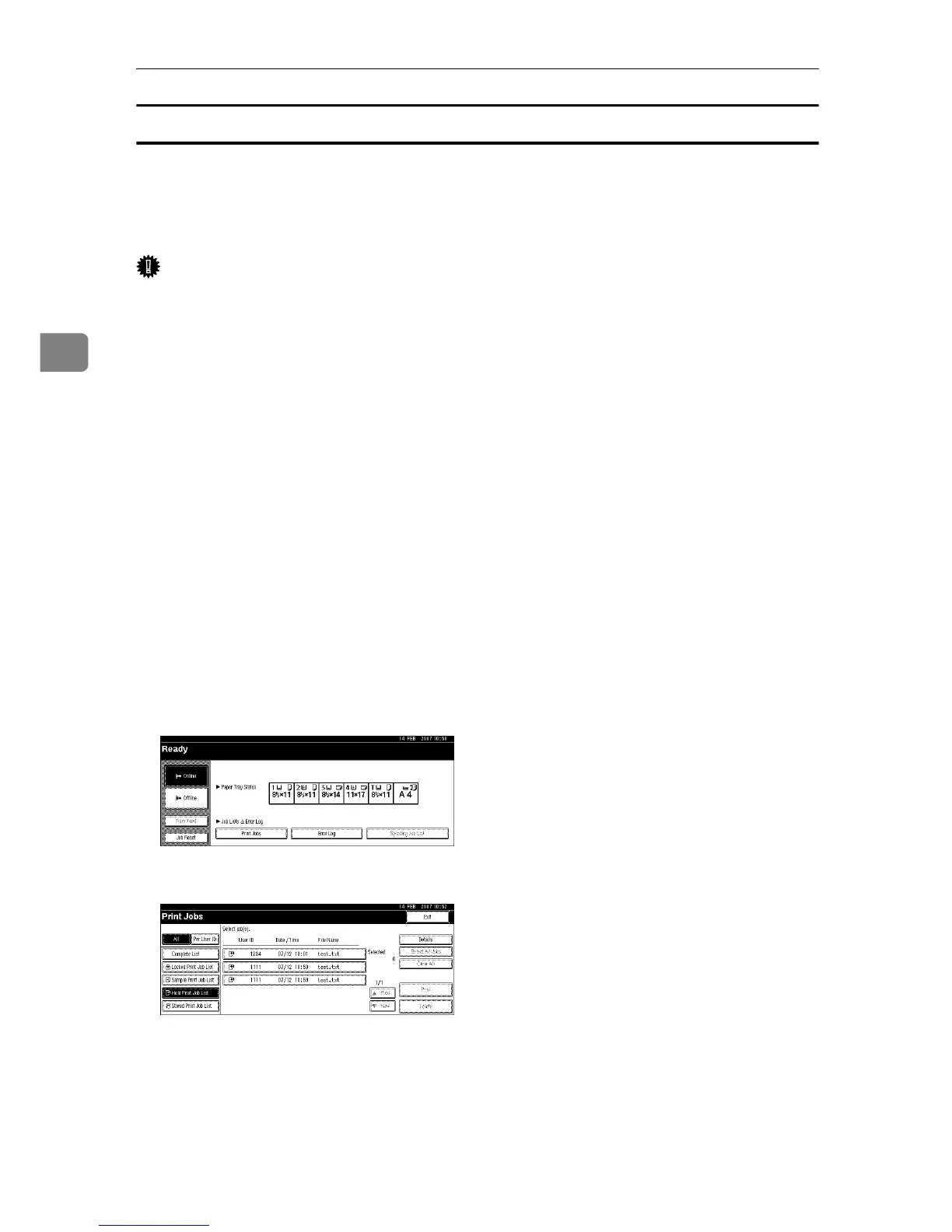
E Press [Print Jobs].
F Press [Hold Print Job List].
A list of a print files stored in the machine appears.
Depending on the security settings, certain print jobs may not be displayed.





 To Next Page