PASCA_TOUCHIT_EN
V02 | 07.2013
107
www.schaerer.comSystem
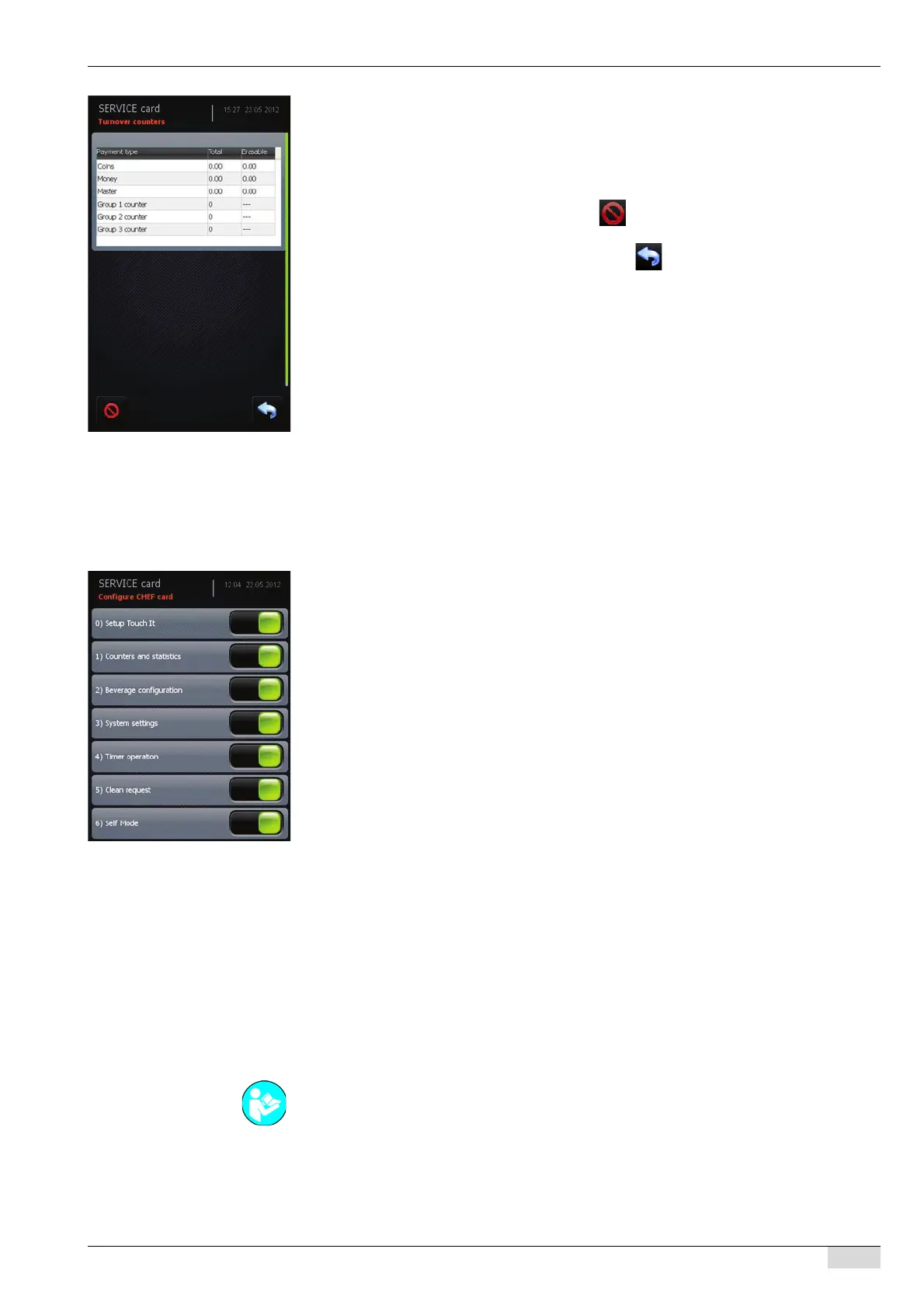
The "Turnover counters" window opens.
The display is divided into three columns:
• Payment system in use.
• Total counter display.
• Clearable counter value.
► Clear the clearable counter value using the field.
The clearable counters are reset to (0).
► Return to the "Chip card service" menu using the field.
The "Chip card service" menu is displayed.
Option 5: Erase MASTER table
► Select the [Erase MASTER table] field.
The "Erase MASTER table" message appears.
All MASTER cards registered in the "Master table" list are erased.
MASTER cards that were registered before can be re-registered.
After erasing, the "Chip card service" menu appears.
CHEF card configuration
► Select the "System" menu.
► Select the "Chip card service" menu.
► Select the "Configure CHEF card" menu.
The available parameters appear.
Access to the following parameters with the CHEF card can be activated/deactivated:
• 0) Configure TouchIT on/off
• 1) Counters and statistics on/off
• 2) Product configuration on/off
• 3) System settings on/off
• 4) Timer operation on/off
• 5) Cleaning request on/off
• 6) Self mode on/off
► Activate the parameters that are to be accessible with the CHEF card.
All activated parameters are accessible with the CHEF card.
Simulating the CHEF card
This function simulates the CHEF card with the menu functions listed below.
• TouchIT configuration.
• Counters and statistics.
• Product configuration.
• System settings.
• Timer operation.
• Cleaning request (time setting).
• Self mode.
► Select the "System" menu.
► Select the "Chip card service" menu.
► Select the "Simulate CHEF card" menu.
See "Programming" - "Access".



 To Next Page