www.schaerer.com Basic operation
PASCA_TOUCHIT_EN
V02 | 07.2013
16
Basic configuration of the service technician flash drive
USB sticks for the service technician require a "Schaerer structure". This structure makes it
possible to automatically access the required data.
The current "SCATouchIT" machine software must be available. This software can be down-
loaded from "www.schaerer.com\member".
Option 1: To prepare the USB stick for the service technician:
► Insert the USB stick into the computer.
The USB stick appears in "My Computer".
► Select the USB stick with the right mouse button.
A context menu appears.
► In the context menu, select the [Format] function.
The window with the format settings appears.
► Set the formatting as shown in the figure and start the formatting process.
This deletes the contents of the USB stick.
Option 2: Loading the data onto the USB stick (service technician)
► Insert the USB stick into the computer.
► Download the current machine software (www.schaerer.com\member).
► Select the downloaded ZIP file [SCA Touch] using the right mouse button.
► In the context menu that opens, select the [Extract all ] function.
The extraction wizard opens.
► In the extraction wizard, select the USB stick as the destination folder.
► Start extraction of the ZIP file.
The USB stick is now configured and contains all of the necessary files.
Option 3: Checking the loaded files
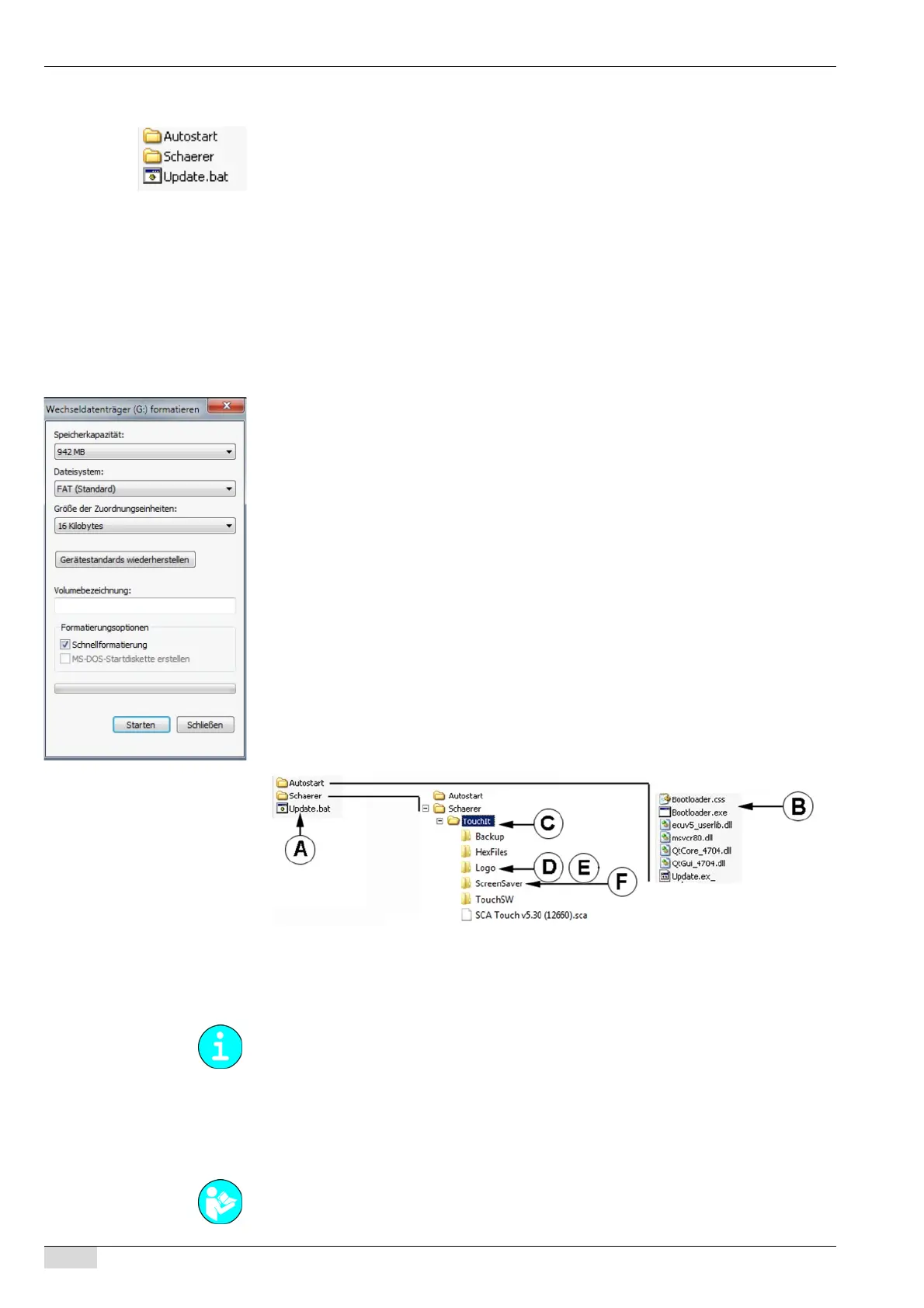
► Check the directory structure on the USB stick for the service technician (A).
► Check the "Autostart" directory structure (B).
► Check the "Schaerer" - "TouchIT" directory structure (C).
• Directory structure for logo images (D) and slide show images (E).
• Figures and animations for the screensaver (F).
Creating the USB-SAVE-DATA-PLUS flash drive
USB-SAVE-DATA-PLUS flash drive as "SAVE DATA" card:
Option 1: Configuring the blank USB-SAVE-DATA-PLUS flash drive
The machine is switched on and ready for use.
► To configure the blank flash drive, insert it in the bottom of the TouchIT.
The "Create the USB-SAVE-DATA flash drive" selection field is displayed.
The "flash drive for the machine" only contains the machine configuration.
See "Basic operation"- "USB port" on inserting a flash drive.



 To Next Page