PASCA_TOUCHIT_EN
V02 | 07.2013
117
www.schaerer.comSystem
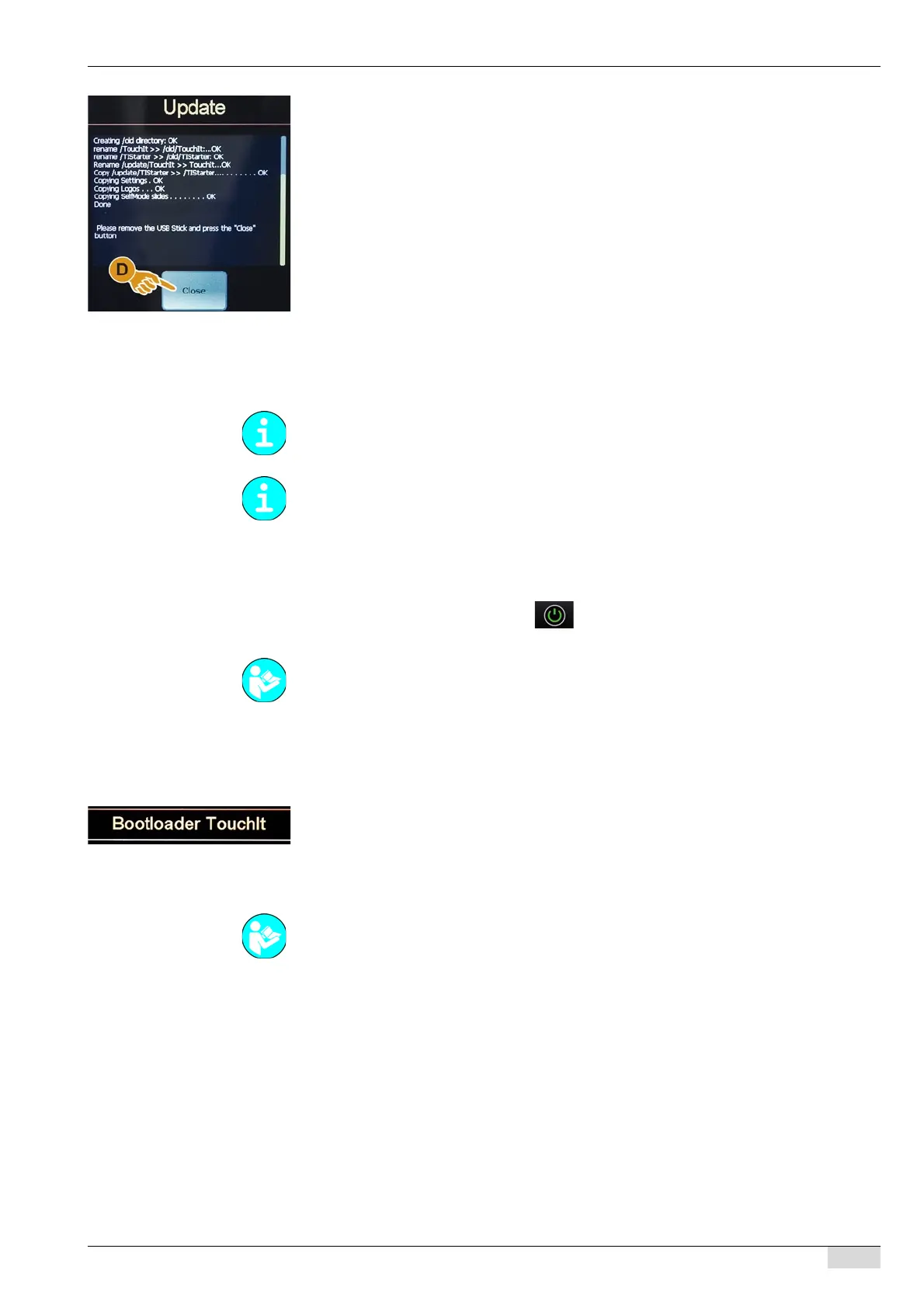
► Select the "Close" field.
The machine restarts.
The "Bootloader" window opens.
► Reinsert the USB stick under the TouchIT.
► Select the [Start TouchIT] field .
The machine switches to standby.
The TouchIT software is loaded and the machine is ready for use.
Windows-CE
This menu provides the functions of a Windows user interface.
► For more convenient operation, a computer mouse can be connected to the USB port un-
der the TouchIT (use a USB hub).
Option 1: Starting with the SERVICE card
► Switch on the machine using the field.
► Insert the SERVICE card and enter the PIN.
► Select the "System" menu.
► Select the "Exit application" submenu.
The "Remove card" message appears.
► Remove the SERVICE card again.
The TouchIT changes to the "Bootloader TouchIT" mode.
Option 2: Starting directly with the USB stick
The machine is disconnected from the power supply.
► Insert the USB stick under the TouchIT.
► Plug the machine power plug into the power supply.
The machine is started up and immediately goes into the "Bootloader TouchIT" mode.
Option 3: Content of the "Windows CE" menu
► Select the "Windows CE" (A) field.
The user interface changes to the "Windows Embedded CE" mode.
► Open the "My Device" icon (B) by double-clicking.
All data contained there are displayed.
The "Windows CE" menu should only be used after consulting technical support.
To close the Windows user interface again, the machine needs to be disconnected from the
power supply.
See "Programming" - "Access".
See "Basic operation"- "USB port" on inserting a USB stick.



 To Next Page