21
3.4 Connecting using ScreenBeam Cast on Windows 7
This section explains how to connect a Windows 7 device to ScreenBeam 960 over the
infrastructure network using ScreenBeam SBCast. ScreenBeam SBCast software is
available on support.screenbeam.com.
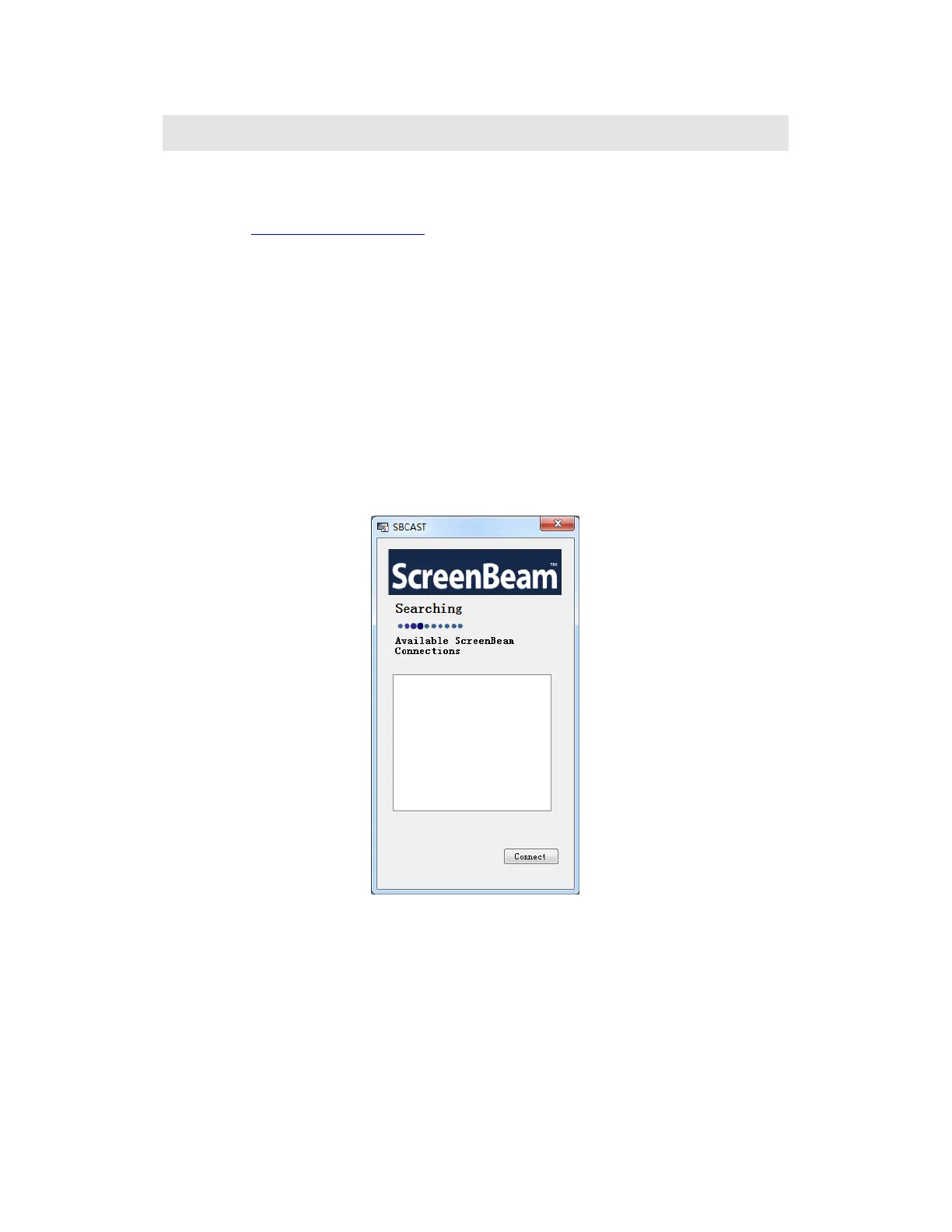
To connect a Windows 7 device to ScreenBeam 960 using the ScreenBeam SBCast app,
follow this procedure:
1. Ensure a router has been deployed in your network.
2. Ensure the ScreenBeam SBCast app has been installed on your device.
3. Ensure the Wireless Display over LAN for Max OS or Windows 7 feature has been
enabled on your ScreenBeam 960 receiver. Refer to section 5.3.2.2 Setting up Wireless
Display over LAN for Mac OS or Windows 7 Devices for detail.
4. Connect ScreenBeam 960 to the router with an Ethernet cable (recommended) or with
a wireless connection. Refer to Section 2.2 Connecting the Receiver to a Network for
detail.
5. Connect your Windows 7 device to the router, wired or wireless.
6. Launch ScreenBeam SBCast app on your Windows 7 device.



 To Next Page