77
5.3.6.6 Setting up USB Auto Configuration
The receiver provides one USB port, which can be used to configure the receiver with a
USB flash drive. Refer to the CMS user manual for detail on how to configure a receiver
using a USB flash drive.
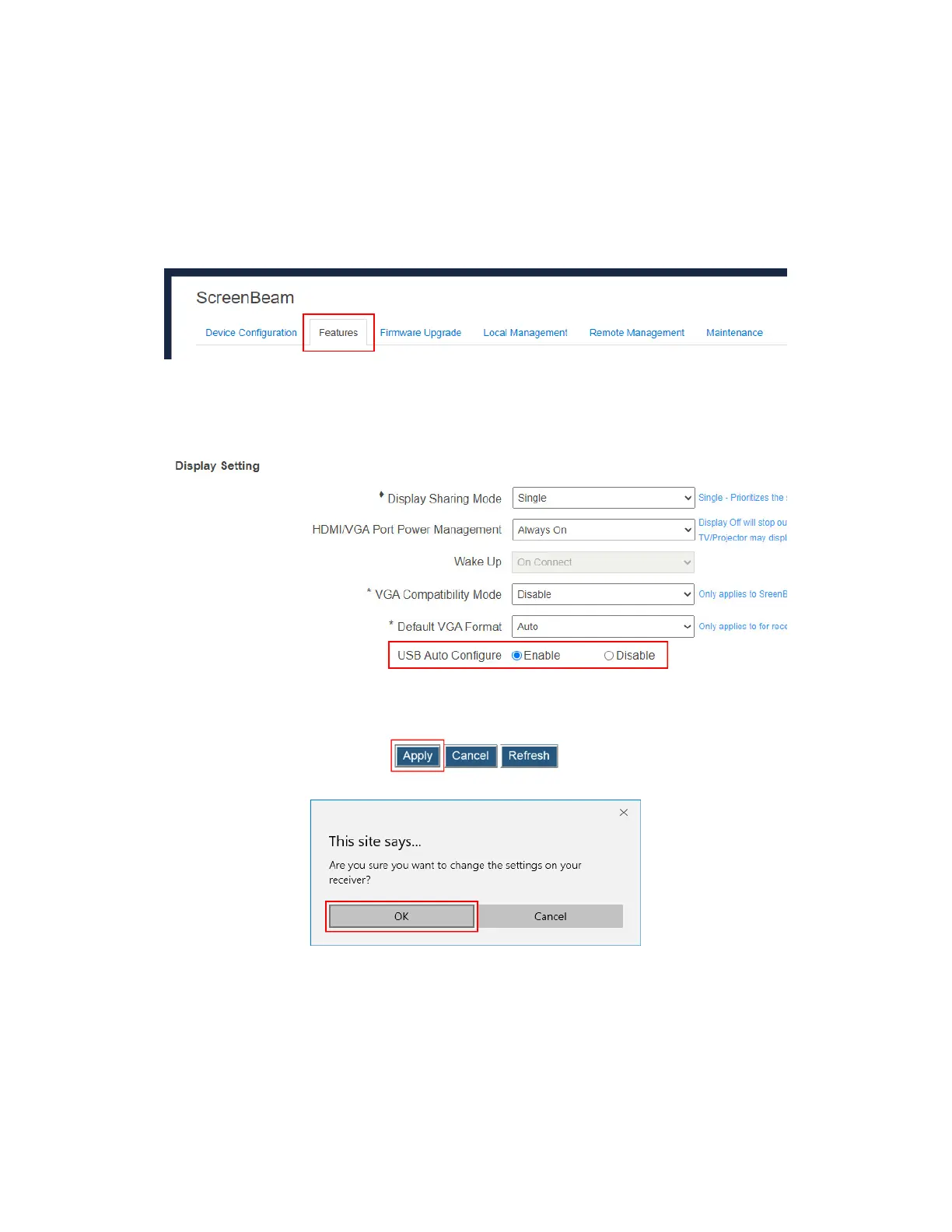
To set up the receiver’s USB configuration, follow this procedure:
1. Go to the Features tab page by clicking the Features tab.
2. Go to the Display Setting section, and set the USB Auto Configure feature to Enable
or Disable.
Enable: It is allowed to configure receiver with a USB flash drive.
Disable: It is not allowed to configure receiver with a USB flash drive.
3. Click the Apply button, and then click OK on the pop-up message box to confirm.



 To Next Page