46
5.3.2 Wireless Display over LAN
Wireless Display over LAN allows non-Miracast ready Windows 10 devices to project over
the local network connection. ScreenBeam receiver must be connected to the same network
with the source device via Ethernet (recommended) or via wireless.
5.3.2.1 Setting up Wireless Display over LAN for Windows 10 Devices
If your Windows 10 device is not Miracast capable, you can still project your screen over
LAN, as long as the following requirements are met:
Operating system: Windows 10, version 1703 or newer
100M/1000M Ethernet adapter (optional, but recommended) and WiFi adapter are
available
Stable local area network
Windows 10 device and ScreenBeam 960 receiver are connected to the same LAN
To set up wireless display over LAN for Windows 10 devices, follow this procedure:
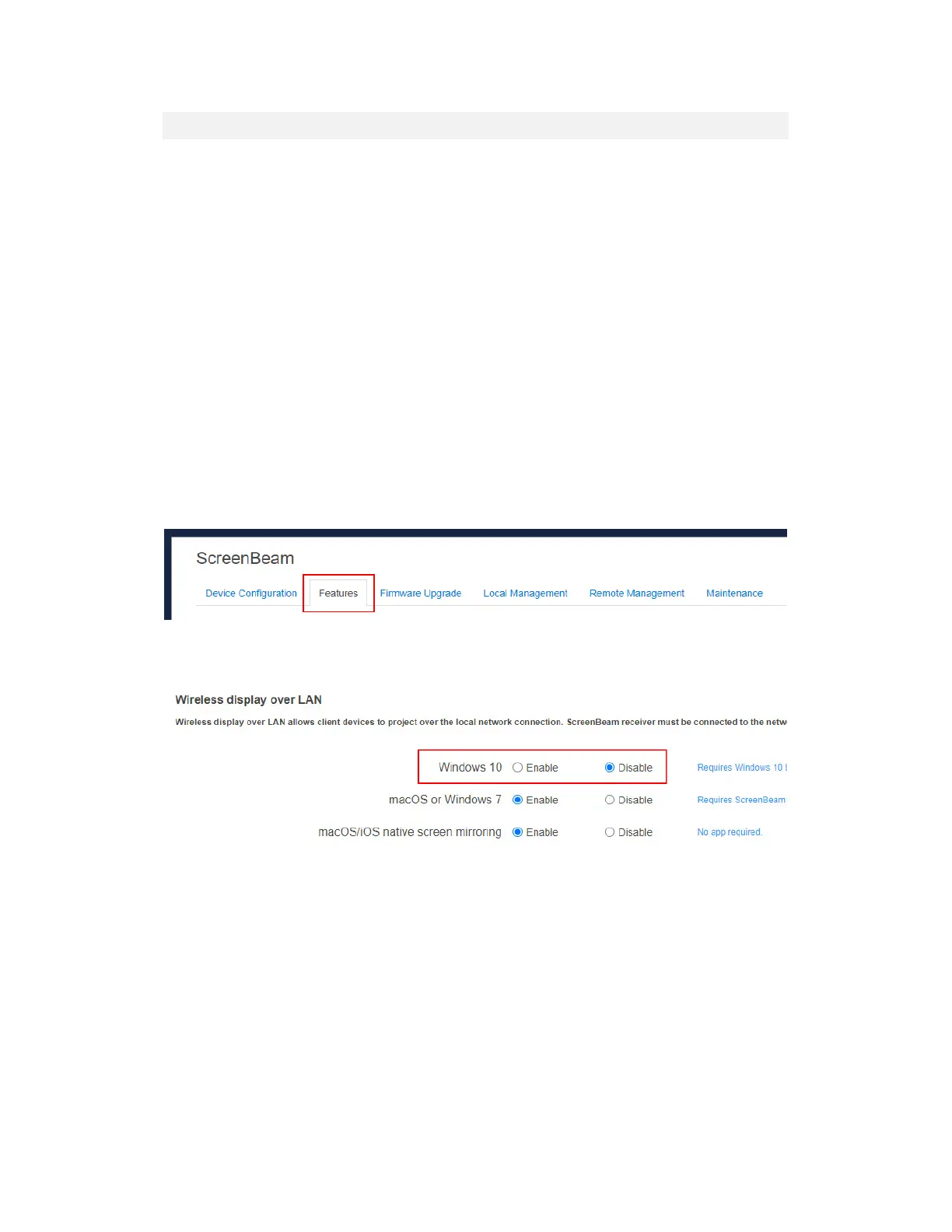
1. Go to the Features tab page by clicking the Features tab.
2. Go to the Wireless display over LAN section, and set Windows 10 to Enable or
Disable.
Enable: Windows 10 devices are allowed to project over the local network.
Disable: Windows 10 devices are not allowed to project over the local network. By
default, this feature is disabled.



 To Next Page