60
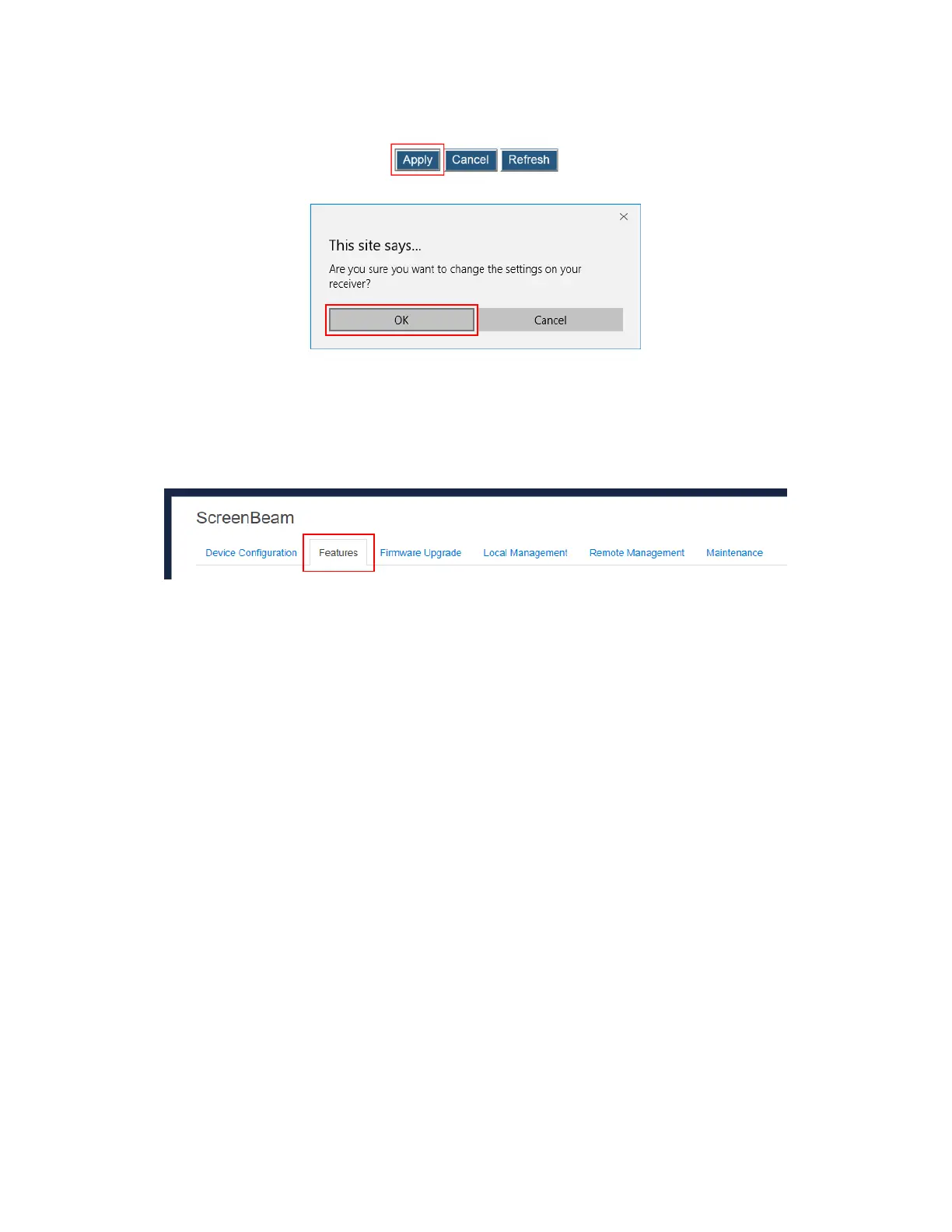
3. Click the Apply button, and then click OK on the pop-up message box to confirm.
5.3.5.5 Setting up VGA Compatibility Mode
The VGA Compatibility Mode feature applies to ScreenBeam HDMI-to-VGA Adapter only.
To select a VGA compatibility mode, follow this procedure:
1. Go to the Features tab page by clicking the Features tab.
2. Go to the Display Setting section, and select the desired option in the VGA
Compatibility Mode box. There are three options: Disable, 1080, 720, and 480.
Disable: The video output is in consistence with the source device. The
HDMI-to-VGA adapter will read EDID from the connected display device and
decide the best resolution automatically. Make sure you connect the ScreenBeam
receiver to your display device with a good quality VGA cable, so that the
HDMI-to-VGA adapter can correctly read the EDID information from your display
device. If the adapter can not get the EDID information from the display device, or
the display device provides no EDID information, you can try the options below
according to the resolution of the display device.
1080: The video output is set to 1080p or 1080i, depending on the display device.
720: The video output is set to 720p or 720i, depending on the display device.
480: The video output is set to 480p or 480i, depending on the display device.



 To Next Page