55
connected HDTV/projector.
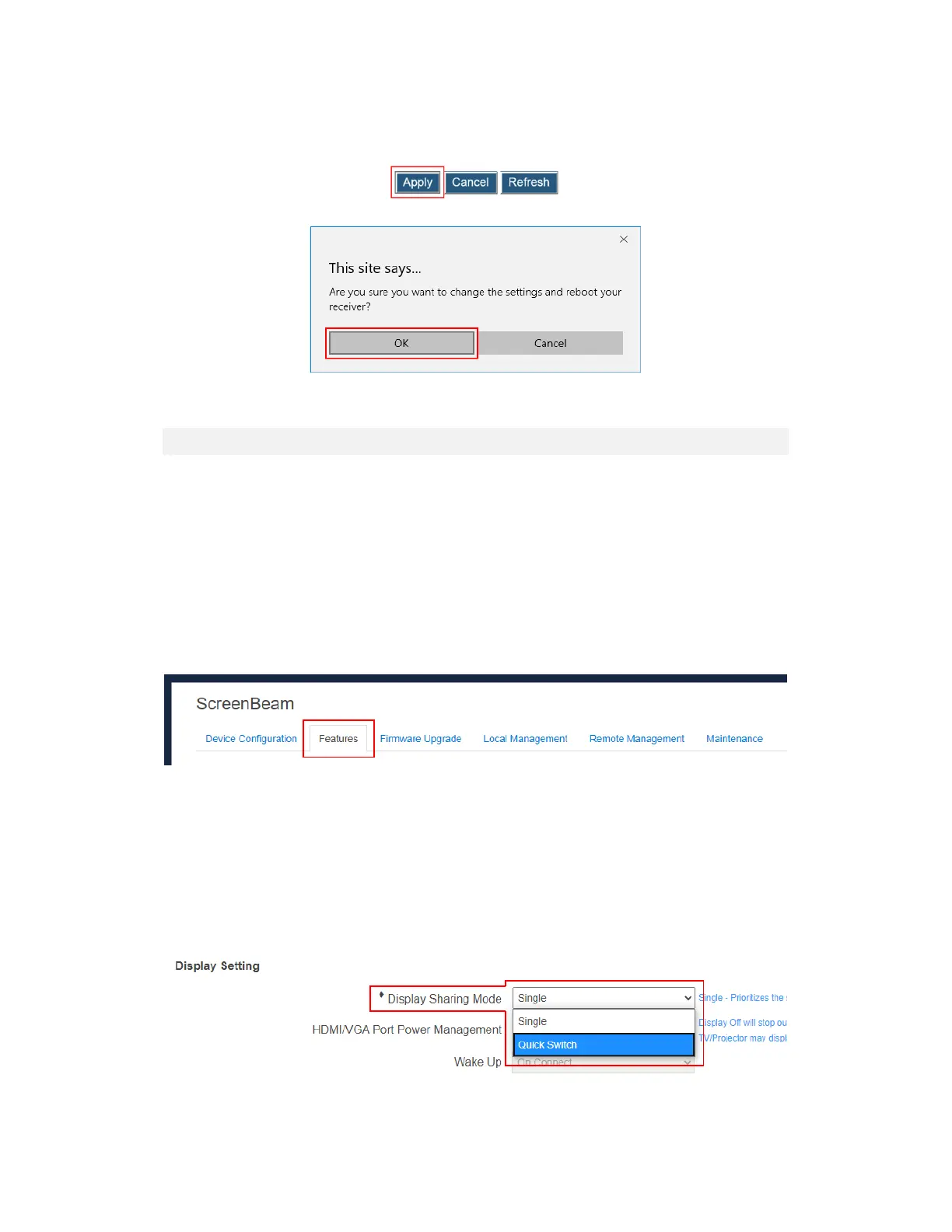
6. Click the Apply button, and then click OK on the pop-up message box to confirm.
5.3.5 Display Settings
This section introduces display related features.
5.3.5.1 Setting up Display Sharing Mode
ScreenBeam 960 supports two display sharing modes: Single mode and Quick Switch
mode.
To select a display sharing mode, follow this procedure:
1. Go to the Features tab page by clicking the Features tab.
2. Go to the Display Setting section, and select a desired option from the Display
Sharing Mode menu. Available options are: Single and Quick Switch.
Single: Other device is not allowed to connect if the receiver is already in use.
Quick Switch: A Miracast capable device can connect to the receiver even though
the receiver is in an active Miracast connection.
Note: Quick Switch is available for Miracast connection only. Quick switch can’t
work for Infracast connections (Wireless Display over LAN for Windows 10) or
Airplay connections.



 To Next Page