73
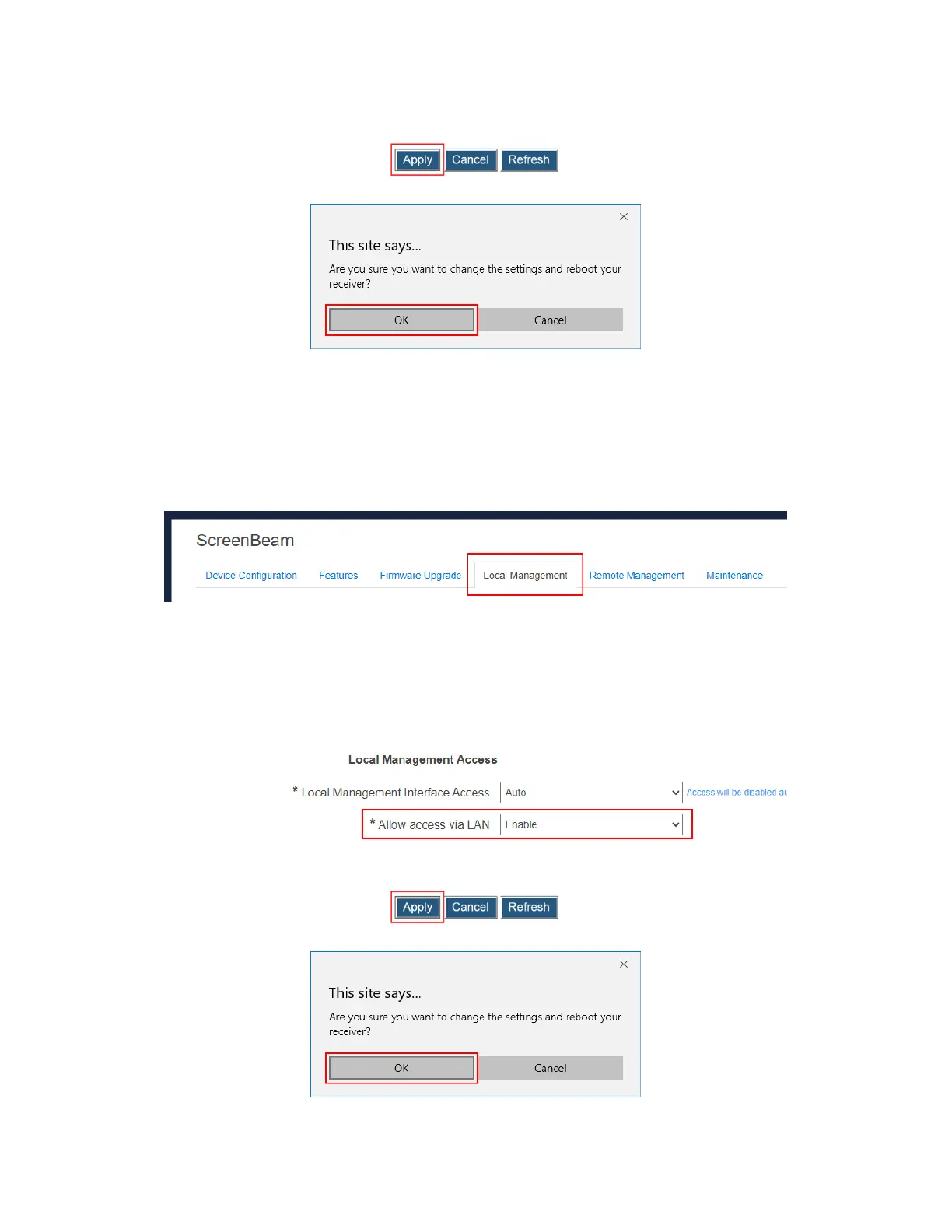
3. Click the Apply button, and then click OK on the pop-up message box to confirm.
4. The receiver reboots, and new setting takes effect after the reboot.
5.3.6.2 Setting up Allow Access via LAN
Users are allowed to access the receiver’s LMI via a LAN connection.
To set up the Allow access via LAN feature, follow this procedure:
1. Go to the Local Management tab page by clicking the Local Management tab.
2. Go to the Local Management Access section, and select an option from the Allow
access via LAN drop-down box.
Enable: Users are allowed to access the receiver’s LMI via a LAN connection. By
default, this feature is enabled.
Disable: Users are not allowed to access the receiver’s LMI via any LAN
connection.
3. Click the Apply button, and then click OK on the pop-up message box to confirm.
4. The receiver reboots, and new setting takes effect after the reboot.



 To Next Page