85
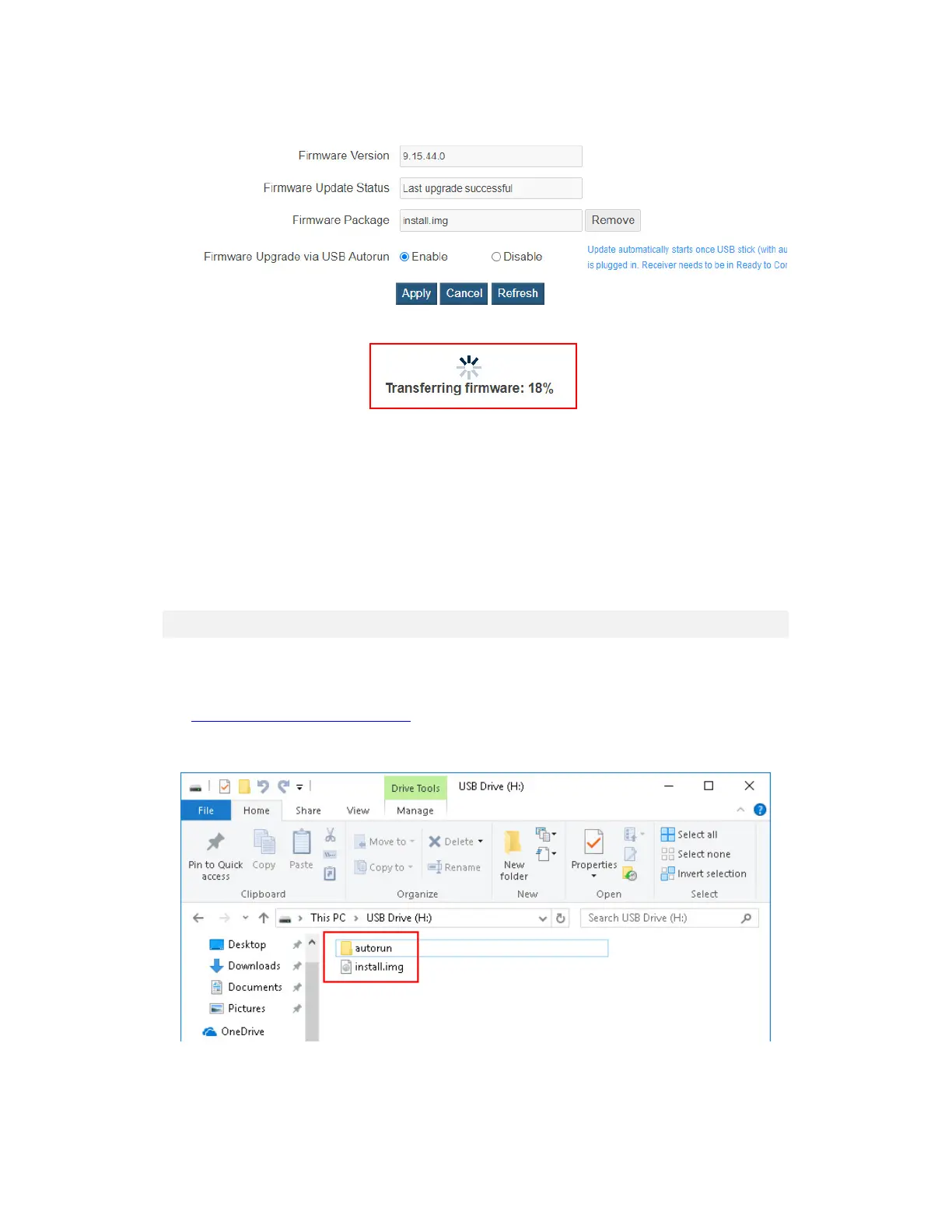
6. The web server starts transferring the firmware file to the receiver.
7. The receiver reboots and upgrades itself after the file is uploaded successfully. Firmware
upgrade status is displayed on the connected display.
8. When the receiver returns to the Wireless Display Ready to Connect Screen, your
receiver has been upgraded.
Warning! Do NOT power off your receiver during the upgrade process. The upgrade
will take some time. Please be patient.
5.4.2 Updating Firmware Locally
To update the receiver’s firmware with a USB flash drive, follow this procedure:
1. Download the latest firmware from ScreenBeam’s website:
https://support.screenbeam.com.
2. Extract the downloaded file and copy the “install.img” file and the “autorun” file folder
to the root directory of a USB flash drive.
Note:
Do not use a portable hard drive. You should use a FAT/FAT32 formatted USB
flash drive only.



 To Next Page