12-50
Troubleshoot a problem
12
Action Yes No
Step 2
Check the file you want to scan.
1)Makesurethatthefilenameisnotalreadyusedinthe
destination folder.
2)Makesurethatthedocumentorphotoyouwanttoscanis
not open in another application.
3)Resendthescanjob.
Is the scan job successful?
The problem is
solved.
Go to step 3.
Step3
Check the file you want to scan.
1)MakesurethattheAppendtimestamportheOverwrite
existing file check box is selected in the destination
configuration settings.
2)Resendthescanjob.
Is the scan job successful?
The problem is
solved.
Contact customer
support.
11.4 Poor copy quality
Action Yes No
Step 1
1)CleanthescannerglassandtheADFglasswithadamp,
soft,lint-freecloth.IfyourprinterhasasecondADFglass
insidetheADF,thenalsocleanthatglass.
For more information, see “Cleaning the scanner” on
P. 11-17.
2)Makesurethatthedocumentorphotoisloadedfacedown
on the upper left corner of the scanner glass.
3)Copy the document or photo.
Is the copy quality satisfactory?
The problem is
solved.
Go to step 2.
Step 2
1)Checkthequalityoftheoriginaldocumentorphoto.
2)Adjustthescanqualitysettings.
3)Copythedocumentorphoto.
Is the copy quality satisfactory?
The problem is
solved.
Contact customer
support.
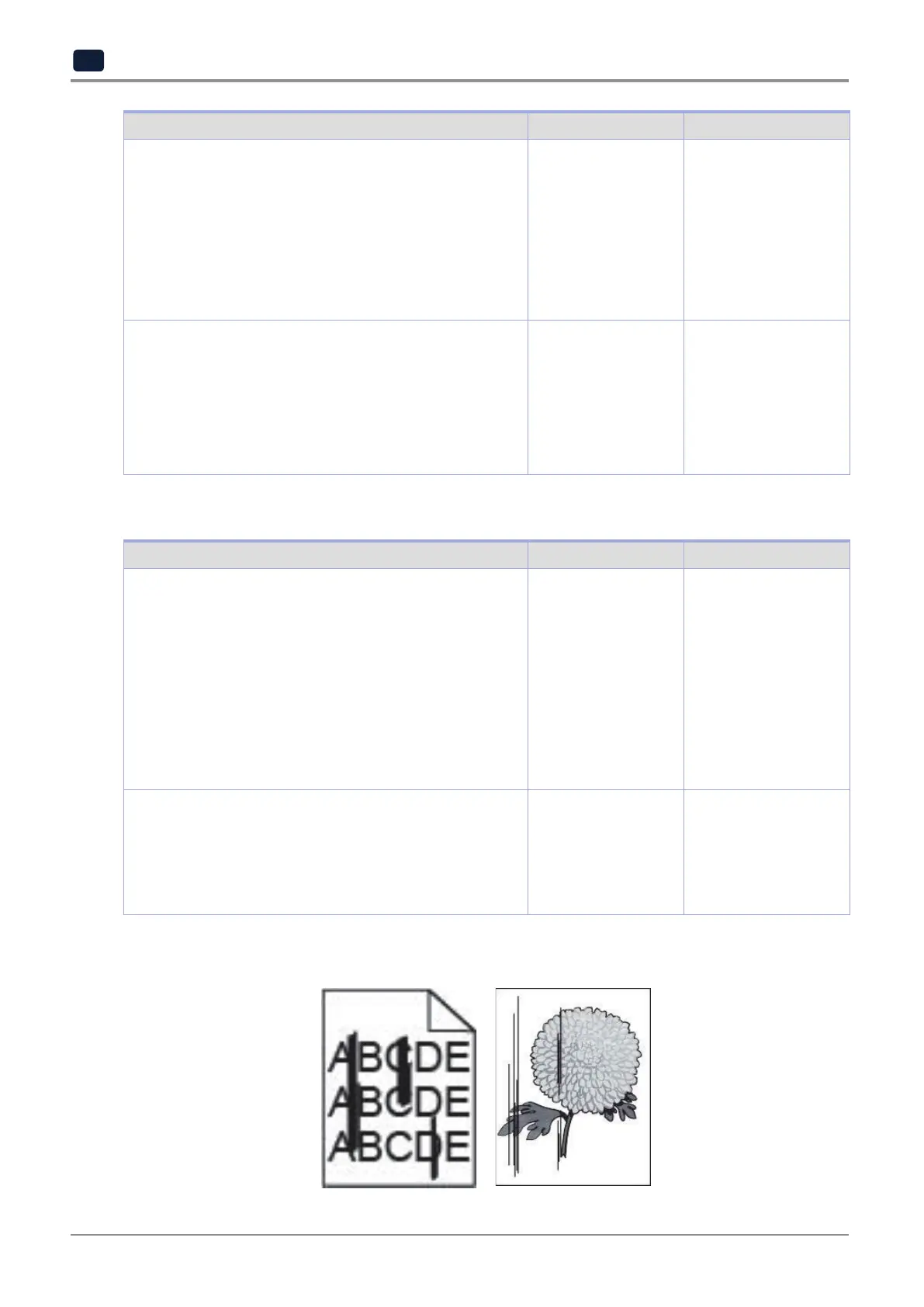
11.5 Vertical dark streaks on output when scanning from the ADF



 To Next Page