Fax
8-2
8
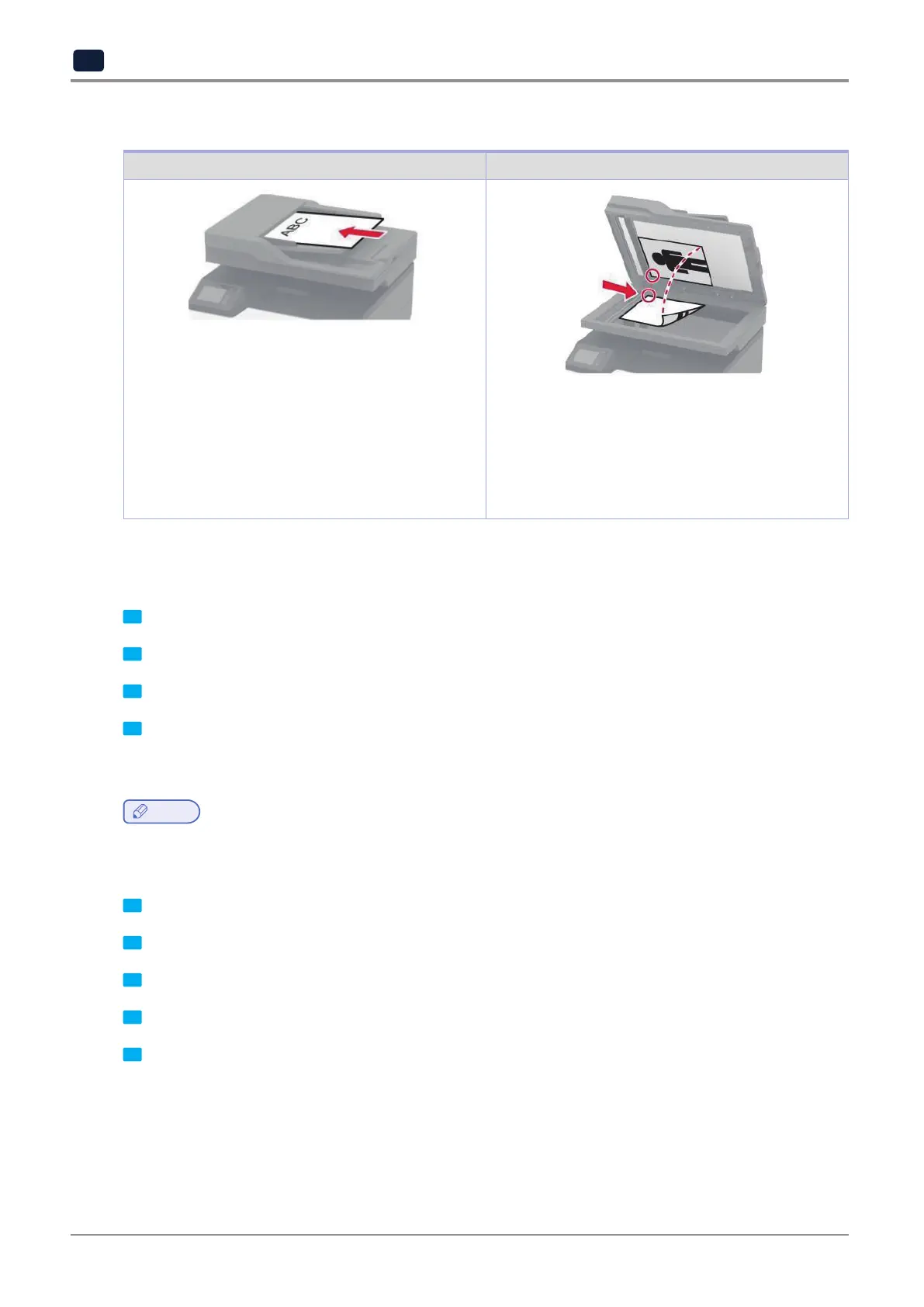
Using the automatic document feeder and scanner glass
Correct loading of paper Incorrect loading of paper
-
Use the ADF for multiple-page or two-sided
documents.
-
Load an original document faceup. For multiple-page
documents, make sure to align the leading edge
before loading.
-
Make sure to adjust the ADF guides to match the
width of the paper that you are loading.
-
Use the scanner glass for single-page documents,
book pages, small items (such as postcards or
photos), transparencies, photo paper, or thin media
(such as magazine clippings).
-
Place the document facedown in the corner with the
arrow.
Sending a fax
Using the control panel
1 Load the original document into the ADF tray or on the scanner glass.
2 From the home screen, touch Fax, and then enter the needed information.
3 If necessary, configure other fax settings.
4 Send the fax job.
Using the computer
Note
-
Make sure that the Universal Fax driver is installed.
❖
For Windows users
1 Withadocumentopen,clickFile→Print.
2 Select the printer, and then click Properties, Preferences, Options, or Setup.
3 ClickFax→Enablefax,andthenentertherecipientnumber.
4 If necessary, configure other fax settings.
5 Send the fax job.



 To Next Page