Copy
6-2
6
Using the automatic document feeder and scanner glass
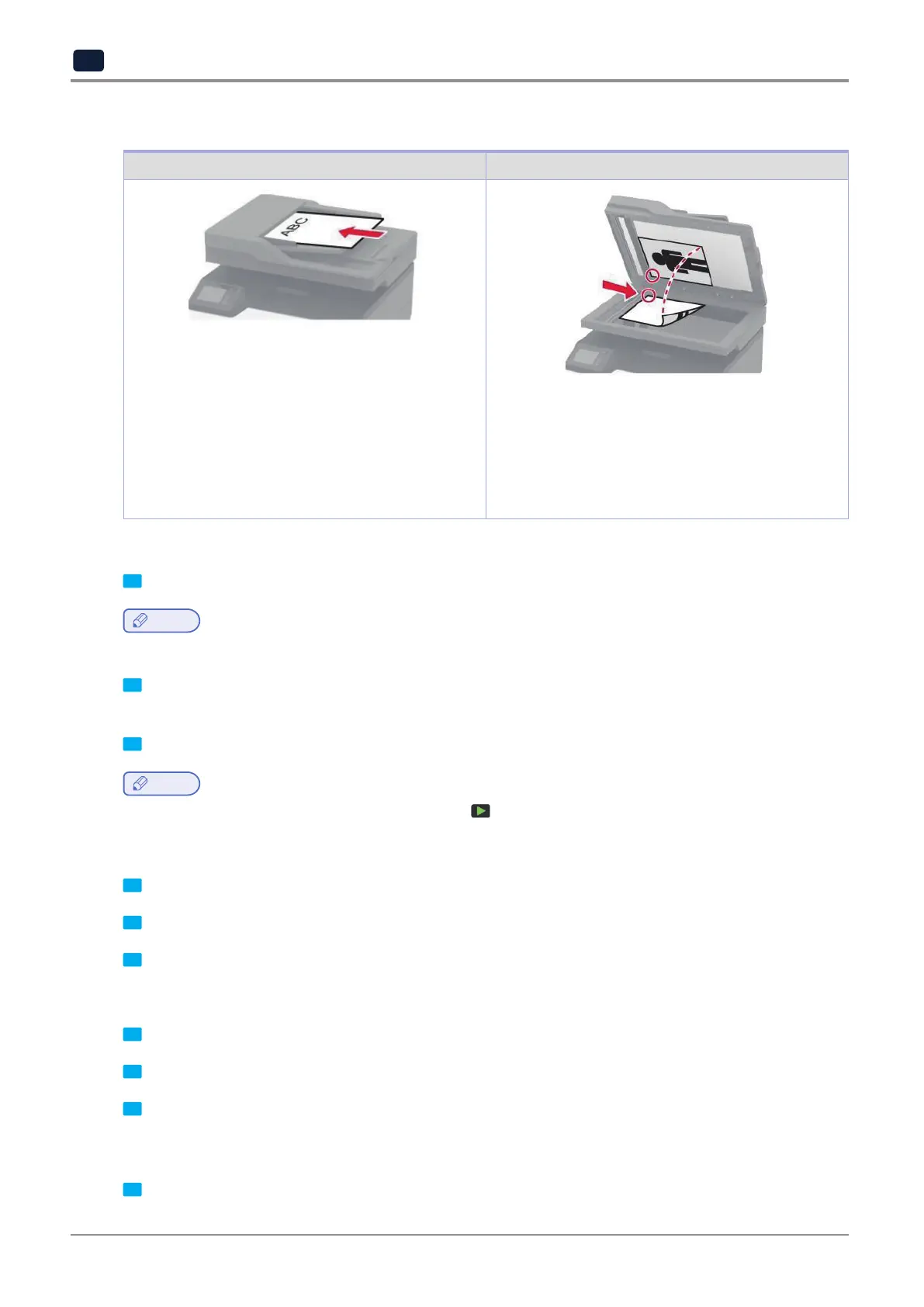
Correct loading of paper Incorrect loading of paper
-
Use the ADF for multiple-page or two-sided
documents.
-
Load an original document faceup. For multiple-page
documents, make sure to align the leading edge
before loading.
-
Make sure to adjust the ADF guides to match the
width of the paper that you are loading.
-
Use the scanner glass for single-page documents,
book pages, small items (such as postcards or
photos), transparencies, photo paper, or thin media
(such as magazine clippings).
-
Place the document facedown in the corner with the
arrow.
Making a copy
1
Load an original document into the ADF tray or on the scanner glass.
Note
-
To avoid a cropped image, make sure that the original document and the output have the same paper size.
2
From the control panel, select Copy, and then specify the number of copies.
If necessary, adjust the other settings.
3
Copy the document.
Note
-
To make a quick copy, from the control panel, press .
Copying photos
1
Place a photo on the scanner glass.
2
From the home screen, touch Copy → Content Type → Photo.
3
Copy the document.
Copying on letterhead
1
Load an original document into the ADF tray or on the scanner glass.
2
From the home screen, touch Copy → Copy From → select the size of the original document.
3
Touch Copy To, and then select the paper source that contains the letterhead.
If you loaded the letterhead into the manual feeder, then navigate to:
Copy To → Manual Feeder → select a paper size → Letterhead
4
Copy the document.



 To Next Page