Set up, install, and configure
3-6
3
❖
Creating folders
1 Open a web browser, and then type the printer IP address in the address field.
Note
-
ViewtheprinterIPaddressontheprinterhomescreen.TheIPaddressappearsasfoursetsofnumbers
separated by periods, such as 123.123.123.123.
-
Ifyouareusingaproxyserver,thentemporarilydisableittoloadthewebpagecorrectly.
2 ClickBookmarks→AddFolder,andthentypeafoldername.
Note
-
To limit access to the folder, enter a PIN.
3 Click Save.
Note
-
Youcancreatefoldersorbookmarksinsideafolder.Tocreateabookmark,see“Creatingbookmarks”on
P. 3-5.
Setting up the printer to fax
Setting up the fax function
Note
-
Some connection methods are applicable only in some countries or regions.
-
Ifthefaxfunctionisenabledandnotfullysetup,thentheindicatorlightmayblinkred.
-
IfyoudonothaveaTCP/IPenvironment,thenusethecontrolpaneltosetupfax.
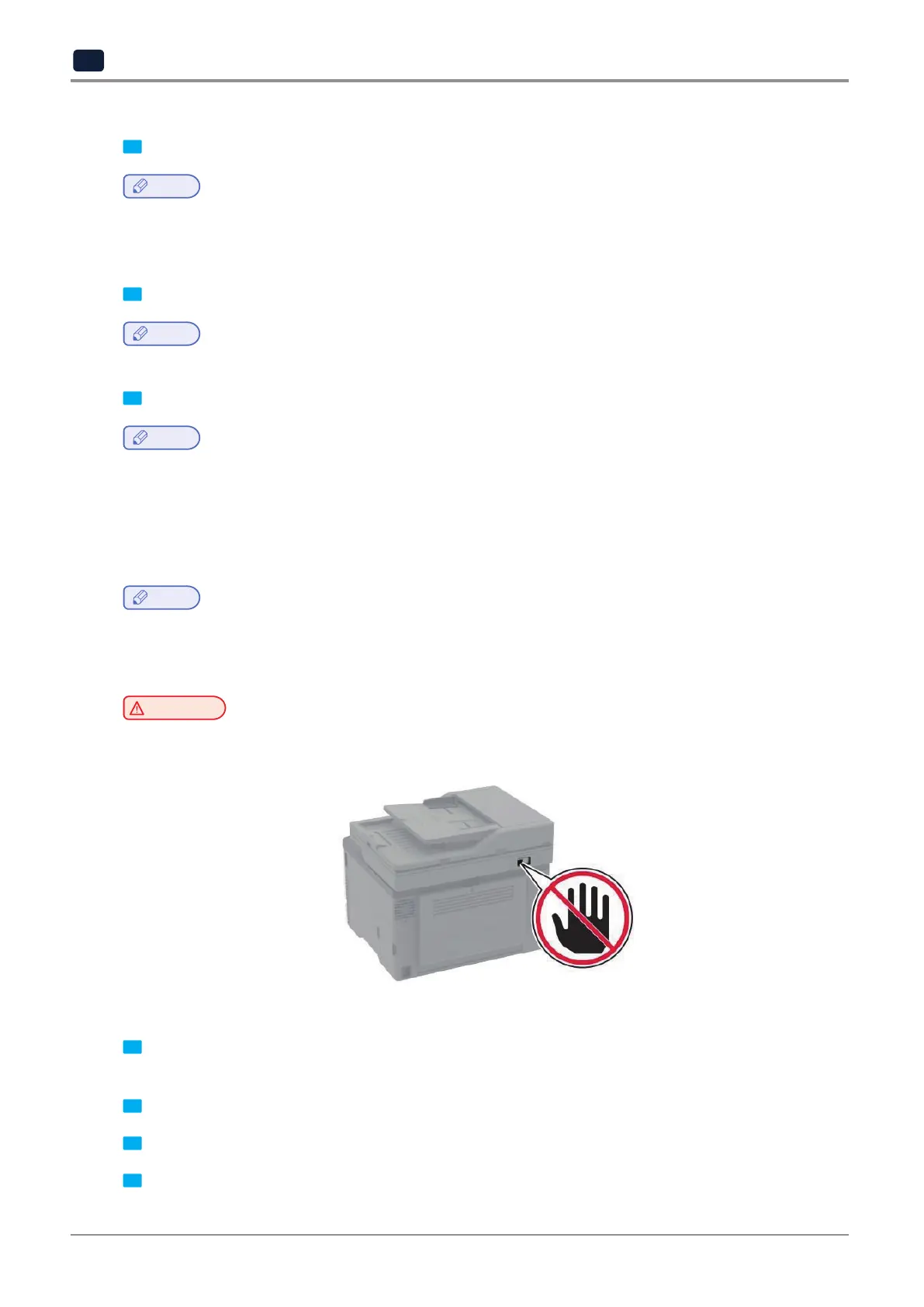
Warning
Potential Damage:
-
To avoid loss of data or printer malfunction, do not touch cables or the printer in the area shown while
actively sending or receiving a fax.
❖
Using the control panel
1 Fromthehomescreen,touch:
Settings→Device→Preferences→RunInitialSetup
2 Turn off the printer, wait for about 10 seconds, and then turn on the printer.
3 OntheFaxsetupscreen,configurethesettings.
4 Finishthesetup.



 To Next Page