E-mail
7-2
7
Using the automatic document feeder and scanner glass
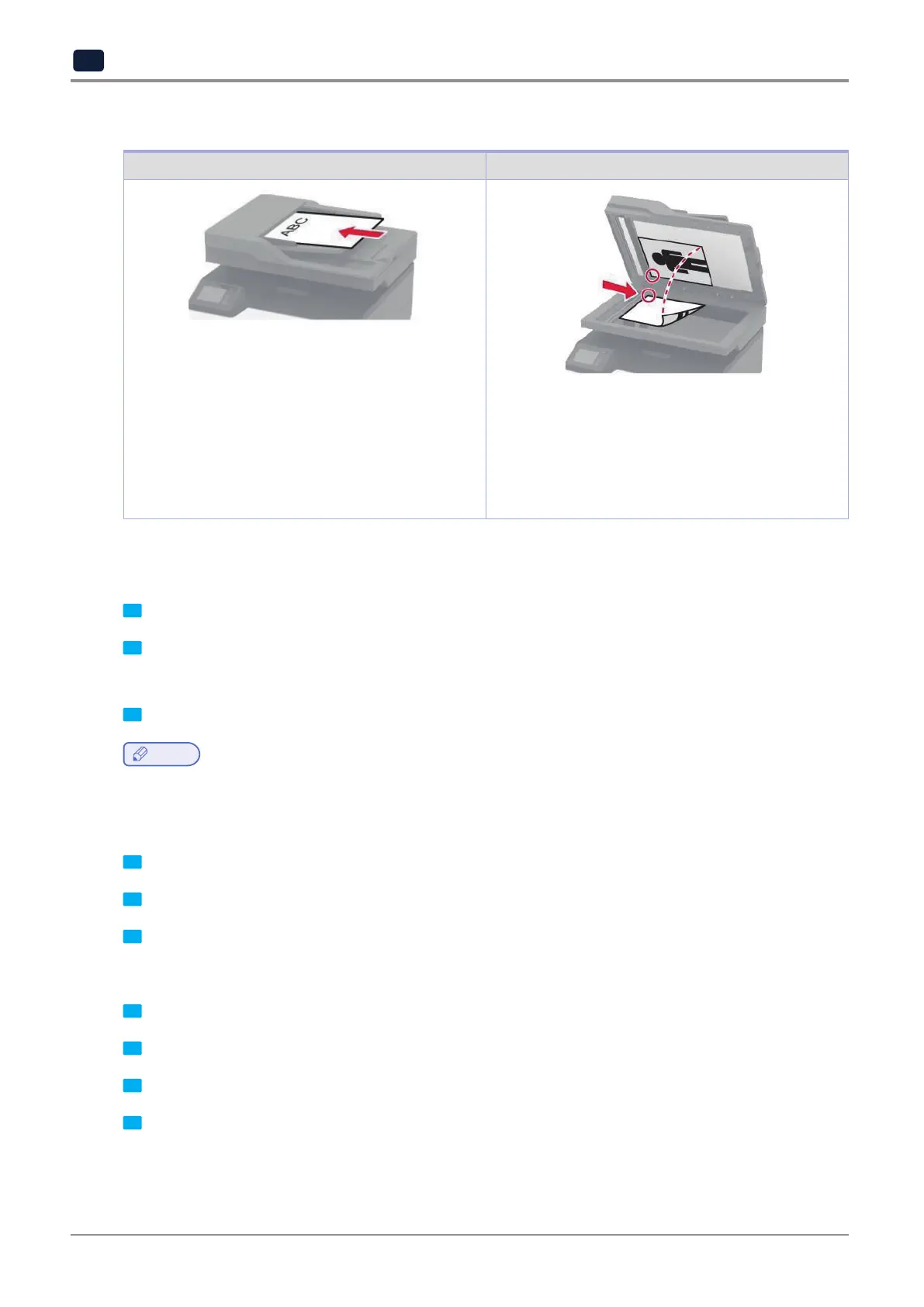
Correct loading of paper Incorrect loading of paper
-
Use the ADF for multiple-page or two-sided
documents.
-
Load an original document faceup. For multiple-page
documents, make sure to align the leading edge
before loading.
-
Make sure to adjust the ADF guides to match the
width of the paper that you are loading.
-
Use the scanner glass for single-page documents,
book pages, small items (such as postcards or
photos), transparencies, photo paper, or thin media
(such as magazine clippings).
-
Place the document facedown in the corner with the
arrow.
ConguringtheSMTPserverfore‑mail
From the control panel
1
From the control panel, touch Settings → E‑mail → E‑mail Setup.
2 Configure the settings.
FromtheEmbeddedWebServer
1
Open a web browser, and then type the printer IP address in the address field.
Note
-
View the printer IP address on the printer home screen. The IP address appears as four sets of numbers
separated by periods, such as 123.123.123.123.
-
If you are using a proxy server, then temporarily disable it to load the web page correctly.
2
Click Settings → E‑mail.
3
From the E‑mail Setup section, configure the settings.
4
Click Save.
Sendingane‑mail
1
Load an original document into the ADF tray or on the scanner glass.
2
From the home screen, touch E‑mail, and then enter the needed information.
3
If necessary, configure the output file type settings.
4
Send the e-mail.



 To Next Page