Using Orion Platform Advanced Alerts
Note: Properly defining alert trigger conditions to address specific network
conditions on selected network objects can eliminate the need for alert suppression
conditions. SolarWinds recommends the use of appropriately specific trigger
conditions to define alerts instead of suppression conditions, if possible. For more
information about defining conditions, see "Understanding Condition Groups"
To set the trigger conditions for an advanced alert:
1. Click Start > SolarWinds > Alerting, Reporting, and Mapping > Advanced Alert
Manager.
2. Click View > Configure Alerts.
3. If you want to create a new alert, click New.
4. If you want to copy or edit an existing alert, select an alert from the list,
and then click Copy or Edit, as appropriate.
5. Click Trigger Condition.
6.
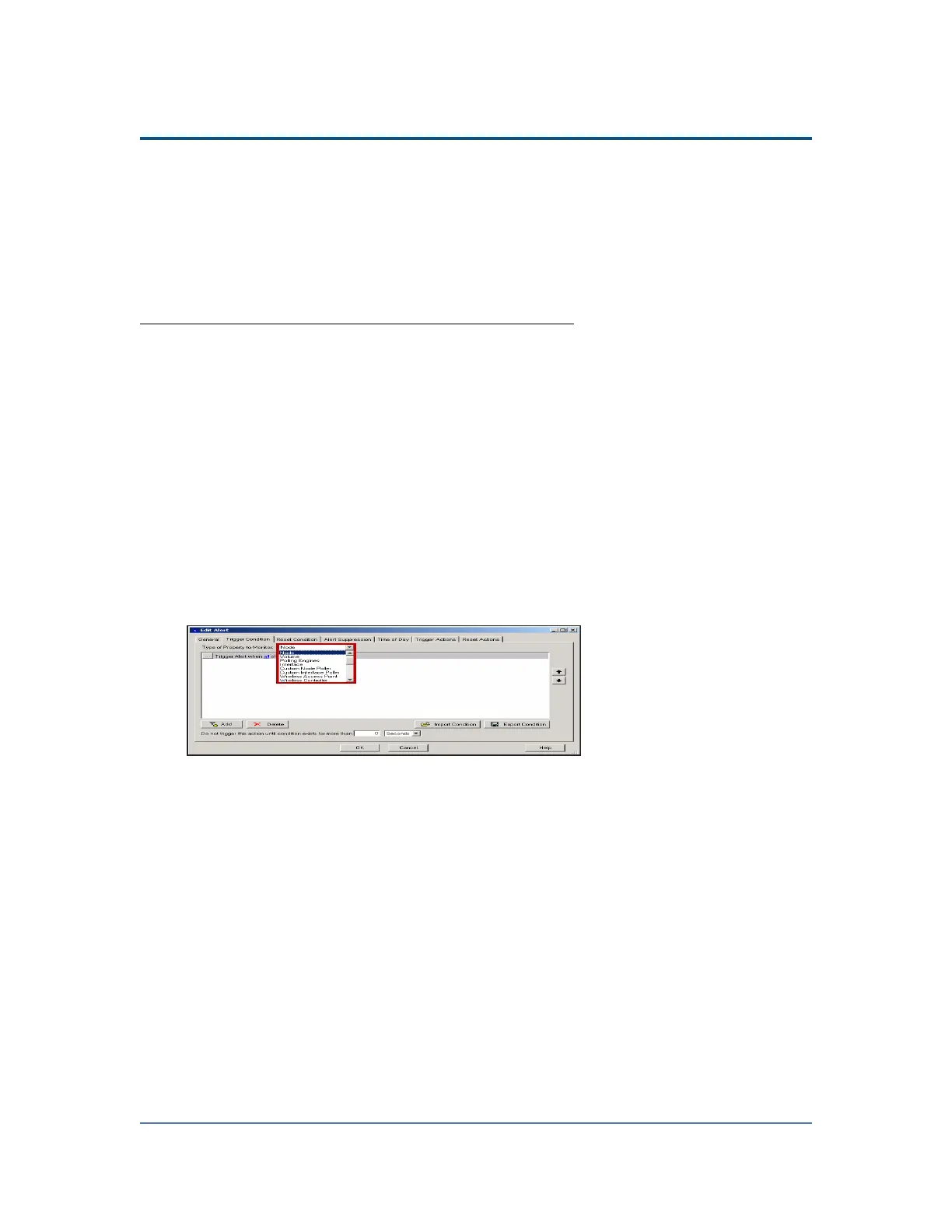
Select the Type of Property to Monitor from the list.
Note: The following image is a screen capture from an Orion Network
Performance Monitor installation. Other modules will look similar, but different
objects may be present.
7.
If you select Custom SQL Alert, complete the following steps:
a. Select the object on which you want to alert in the Set up your Trigger
Query field.
b. Provide your custom SQL in the field below the object selection query.
c. If you want to delay the trigger of this alert, provide the value and
unit of your desired alert trigger delay.
d. If you want to confirm your provided SQL, click Validate SQL.
216



 To Next Page