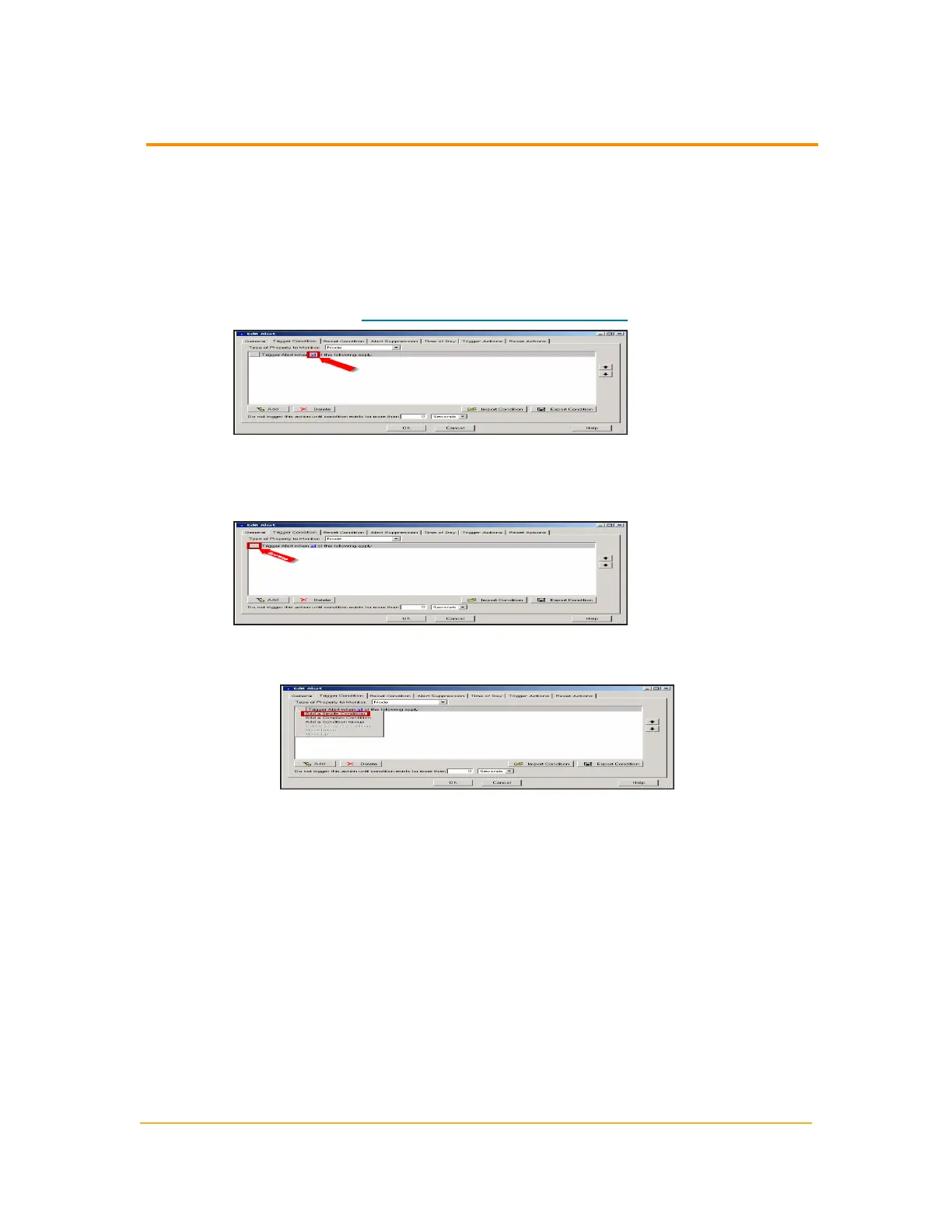
8. If you select a type of monitored object, complete the following steps:
a. Generate trigger conditions in the text field by selecting appropriate
descriptors from the linked context menus and by clicking Browse (...)
on the left of the text field.
b.
Click the linked text to select the number of conditions that you want to
apply (all, any, none, not all). For more information about linked text
conditions, see "Understanding Condition Groups."
c. Click Browse (...) to view the following condition options:
Note: The has changed condition is only valid for the Last Boot, IOS
Version, and IOS Image Family device characteristics.
n
To generate a condition based on a comparison of device states,
click Add a Simple Condition.
n To generate a condition based on a comparison of device fields
and values, click Add a Complex Condition.
n To define more conditions, click Add a Condition Group.
n To remove a selected condition, click Delete Current Condition.
n To change the order of your conditions, click Move Down or Move
Up, as appropriate.
d. If you need an additional condition, click Browse (...), and then click
Add ConditionType, as appropriate for the condition you want to add.
217
Setting a Trigger Condition for an Advanced Alert



 To Next Page