113
UNLOADING MATERIAL
Perform the following steps to unload material:
1. Ensure that the printer is stopped (idle) and is not building.
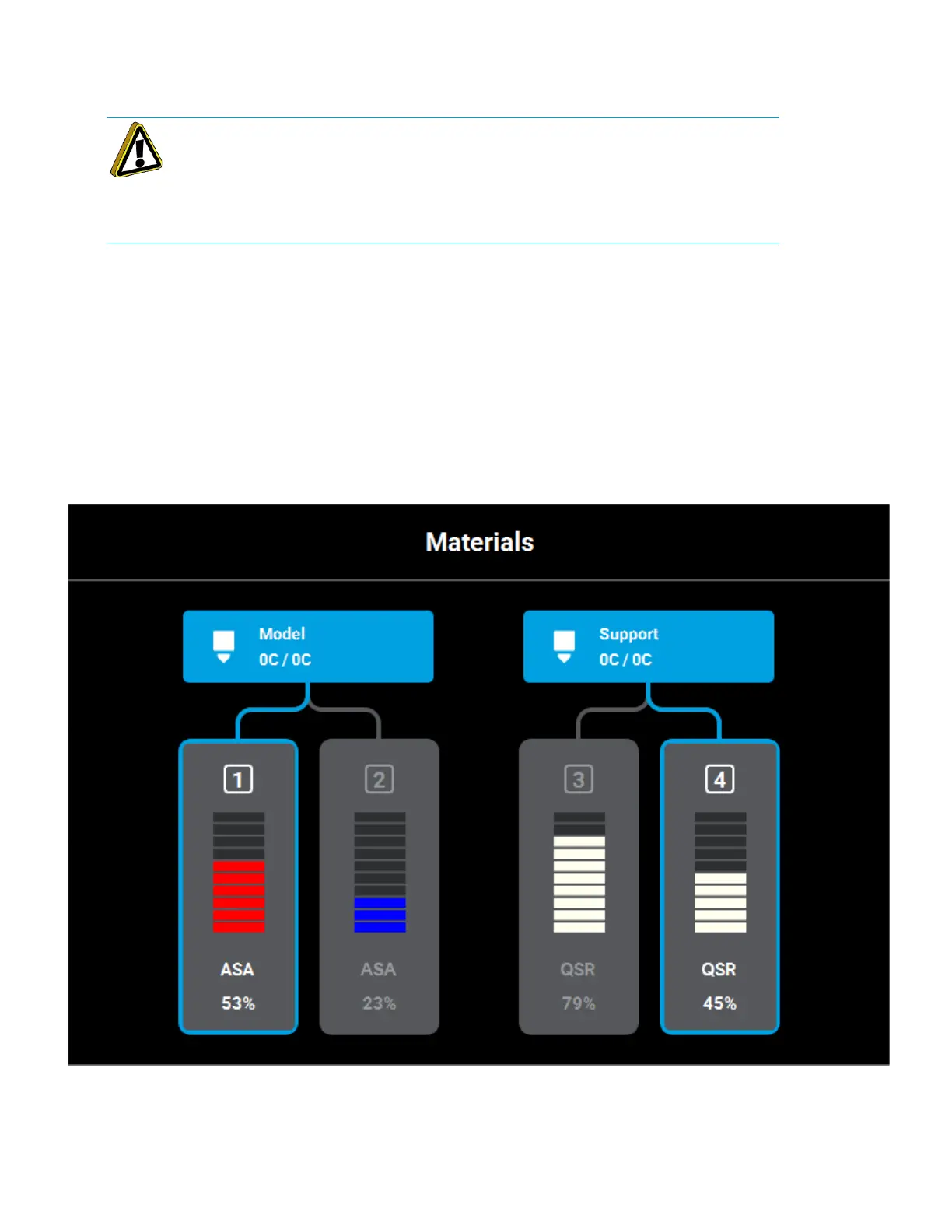
2. Select the Materials button from the Navigation Menu; a screen similar to Figure 5-9 will be
displayed. The information displayed represents the current configuration of your printer.
3. Observe the status information displayed for each of the Materials Status Icons. For a loaded
material, the pathway between the material’s Material Status Icon and corresponding Head
Status Icon will be solid blue, the Head Status Icon will be blue, and the Material Status Icon will
display a solid blue border.
Figure 5-9: Current Configuration - Unload Material
4. Open the Material Details page corresponding to the material bay you’d like to unload by
touching its Material Status Icon on the screen.
Caution: If the printer remains idle for more than 72 hours, leaving material in
the filament tubes could result in a part quality issues due to wet filament. failed
build. To prevent this:
1) Remove filament from the tubes.
Or
2) Unload filament and cut six feet of material from the spool.














 To Next Page