77
TOOLS PAGE MENU
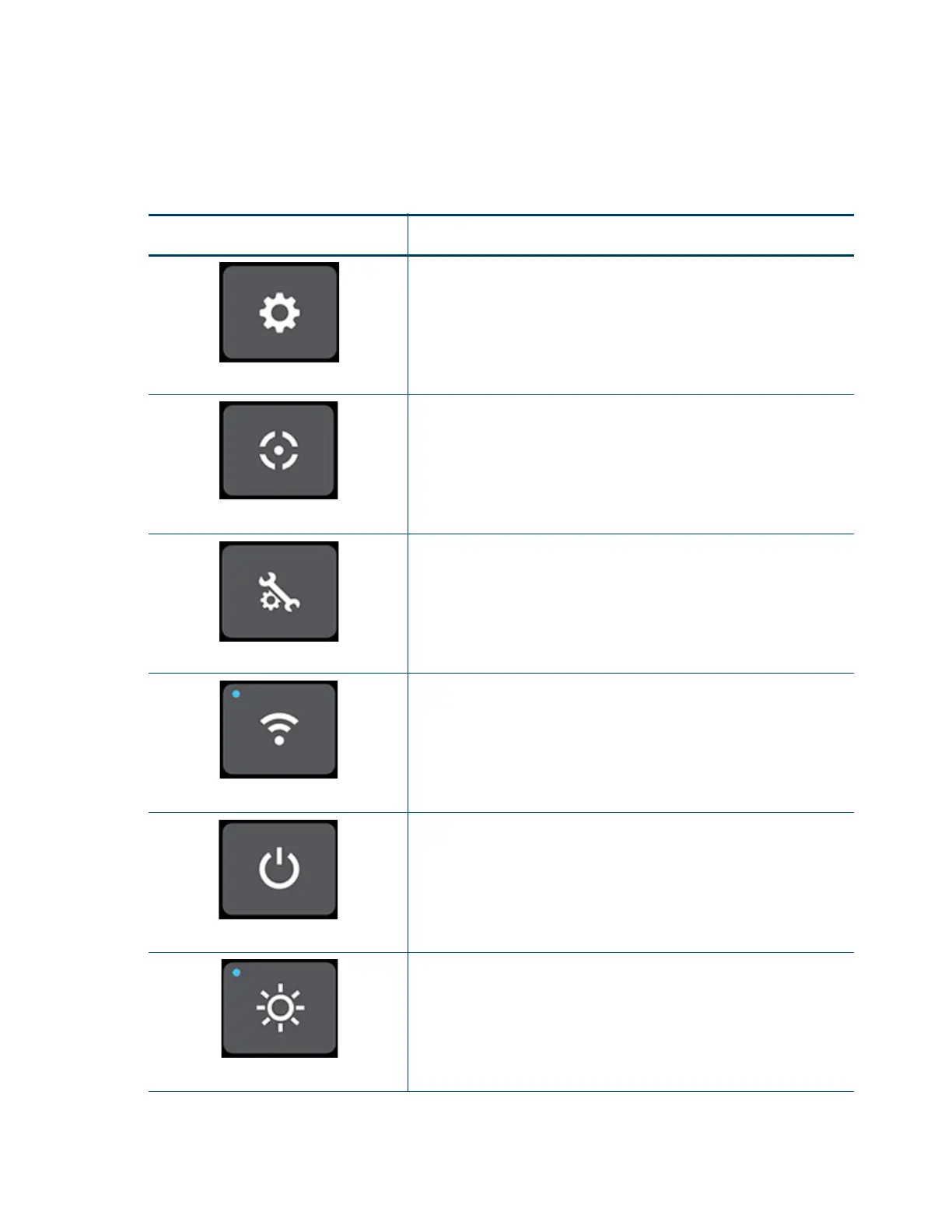
The Display Area of the Tools page contains 6 buttons. With the exception of the Light button, pressing each of
these buttons will open an individual page containing printer information that can be viewed as well as printer
settings and preferences which can be configured.
Table 4-12: Filament Pathway States
Icon State Description
Settings
Pressing the Settings button opens the Settings page. From this page
you can configure and adjust several of the printer’s default settings.
See “Settings” on page 79 for details.
Calibration
Pressing the Calibration button opens the Calibration page. From this
page you can preform various printer calibration procedures. See
“Calibration” on page 89 for details.
Maintenance
Pressing the Maintenance button opens the Maintenance page. From
this page you can perform various printer maintenance procedures.
See “Maintenance” on page 91 for details.
Network
Pressing the Network button opens the Network page. From this page
you can configure the printer’s network connection. See “Network” on
page 95 for details.
Power
Pressing the Power button opens the Power page. From this page you
can shutdown or restart the printer. See “Power” on page 101 for
details.
Light
The Light button is the only option within the Tools page that does not
open a new page after being pressed. Instead, the Light button allows
you to turn the oven light ON and OFF. An indicator within the upper-left
corner of the button displays the current state of the oven light (ON or
OFF). See “Light” on page 104 for details.














 To Next Page