42
• If you send two or more job files to the printer via network transfer using GrabCAD Print, the job
details of the first file sent will automatically be displayed within the Build Status Display once the job
file is received by the printer, as jobs are built in the order they’re sent to the printer. The Load File
button will be hidden from view once the first job file is received by the printer via network transfer.
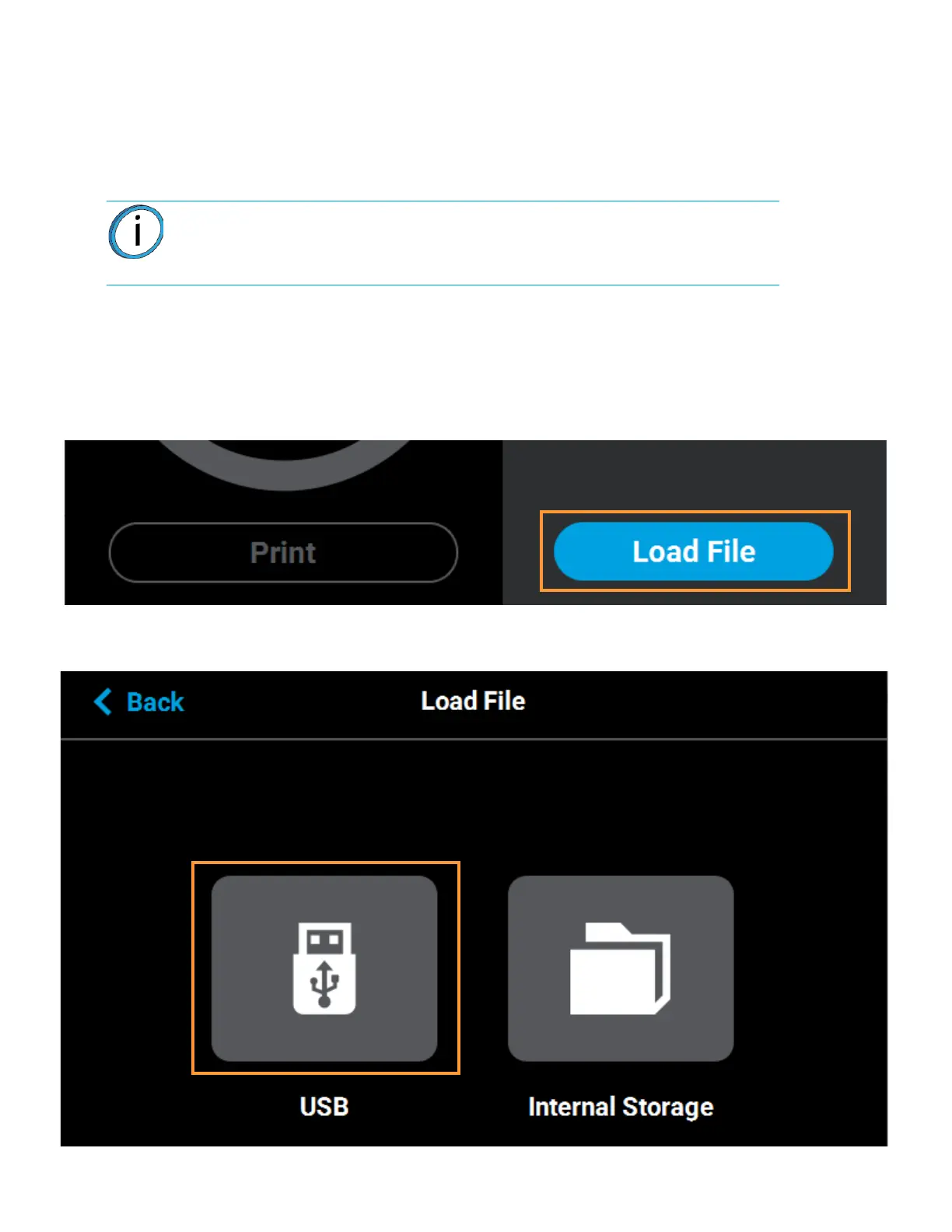
• If you do not send files to the printer using GrabCAD Print and instead plug a USB flash drive into
one of the printer’s USB ports, the Load File button will be visible within the Build page. You can use
this button to select a single job file you’d like to build directly from the flash drive.
To load a file:
1. Plug a USB flash drive into one of the available USB ports on the front of the printer (see Figure
3-3 on page 22 for USB port locations).
2. Press the Load File button within the Build page.
Figure 4-5: Load File Button
3. The Load File page will be displayed; press the USB button within this page.
Figure 4-6: Load File Page - USB Option
Note: The Load File button within the Build page allows you to quickly select a
single file to build off of a USB flash drive. The selected file will automatically be
queued for building. If you’d like to populate the Job Queue with multiple job
files, follow the instructions within “Adding a Job to the Job Queue” on page 51.














 To Next Page