SummaCut cutter User’s Manual
Contour Cutting 3-7
3.3.4
With this option, the job can be divided into panels in order to avoid moving the media
unnecessarily back and forth. When OPOS panelling is activated, all cut data will be cut
in panels. The size of the panel will be the distance between the OPOS marks in the X-
axis.
OPOS Panels can be set to OFF, ON (2marks) or ON (4marks). When set to ON (2
marks), the cutter will only load 2 marks in the X-direction when loading OPOS and
read the marks (4 in total for the first panel). The following panels will then be cut after
reading the marks at the end of that panel (so 2 for each following panel). When set to
ON (4 marks), the last marks of the previous panel are re-read. This improves the
connection between the panels.
Do not use software panelling when using OPOS panelling.
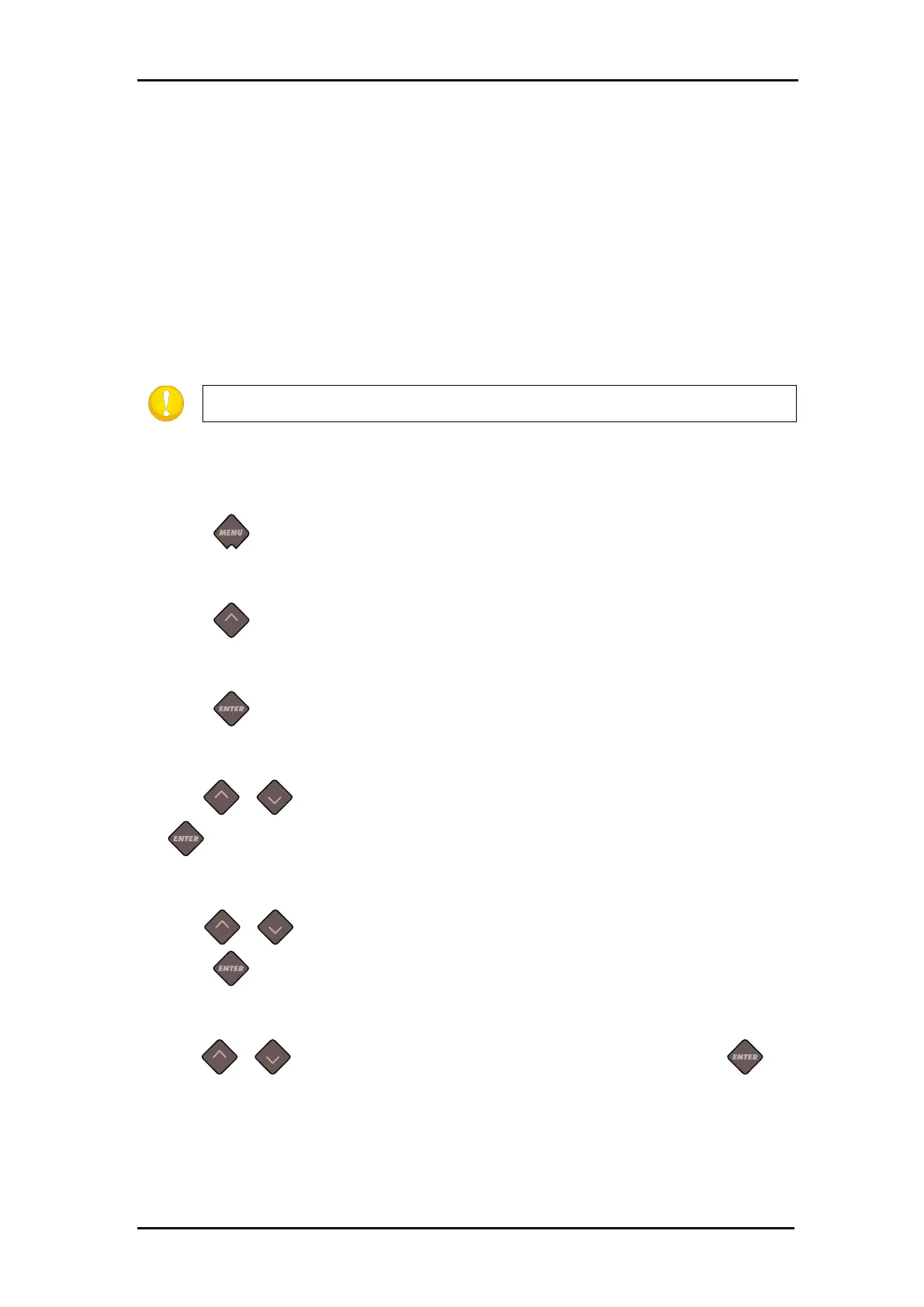
Activating OPOS panelling:
Power on the cutter.
Press .
‘Knife Pressure’ will appear on the LCD.
Press .
‘System Setup’ will appear on the LCD.
Press .
‘Actions’ will appear on the LCD.
Use or to scroll through the menu until ‘Configuration’ is reached, press
.
‘IP Config’ will appear on the LCD.
Use or to scroll through the menu until ‘OPOS Parameters’ is reached,
press .
‘Sheet Mode’ will appear on the LCD.
Use or to scroll through the menu until ‘Panels’ is reached, press .
The value of the chosen parameter will appear on the LCD.






 To Next Page