SummaCut cutter User’s Manual
3.5
The cutting through functionality is focussed on cutting simple shapes (e.g. rectangles).
It is mostly used in combination with contour cutting.
An interrupted cutting line (small ‘bridges’) makes sure the material remains together.
When the job is finished the cut pieces can be torn out.
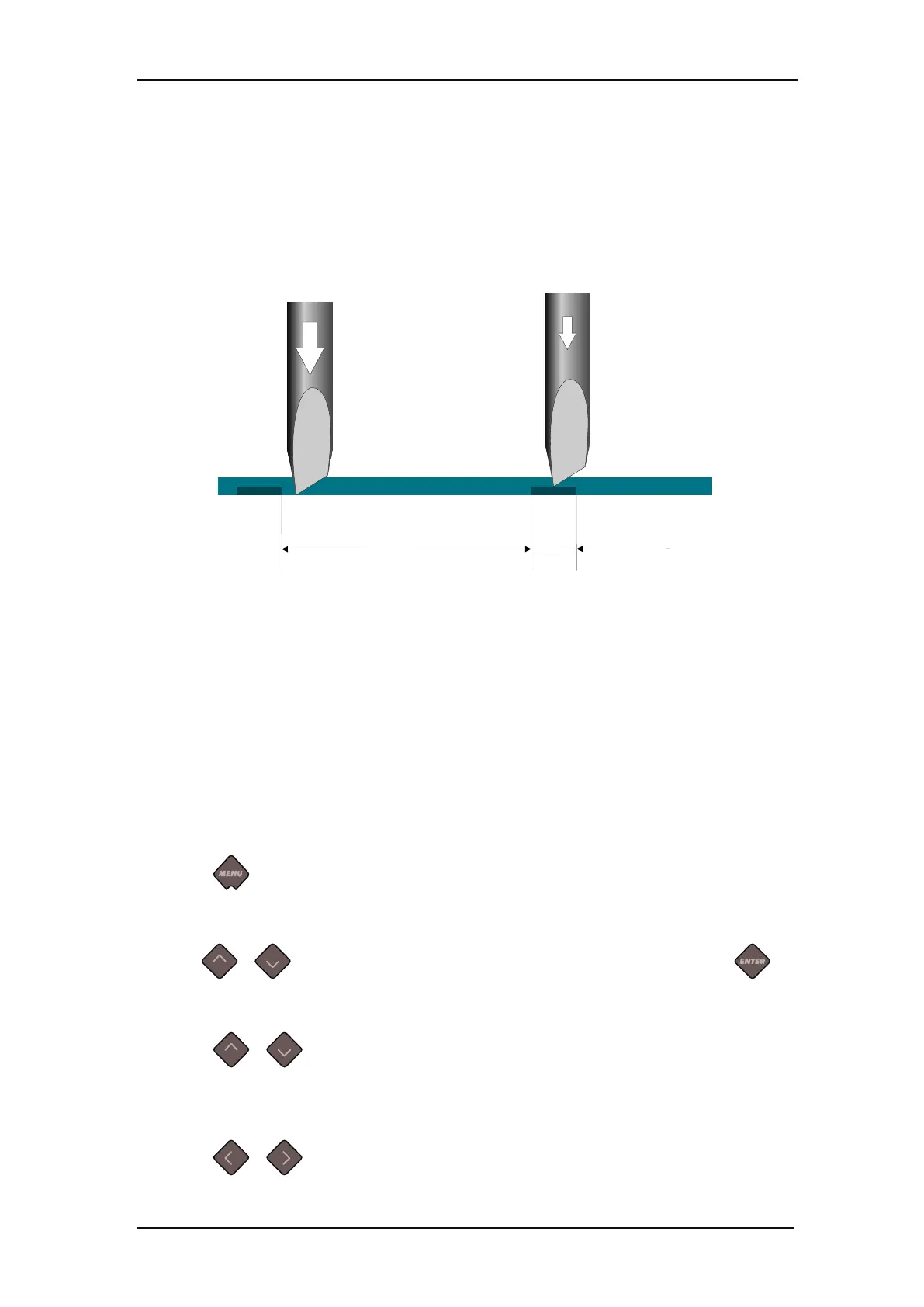
FIG 3-3
3-3 FLEXCUT PRINCIPLE
Some cutting software can recognize the difference between a contour line and a cut-
through line. The software will send the data of the contour lines to the cutter first,
activate FlexCut, panelling mode and vector sorting and then send the cutting through
data to the cutter.
If the cutting software cannot do this, the user will have to send the data of the contour
lines separately first, set the cutter manually in FlexCut mode and then send the data
for cutting through.
Setting the parameters for cutting through the media:
Power on the cutter.
Press .
‘Knife pressure will appear on the LCD.
Use or to scroll through the menu until ‘FlexCut’ is reached, press .
‘FlexCut’ will appear on the LCD.
Press or to choose the FlexCut parameter that needs to be changed.
The menu can scroll through full pressure, full pressure cut-length, Flex pressure
and Flex pressure cut-length and FlexCut velocity.
Press or to change the value of the chosen parameter.
Cutting Length Flex Length
Full Pressure
Flex Pressure
Media






 To Next Page