Main menu
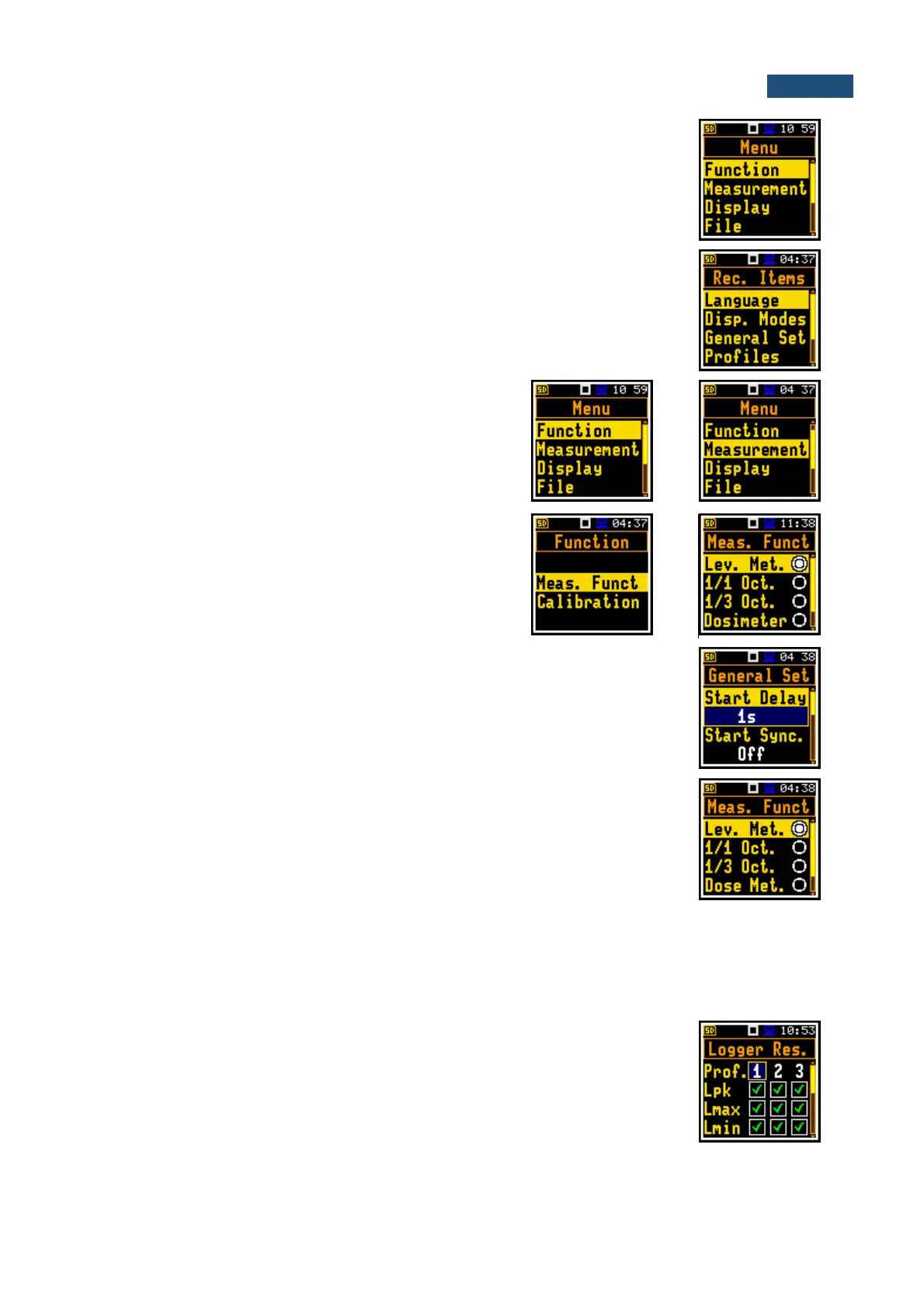
The main menu (Menu) contains headers of seven sections, which contain
another sub-menu. The main menu is opened after pressing the <Menu> (<Shift>
and <Enter>) key.
Recent Items list
Double-pressing of the <Menu> key opens the list of recently used menu items.
This enables accessing most frequently used lists of parameters and lists of
options quickly, without the necessity of passing through the whole menu.
Position selection
The desired position in the list is selected with the ▲ / ▼
key.
Opening a position
After selection of the desired position in the menu list,
press the <Enter> key to open it. After this operation, a
new sub-menu, list of option, list of parameter or
information window appears on the display.
List of parameters
A list of parameters contains parameters for which you may select the value from
the available set.
• Use the ▲ / ▼ key to select the parameter in the list.
• Use the ◄ / ► key to change the value of the selected parameter.
• Press <Enter> to saves all performed changes in the list of parameters.
List of options
In the list of options consists only one can be selected. The selection of the option
is performed in the following way. Select the desired option with the ▲ / ▼ key
and press <Enter>. This option becomes active and the list is closed. After re-
entering this list again, the last selected option will be marked.
If the parameter has a numerical value, you can speed up a selection by pressing the ◄ / ► key and
keeping it pressed by more than 2 seconds. In this case, the parameter value starts to change
automatically until you release the pressed buttons.
You may change the numerical parameter value with a larger step (usually 10, 20) with the ◄ / ► key
pressed together with <Shift>.
Matrix of parameters
When the list of parameters consists of more than one column you may change:
• column with the ◄ / ► key
• line in the column with the ▲ / ▼ key
• value in the selected position with the ◄ / ► key pressed with <Shift>
• value in a line with the ▲ / ▼ key pressed with <Shift>
• value in a column, if the cursor is on one of Profile positions, with the ◄ / ►
key pressed with <Shift>


 To Next Page