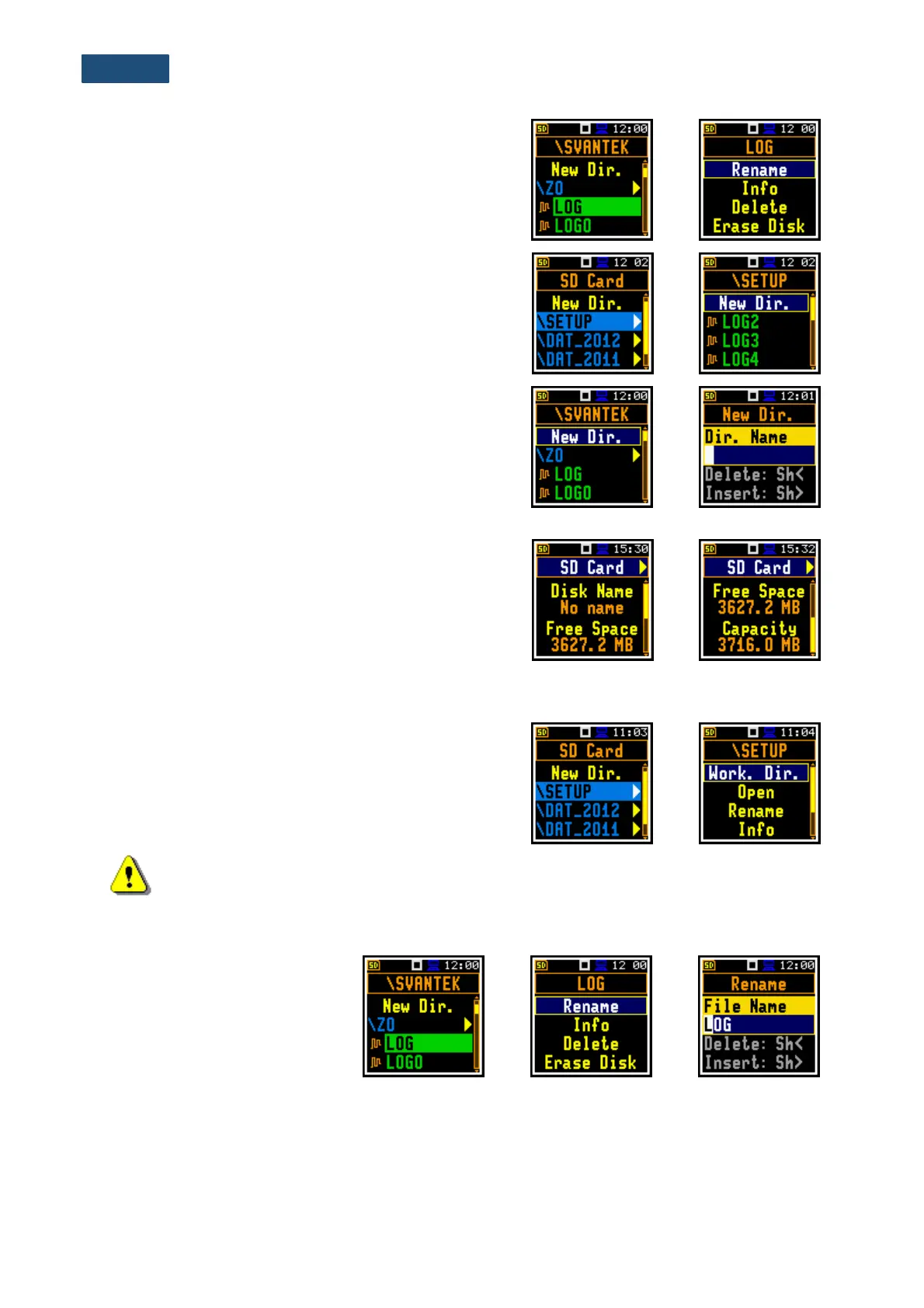
In the File Manager, you can check contents of the
memory and perform operations on logger files and
directories, such as: renaming, delete, displaying
information, creating new directory and erasing memory.
Changing directories
To open a directory, select it and press the ► key.
To return to the upper directory press the ◄ key.
Creating new directory
First position of the File Manag. list is New Dir., which
enables creating the new directory.
To create the new directory, enter the directory in which
the new one will be created, select the New Dir. position
and press <Enter>. The screen with the text editor will
appear for entering new directory name.
SD-card properties
The last screen after pressing the ◄ key, contains
information about the SD Card: memory name
(Disk Name), memory free space (Free Space) and total
memory space (Capacity).
7.1.1 Assigning the directory for logger files saving – Working Directory
You can assign the directory for automatic saving of
logger files. To do this, choose the required directory and
press the <Enter> key. Select the Work. Dir. position in
the command list and press <Enter>.
Note: The working directory name is not displayed on the screen, so you should remember
about the selected working directory!
7.1.2 Renaming a file/directory – Rename
To rename a file or a directory,
select the file/directory you wish
to rename and press <Enter>.
Select the Rename position in
the command list and press
<Enter>. The window with the
text editor function in which you
may enter the new file/directory
name will appear.


 To Next Page