92 WEB Interface
CP560 DVB-T2 Gateway User’s Manual Rev. 2.2 (3686) ID: um_t2gateway
Selected Input
Shows the currently selected physical port
Status
Shows alarm status on the switch input. This is not the same as the status on the currently
selected physical port.
To add a switch press the Add Input Switch button and press Apply to commit. When a switch
is added, it appears in the left hand side navigator with an adjacent pluss sign. Selecting the
switch will take you to the configuration page for the switch.
Removing a switch is accomplished by selecting the switch to remove in the datagrid and press
the Remove Input Switch button.
The Reset Stats button is used to clear statistics counters for the switches.
8.5.2 Input
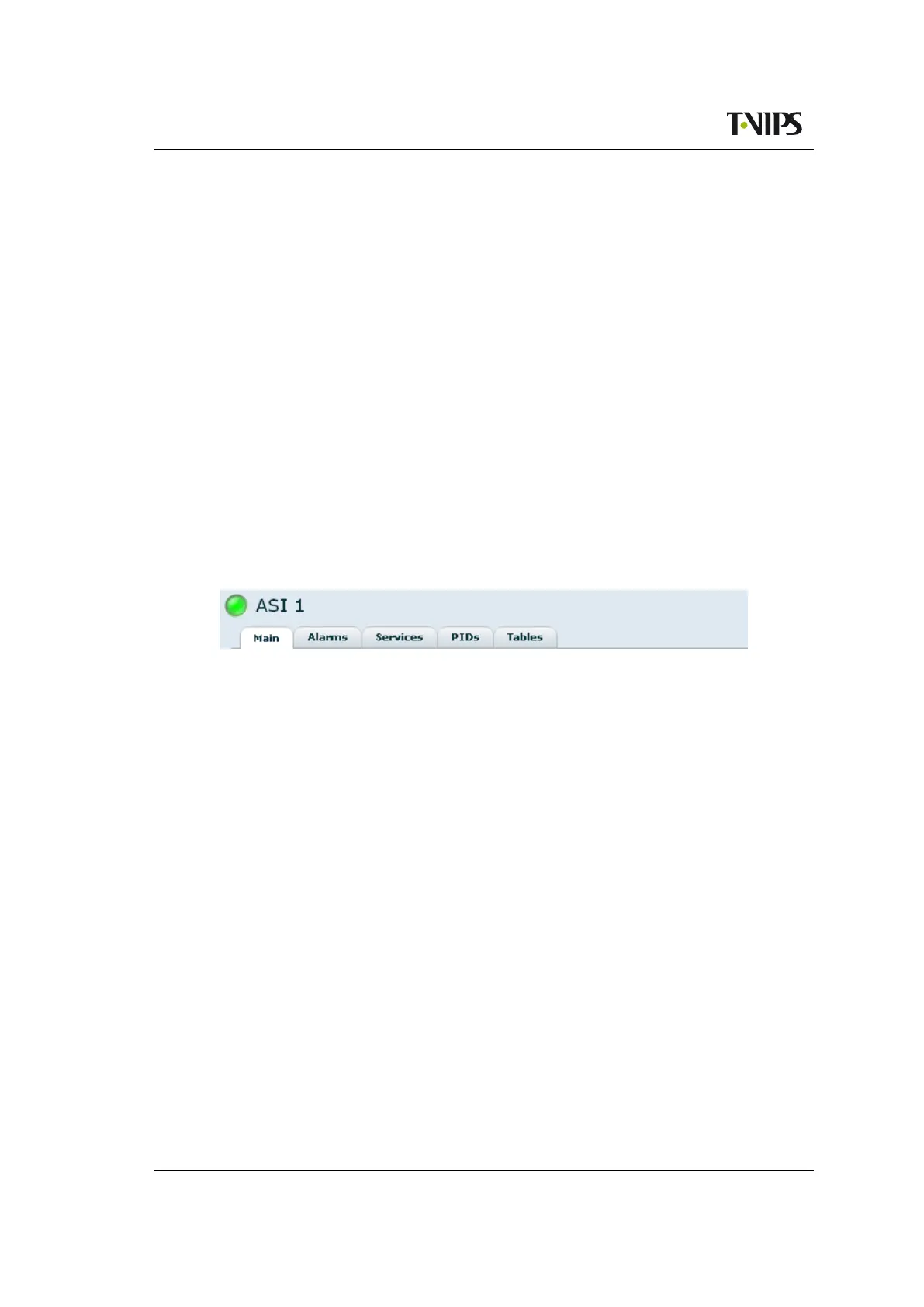
When a specific input is selected a page with information about that input is displayed. The
top part of the page is common for all sub pages and shows the name and the current alarm
status of the input.
Figure 8.46 Input header
Holding the mouse cursor over the alarm status indicator brings up a tool tip displaying up to
30 of the current alarms (if any) on this particular input.
Beneath the name of the input is a tab navigator containing different sub pages with information
about the selected input. The choices are:
Main
This page shows a summary of the transport stream currently received on the input, in-
cluding a summary of the running PIDs and services.
Alarms
This page lets the user view the status of all alarms on the input, and override the severity
of these alarms.
IP
This tab is present only if the input selected in the navigator is an IP input. It gives access
to the IP specific features of the input.
Services
This page gives detailed information about the services that are currently running and the
components of those services.
PIDs
This page gives detailed information about the currently present PIDs.


 To Next Page