CHAPTER FIVE
5-2
The Standard Entry field displays “Empty”, when an available
standard location is selected. This is the location you would use
to enter a new standard.
To access a new or existing standard location:
1. Use the Tab keys $@ to highlight the standard # in the Edit
Standard field.
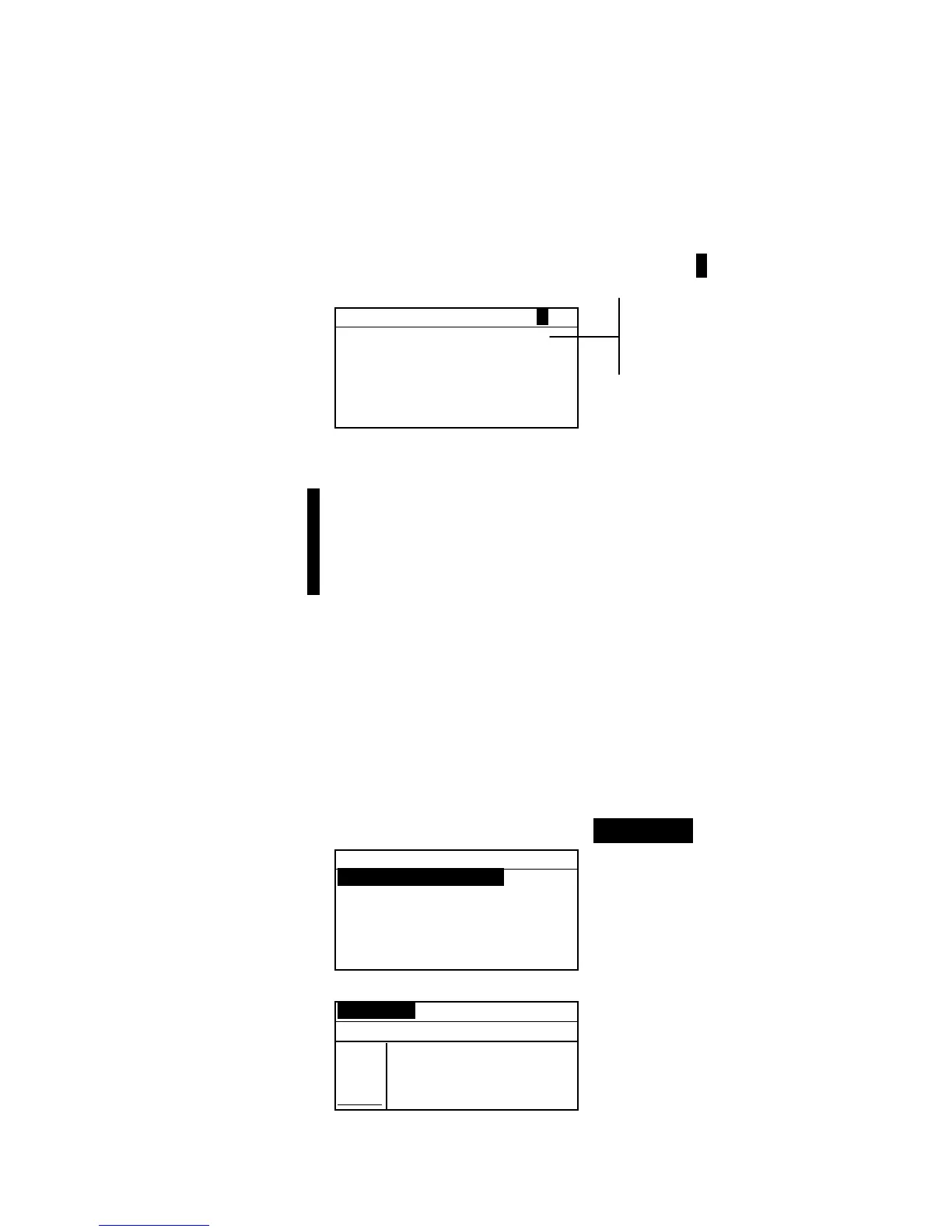
Edit Standard : 1
Std Entry:Measured
Std Name :Blue Sample
Tolerances...
Shade Sort Opts...
Std Lock : Unlocked
Delete THIS Std...
2. Press the Enter key # to page to a new or existing standard
location.
NOTE: You can go to a specific standard by holding down the Enter
key # until the Enter Std Number menu appears, and selecting the
number through the editor. This provides a convenient method of
selecting a specific standard when many standards exist in the
database.
Entering Standard Data
Depending on how data was input, the standard entry field
displays as Measured, Manual, or Downloaded. Measured
appears when the instrument was used to measure the sample.
Manual displays when data values are manually entered into the
instrument using the alphanumeric editor. Download indicates
that the standard data was downloaded to the instrument from
an X-Rite software program, such as X-RiteColor® Master.
To access the standard entry menu:
1. Use the Tab keys $@ to highlight Std Entry.
Edit Standard : 1
Std Entry:Empty
Std Name :
Tolerances...
Shade Sort Opts...
Std Lock :Unlocked
2. Press the Enter key # to access the Standard Entry menu.
Measure Std : 1
< Measure Standard>
L*a*b*
D65/10
.
.
..
.
.
.
...
L* 0.00
a* +0.00
b* +0.00
The field indicates the
status of the standard
(measured, manual,
downloaded, or empty)



 To Next Page