INSTRUMENT OPERATION MODES
5-3
Measuring a Standard
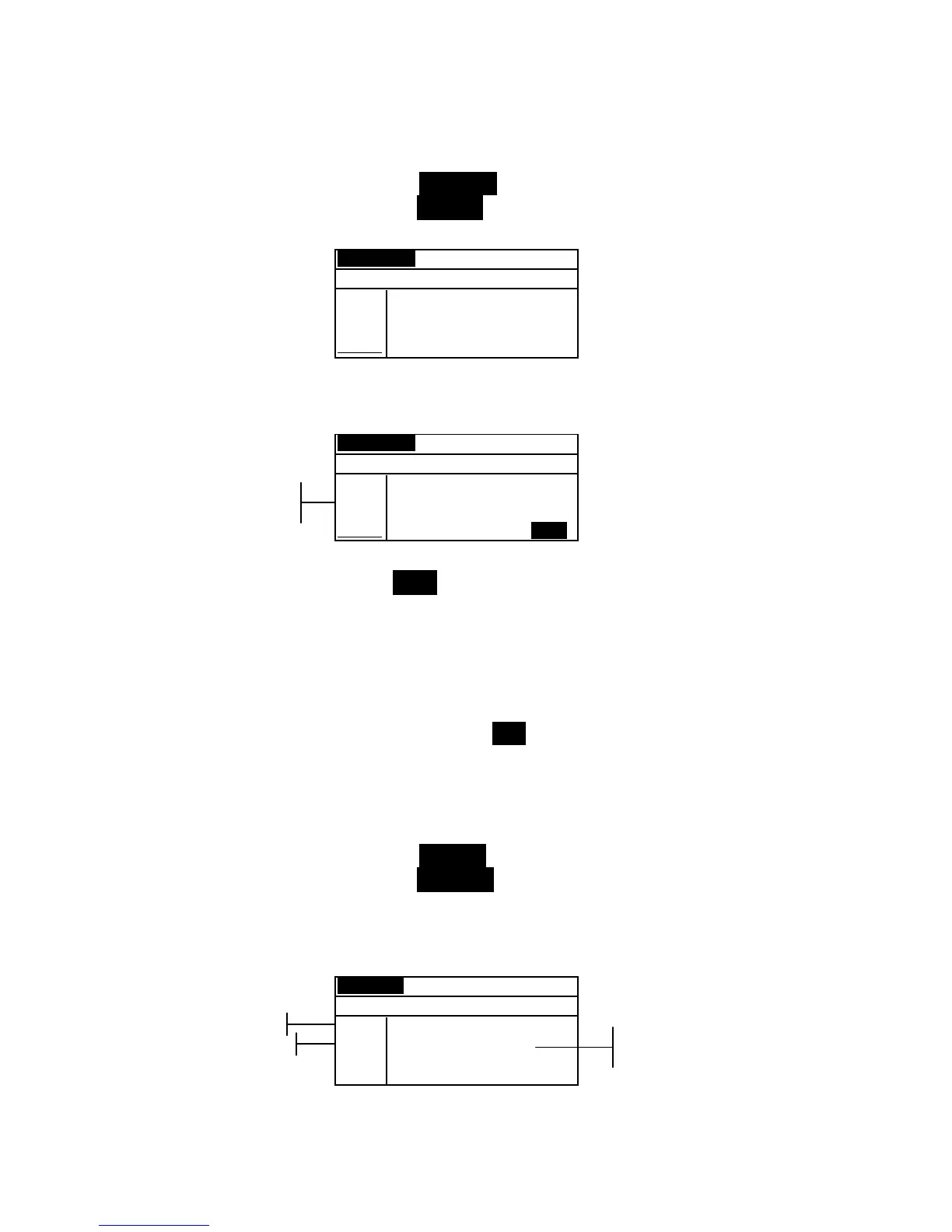
1. Make sure Measure appears in the upper left corner of the
display. If Manual appears, press the Enter key # to
toggle to Measure.
Measure Std : 1
< Measure Standard>
L*a*b*
D65/10
.
.
..
.
.
.
...
L* 0.00
a* +0.00
b* +0.00
2. Position the instrument on the standard and take the
reading. Release the instrument when
Measurement Done
is displayed.
Measure Std : 1
< Measurement Done>
L*a*b*
D65/10
.
.
..
.
.
.
...
L* 23.30
a* –0.25
b*–28.03
SAVE
3. Retake the measurement if necessary, or press the Enter key
# with Save highlighted to store measurement. The screen
automatically advances to the next “empty” standard.
4. Continue with additional measurements.
Locked Standards
When attempting to measure a standard with a locked standard
selected, a
Standard Locked: Create New Standard?
message appears. Select Yes if you want to create a new
standard and press the Enter key #. The standard must be
unlocked if you want to overwrite the existing data. Refer to
Unlocking/Locking Standards later in this section.
Manually Entering Color Data
1. Make sure Manual appears in the upper left corner of the
display. If Measure appears, press the Enter key # to
toggle to Manual.
2. Use the Tab keys $ @ to highlight the color space parameter.
Press the Enter key # to select the desired color space.
Manual Std : 1
< Enter Color Data>
XYZ
A/2
Next
X 0.00
Y 0.00
Z 0.00
SAVE
3. Use the Tab keys $ @ to highlight the illum/obs parameter.
Press the Enter key # to select the desired illum/obs.
Color data
parameters
Color space
attributes
Color space
Ilum/Obs


 To Next Page