INSTRUMENT OPERATION MODES
5-13
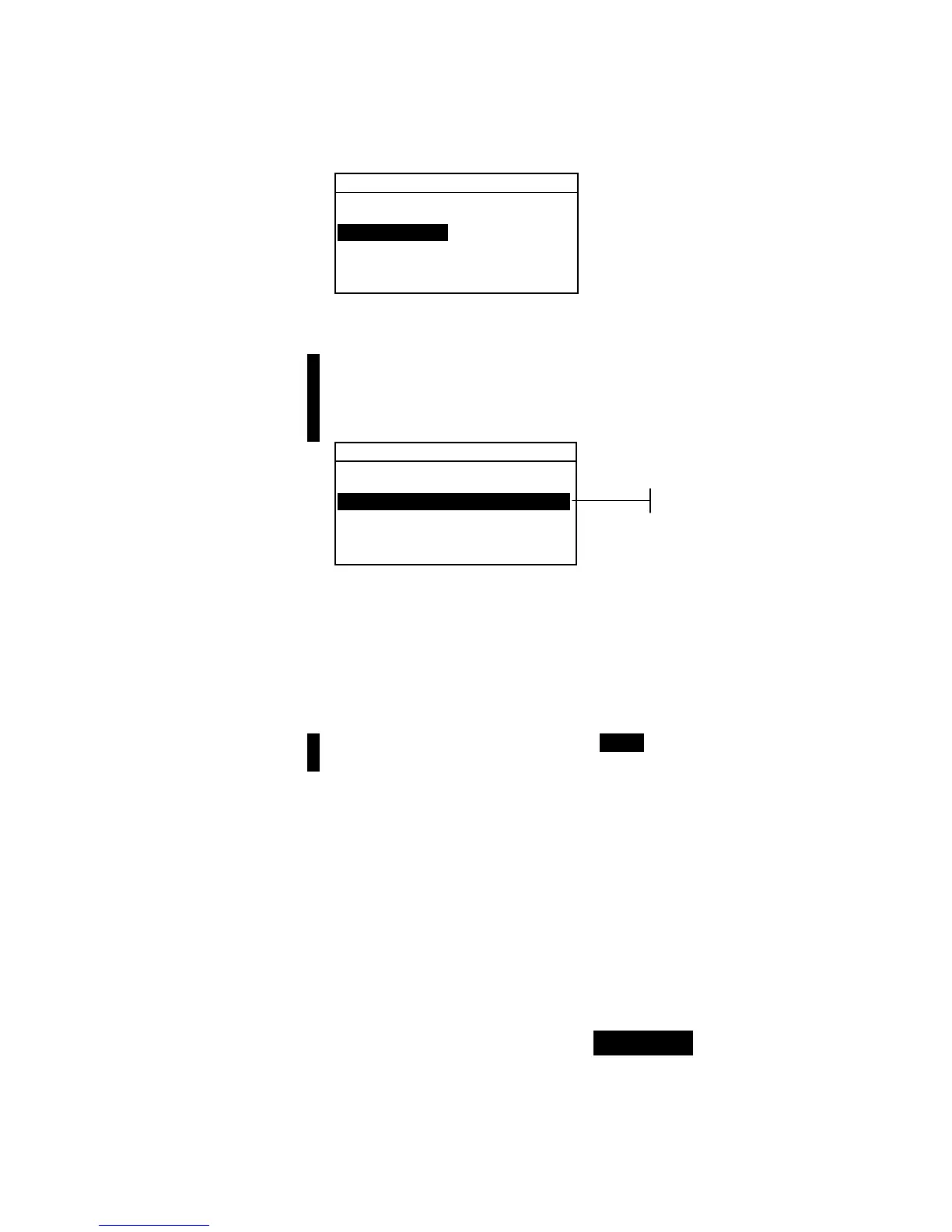
View Project : 1
Project Standards
Proj Name:
Proj Lock:Unlock
Add New Project
Delete This Project
2. Press the Enter key # to access the Edit Project Name
menu.
NOTE: “Project is Locked” appears in the display when
attempting to enter name with the project locked. Refer to
Locking/Unlocking a Project later in this section for additional
information. Press the Enter key # to clear message.
Edit Project Name
CLEAR
↓
o
↑
Save & Exit
3. Use the Tab keys $@ to highlight the name entry field.
4. Use the Tab keys $@ to choose the desired character
location (arrows above and below designate selection).
Press the Enter key # to access the alphanumeric editor.
5. Press the Enter key # again to quickly page through
groups of letters, symbols, and numbers.
NOTE: If editing a name, highlighting CLEAR and pressing the Enter
key # will quickly clear the name field.
6. Use the Tab keys $@ to highlight the desired character and
press the Enter # key to exit the editor.
7. Continue with additional character edits.
8. When editing is completed, use the Tab keys $@ to
highlight
Save & Exit and press the Enter # key.
Locking/Unlocking Project
A locked project cannot be edited. The “locked” status of the
project can be changed whenever desired.
To change the locked status of a project:
1. Use the Tab keys $@ to highlight Proj Lock.
Name entr



 To Next Page