CHAPTER FIVE
5-6
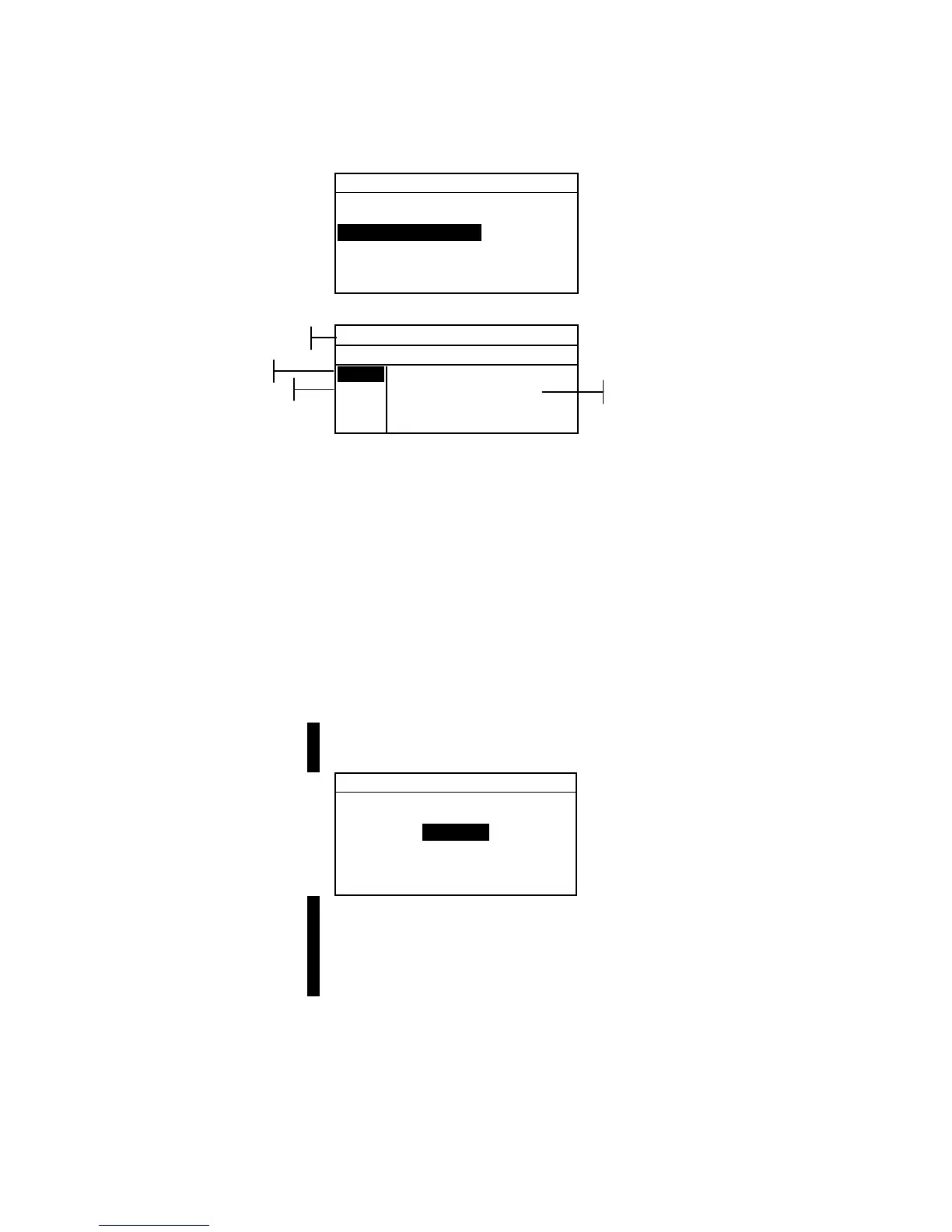
Edit Standard : 1
Std Entry:Empty
Std Name :
Tolerances...
Shade Sort Opts...
Std Lock :Unlocked
Delete THIS Std...
2. Press the Enter key # to access the tolerance entry menu.
± Tol: Std : 1
< Set Equal Limits>
L*a*b*
D65/10
Next
ΔL* ±0.00
Δa* ±0.00
Δb* ±0.00
SAVE
3. Use the Tab keys $ @ to highlight the Tolerance type. Press
the Enter key # to select the desired type.
4. If entering different plus and minus values for L*a*b*,
L*C*h°, etc., use the Tab keys $ @ to highlight the
plus/minus symbol in the upper left of the display. Press
the Enter key # to page through
±, +, or – limit type.
5. Use the Tab keys $ @ to highlight the illum/obs parameter.
Press the Enter key # to select desired illum/obs.
6. Use the Tab keys $ @ to highlight the desired tolerance type
attribute. Press the Enter key # to open
Enter
Symmetric Tol
menu.
NOTE: Depending on Limit Type selection, Plus or Minus could
appear in place of Symmetric.
Enter Symmetric Tol:
CLEAR
↓
0.0000
↑
Save & Exit
NOTE: “Standard cannot be changed” appears in the display
when attempting to edit attributes with the standard locked. Refer to
Locking/Unlocking Standard later in this section for additional
information. Press the Enter key # to clear the message.
7. Use the Tab keys $@ to choose the desired digit (arrows
above and below designate selection). Press the Enter key
# to access the alphanumeric editor.
8. Use the Tab keys $@ to highlight the desired number and
press the Enter # key to exit the editor.
9. Continue with additional digit edits if required.
Ilum/Obs
Tolerance Limit Type
Tolerance Type
Tolerance type attributes


 To Next Page