ZEISS OPERATION Axio Imager 2
Operating the motorized microscope via the touchscreen of the TFT display
124 430000-7544-001 01/2016
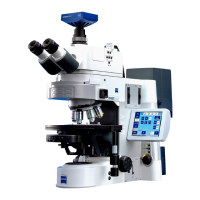
For XY and Z, the two pairs of Set Zero buttons function as follows:
man
Manual zero setting, i.e. the current position is defined as the zero point and the display set to
zero.
auto
Automatic zero setting, i.e. the stage moves into the end position that was defined as the zero
point. The display is then set to zero.
Before the stage moves into the bottom Z end position, the following popup window appears:
"Caution! Remove specimen before stage moves into end position!" Confirm the message with
OK if no specimen is on the stage, or with Cancel to stop stage movement.
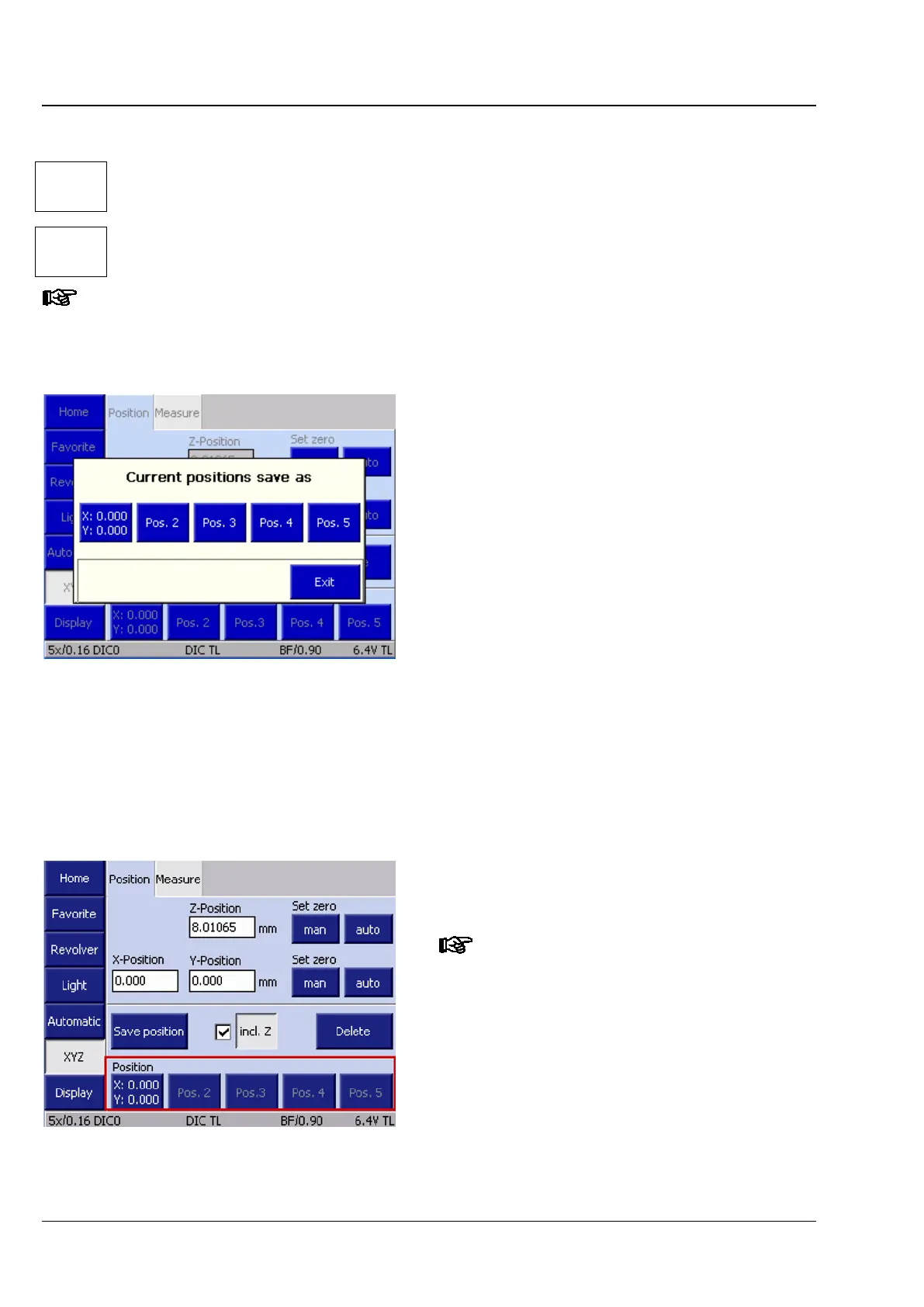
Save Position
Using the Save Position button, the operator can
define coordinate positions for the five lower
position buttons as follows:
• Move to the desired XYZ position.
• If the Z value is to be stored, activate the incl. Z
check box.
• Press the Save Position button. The Current
positions save as pop-up window opens
(Fig. 123).
There are five buttons, Pos.1 ... Pos.5, in the
window. If a button is occupied, the XYZ data
appear as labels, otherwise its number is shown.
• Save the current position by pressing a position
button. If coordinate data have already been
assigned to this button, a safety query appears
asking you if you want to overwrite the stored
data.
• Close the window using the Cancel button.
To delete data, press the Delete button, select the
position button and confirm the safety query with
Yes.
The positions will only be saved
temporarily, i.e. they will be available
only as long as the microscope is
switched on.
Moving to saved position
There are five buttons in the bottom Position
field. Press a button to move to the saved
coordinate position. How to save coordinate
positions is described above in Save position.
Fig. 123 Microscope -> XYZ-> Save Position
Fig. 124 Microscope -> XYZ -> Move to



 To Next Page