8-3
Viewing User Waypoints
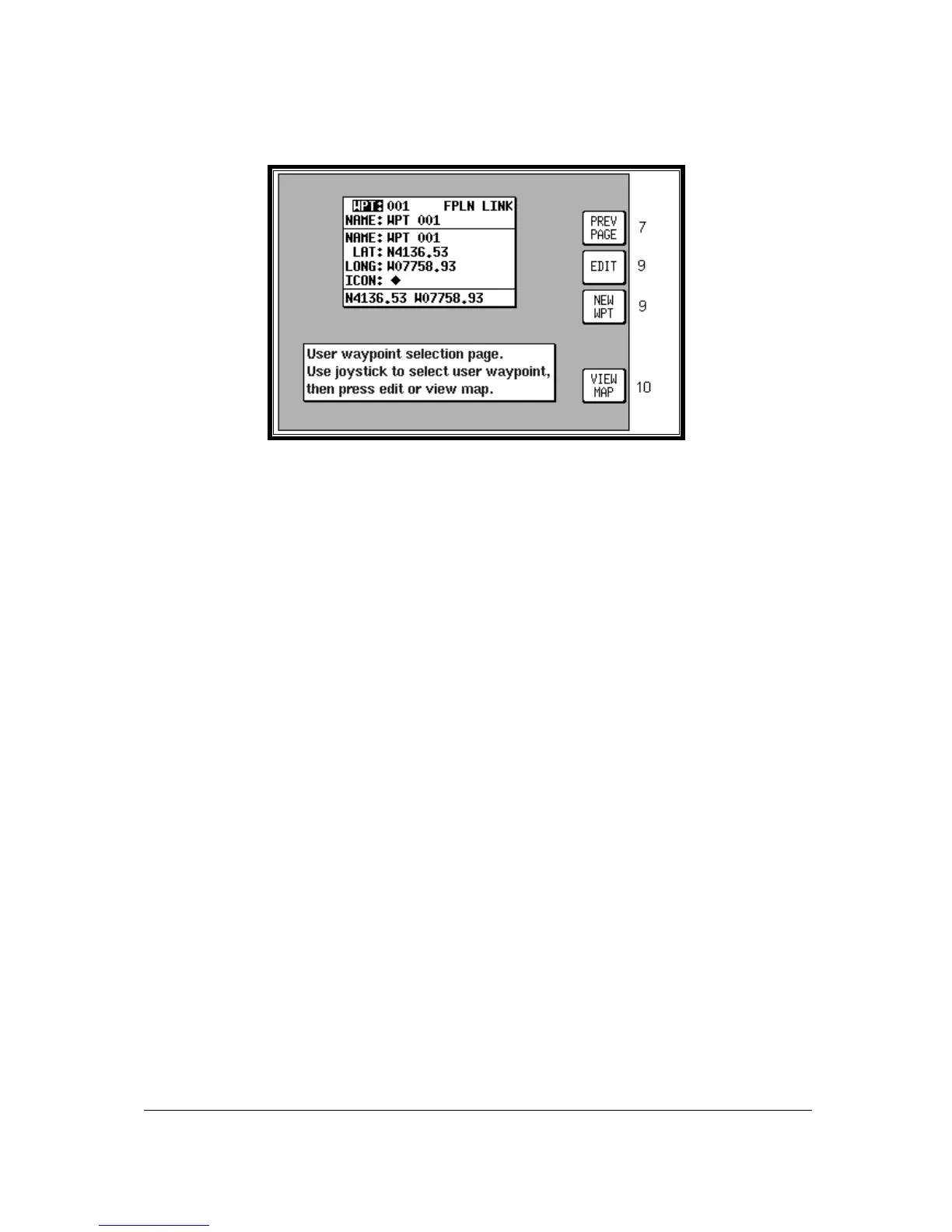
Screen 8: User Waypoint Viewer Screen
Pressing FLIGHT PLAN in Main Menu, followed by USER WPTS, accesses this Screen. When this
Screen appears a cursor will be seen positioned over the WPT field. Use the joystick to increment or
decrement the user waypoint number. (Holding the joystick up or down will increase the speed of
these changes.) Alternatively the joystick can be used to select a user waypoint alphabetically by
name in a similar fashion by moving the cursor down to the NAME: field.
As each user waypoint is selected, the name, latitude, longitude, icon and position fields are updated.
Empty user waypoints will be shown with dashes in the latitude and longitude fields and the default
icon (see Screen 22A, Point Features Data Class Setup Screen, in the Setup Screens Section of this
Manual for details on setting up the default icon style).
As each user waypoint is selected, all stored flight plans are automatically checked to see if that user
waypoint is being used in any current flight plan. If the user waypoint is found within any of the flight
plans, the words [FPLN LINK] will be printed next to the user waypoint number. It is necessary to
think carefully before editing any user waypoint marked FPLN LINK since any changes you make
to the user waypoint are liable also to affect one or more of the programmed flight plans.
If a user waypoint marked FPLN LINK is selected for editing and the Name only is changed, the new
name will be copied over to the relevant parts of the flight plan list. If the name is left the same and the
Latitude and/or Longitude only is changed, the new details will also be copied into the flight plan list.
However, if the Name is changed, along with either the Latitude or Longitude the user waypoint
will be treated as completely new and the details will not be copied to the flight plan list.
This would result in your being left with waypoints in your flight plans that do not exist as user
waypoints. This can be beneficial in some cases as it makes it possible to double the number of user
points in the system to 1000, but it is essential to understand this feature thoroughly and to use it
carefully.
Once a user waypoint has been selected, Key 2 gives access to the Manual User Waypoint Editing
facilities. Key 1 will return to the main Flight Planning Mode Cover Screen. Key 3, NEW WPT shall
invoke the Manual User waypoint editing with the next available empty waypoint. NOTE: Key 3 is
blank if the waypoint database is full. Key 5 displays Screen 10, which is the Graphical User Waypoint
Editing Screen. This shows a map on which the selected user waypoint is central. If the selected user
waypoint is empty, the map will default to the last fix position.


 To Next Page