10-2
The text boxes in the bottom half of the screen gives the following information:
NAV Mode selected (one of six options described above)
Position in plain English
Position in latitude/longitude (or the co-ordinate system selected on the Map Setup Screen)
Track and Ground Speed
GPS Altitude
MSA for the present position
The MSA box displays the highest Grid MORA value within a ten mile radius of your present position at
all times. See Appendix 02 for a more detailed explanation of Grid MORA.
WARNING:
The MSA altitudes displayed are advisory in nature only. They should not be
relied upon as the sole source of obstacle and terrain avoidance information. Always refer to
current aeronautical charts for appropriate minimum clearance altitudes.
Selecting a Flight Plan
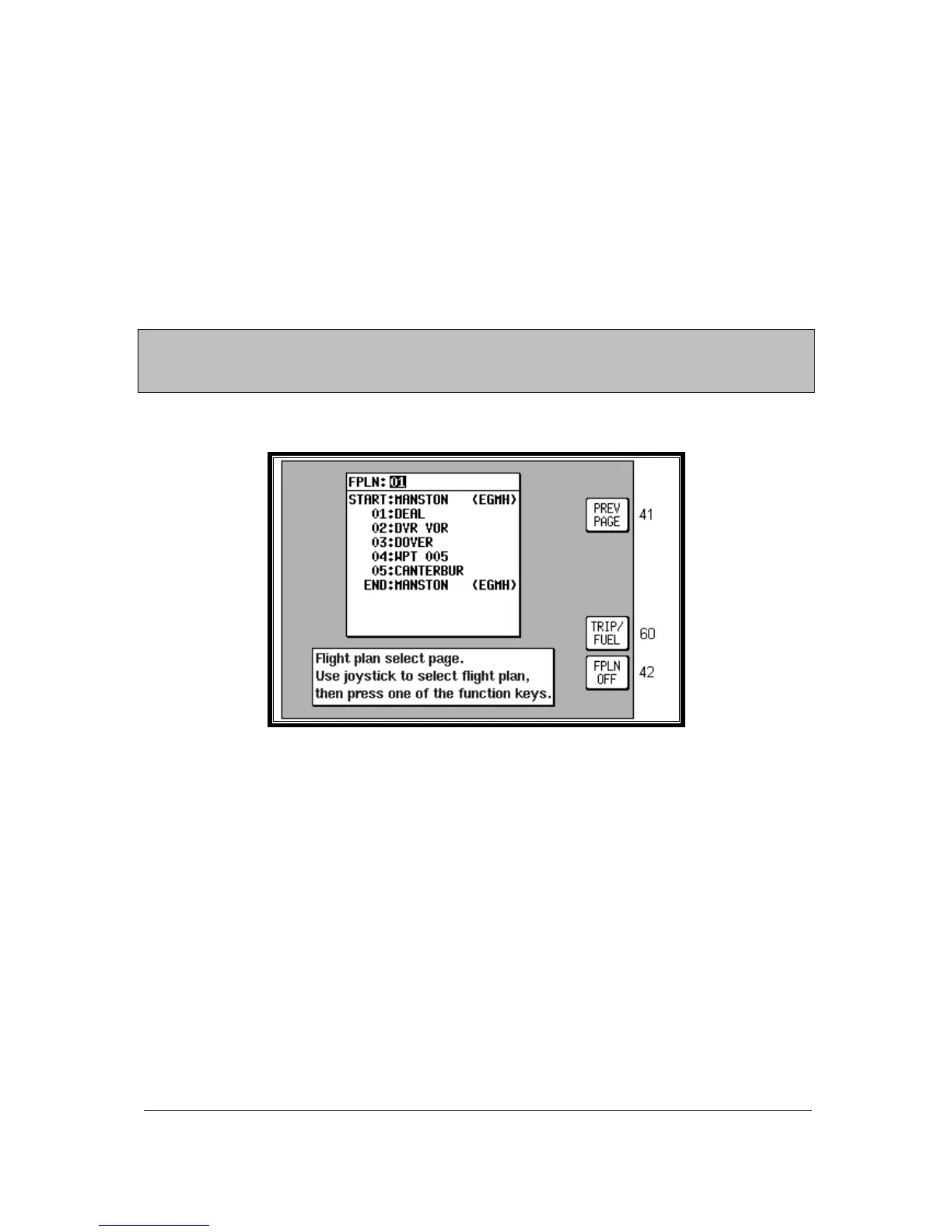
Screen 42: Flight Plan Selection Screen
Pressing Key 2, FLIGHT PLAN, on Screen 41, NAV Menu Cover Screen, enters this Screen. On entry
to this Screen you will see a cursor positioned over Flight Plan Number 01, or if there is a flight plan
already active, its number will be shown instead of the Flight plan last touched. You will see the first
few items of the selected flight plan together with its final destination in the box under the Flight Plan
Number. You can select any flight plan you want by using the joystick to scroll the flight plan number
up or down. You are free to select any one of the 99 available flight plans. If you wish to return to the
NAV Menu Cover Screen (Screen 41) press the PREV PAGE Key 1.
If the selected flight plan is already running, Key 5 will read FPLN OFF. If there is no active flight plan,
Key 5 will be blank and Key 2 will read SELECT. Pressing Key 2 will call Screen 12, Flight Plan
Program/Edit Screen for the selected flight plan. An active flight plan can be switched off at any time by
pressing Key 5, FPLN OFF.
Pressing Key 5 will cancel the active flight plan and allow you to gain access to what was the active flight
plan. (In the interests of safety, the software has been designed not to permit you to edit and fly a flight
plan at the same time.)
Pressing Key 4 gives a shortcut to Screen 60, the E6-B Trip/Fuel Planning Screen (see Trip/Fuel
Planning in the E6B Calculator Section of this Manual for more detail). When Screen 60 is displayed the
flight plan selected on Screen 42 will automatically be shown.


 To Next Page