10-1
10 NAV MENU SCREENS
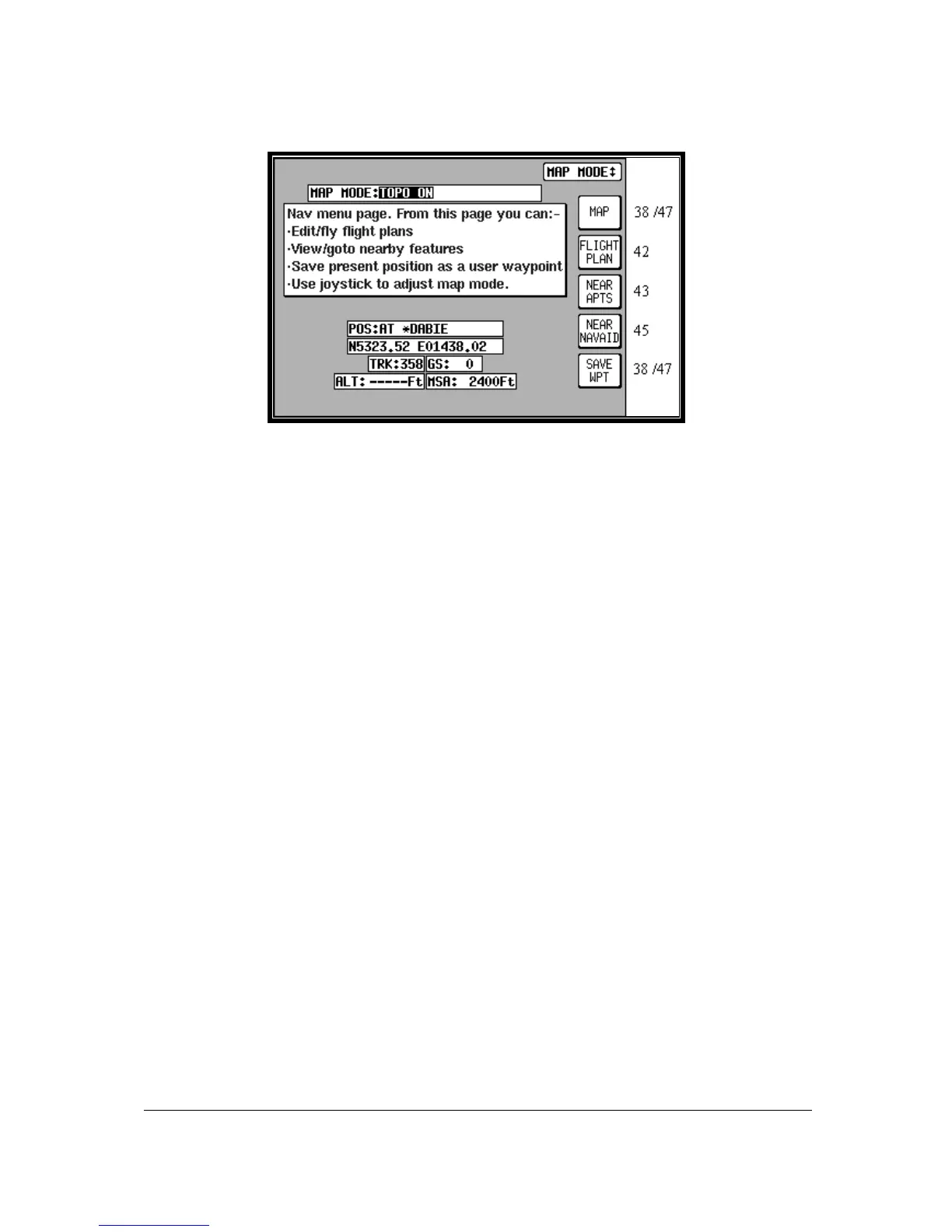
Screen 41: NAV Menu Cover Screen
You can enter this important Screen by pressing Key 4, NAV MENU, while in MAP Mode (on Screen
38 or 47). It is a versatile Screen with several useful functions.
If you move the joystick up or down when in this Screen, the screen layout presented when in Map
Mode with NAV Information (or NAV Mode i.e. flying a flight plan or a DIRECT TO) can be selected to
be one of the following
TOPO ON: Large map, full colour cartography, and small NAV information text.
TOPO ON, LRG TXT: Large map, full colour cartography, and large NAV information text. This will
revert to the TOPO ON large map when the joystick is hit.
TOPO ON, CDI: Pseudo HSI style display, which reverts to TOPO ON large map when joystick is hit.
TOPO OFF: Large map, black background, no cartography, and Jeppesen data only, small NAV
information text.
TOPO OFF, LRG TXT: Large map, black background, no cartography, and Jeppesen data only, large
NAV information text. This will revert to the TOPO OFF large map when the joystick is hit.
TOPO OFF, CDI: Pseudo HSI style display, which reverts to TOPO OFF large map when joystick is
hit.
Please refer to the Map Setup Screens in the Setup Screens Section of this Manual for further
information regarding data settings for each mode.
If you wish to return to your previous Map Mode Screen at any time, press Key 1, MAP.
Key 2, FLIGHT PLAN, gives you direct access to Flight Planning Mode where you can manually select,
cancel and edit flight plans as required.
If you press Key 3, NEAR APTS, you will be presented with Screen 43, Ten Nearest Airports Screen,
on which you can read off the ten airports nearest to your present position.
If you press Key 4, NEAR NAVAID, you will see Screen 45, Ten Nearest Beacons Screen, giving you
details of the ten VOR’s and NDB’s nearest to you. For more information on Screens 43 and 45 refer
to the Ten Nearest later on in this Section of the Manual. When a DIRECT TO is active, Key 4 will read
CENTER CDI which centres the CDI. The NEAR NAVAID function will still be available via the NEAR
APTS function.
If you wish to save your present position, press Key 5, SAVE WPT, and your co-ordinates will be
saved as the next available user waypoint number. Once the user waypoint has been saved, the
Screen will revert to Map Mode (Screen 38 or 47) where the new user waypoint will already feature on
the map.


 To Next Page